 HF Panel
Writing mail
Write, reply to and forward messages in HF Mail, with Cc and Bcc, attachments, drafts and your signature.
Click Compose at the top of the side menu (on a phone, the round pen button at the bottom right) to write a new message.
Where: HF Mail › Compose
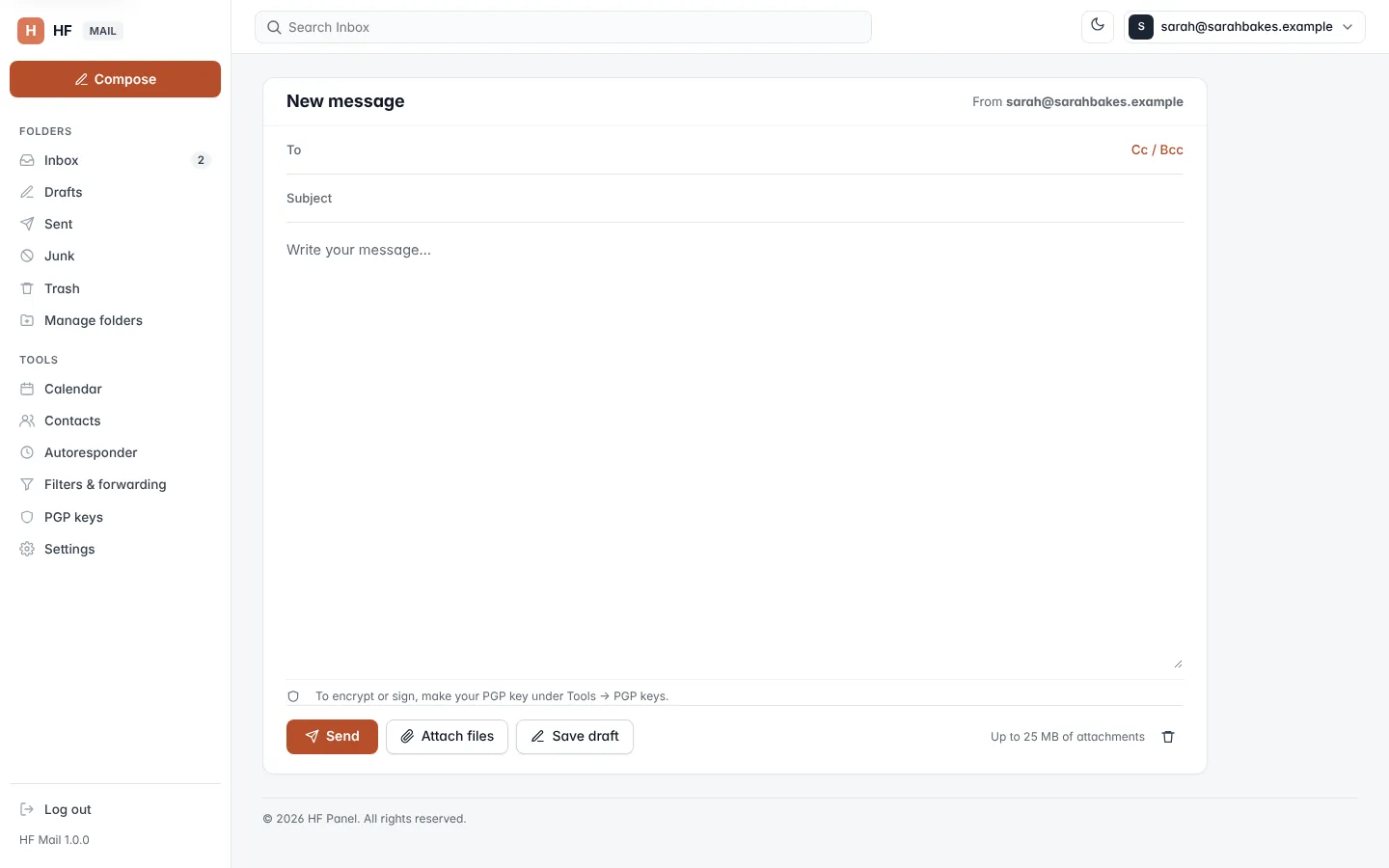
Write a message
- Click Compose.
- In To, type the address. Suggestions from your contacts appear as you type. Separate several addresses with commas.
- To add copies, click Cc / Bcc and fill in Cc and Bcc.
- Type a Subject (up to 250 characters) and your message.
- Click Send.
The message is sent from your address, with the name set in Settings. A copy is saved in Sent, and you return to the Inbox.
| Limit | Value |
|---|---|
| Recipients per message (To, Cc and Bcc together) | 100 |
| Attachments per message | 25 MB in total |
Note: if the message was sent but could not be saved in Sent, you see Sent, but not saved to Sent with the reason. The message has still gone.
Reply and forward
Open a message, then click:
| Button | What it does |
|---|---|
| Reply | answers the sender |
| Reply all | answers the sender and everyone else in To and Cc |
| Forward | sends the message on to someone else, with its attachments |
The original text is quoted under your answer. When you reply, the original message is marked as answered.
Attach files
- Click Attach files and choose one or more files.
- The files are uploaded and listed under the message.
To take a file off again, tick remove next to it. It is removed when you send or save the draft.
The limit for all attachments together is shown next to the buttons (Up to 25 MB of attachments).
Drafts
Click Save draft to keep the message in Drafts and carry on later. The heading changes to show it is a draft. To finish it, open Drafts and click the message: it opens in the editor.
To throw a message away, click the bin button at the right and confirm. If you try to leave the page with unsaved changes, HF Mail asks first.
Tip: a message you are writing is kept on the server only for a limited time. If you see This draft expired — please write it again., save drafts more often.
Signature
Your signature is added to new messages and replies. Set it in Settings.
Encrypt or sign
When you have a PGP key, the editor shows Encrypt and Sign choices under the message. See PGP keys.
Contacts are added for you
People you write to are added to your contacts automatically. You can turn this off in Settings (Add people I write to to my contacts).