 HF Panel
Managing files
Upload, create, rename, copy, move, delete and download files and folders in HF Files.
Everything you do in HF Files happens in the folder you have open. Select entries with their tick boxes to act on several at once, or use the More menu (⋯) on one entry.
Where: HF Files
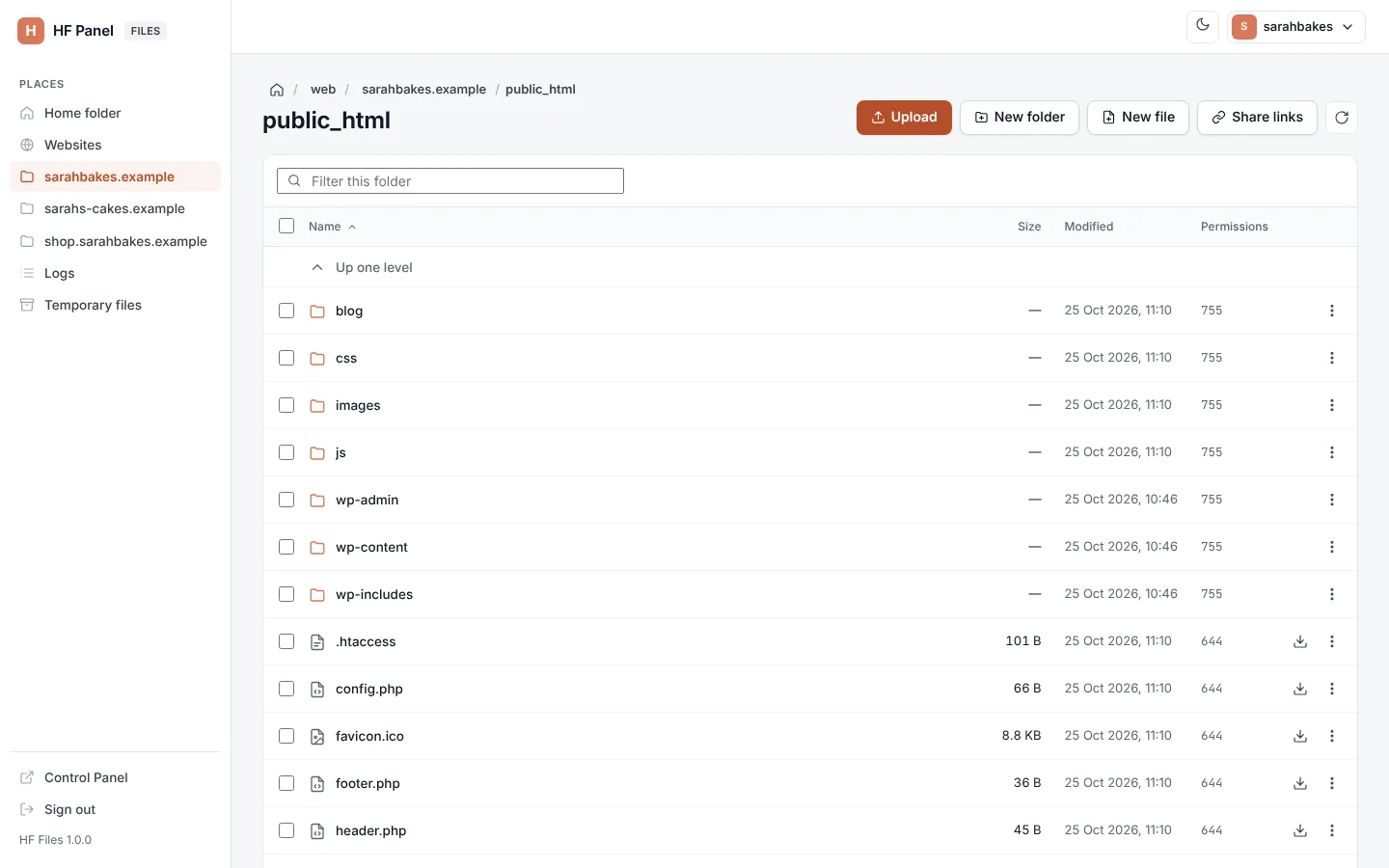
Upload files
- Open the folder to upload into.
- Click Upload and choose one or more files, or drag files from your computer onto the folder view (Drop to upload to … appears).
- Watch the progress in the corner. Click Cancel to stop an upload.
When it finishes you see n file(s) uploaded. A file with the same name is replaced.
| Limit | Value |
|---|---|
| One upload (all files together) | 1 GB |
| Your account's disk space | uploads stop when the account is full |
Tip: folders can't be dropped. Zip the folder on your computer, upload the
.zipand use Extract here. For very big files, use SFTP.
Create a folder or file
- Click New folder (or New file).
- Type the Folder name (or File name) and click Create.
A new file is empty; click it to open it in the editor.
Actions on one entry
Click the More button (⋯) at the end of a row:
| Action | What it does |
|---|---|
| Open / Edit | opens a folder, or a text file in the editor |
| Preview | shows a picture, with its size and date |
| Download | saves the file to your computer |
| Rename | type the New name and click Rename |
| Make a copy | type the name for the copy in Make a copy named and click Copy |
| Move | moves it to another folder (see below) |
| Zip | packs it into a .zip archive |
| Extract here | (.zip files) unpacks the archive into this folder |
| Share link | makes a public download link (see Share links) |
| Permissions | changes who can read, write and run it (see Archives and permissions) |
| Delete | deletes it |
Files also have a download button in their row.
Act on several entries
- Tick the entries, or the box in the heading row to select every entry shown.
- Use the buttons that appear above the list:
| Button | What it does |
|---|---|
| Download | (one file selected) downloads it |
| Zip | packs the selected entries into one archive |
| Move | moves them to another folder |
| Delete | deletes them |
| Clear selection | unticks everything |
Keyboard: Delete deletes the selected entries (after you confirm), Esc clears the selection.
Move entries
- Choose Move.
- In Move to folder, type a folder in your home, for example
/web/example.com/public_html. - Click Move.
You see n item(s) moved to ….
Delete entries
Choose Delete and confirm. Folders are deleted with everything in them.
Warning: deleting in HF Files is permanent. There is no trash or undo. Make a copy or a backup first if you may need the file again.
Download
- One file: the download button on its row, or Download in its menu.
- A folder or several files: Zip them, then download the
.zip. Or make a share link to the folder; it downloads as a zip file.