 HF Panel
DNS templates
Write DNS record sets that customers apply to a domain in one step, and copy or hide the built-in templates.
A DNS template is a set of DNS records that a customer applies to one of their domains in one step, for example everything needed to receive mail at an outside provider. Customers find the templates in their Control Panel under DNS templates & import, and see a preview before anything changes. On this screen you write your own templates and decide which built-in ones customers see.
Where: Server Admin › Hosting › DNS templates
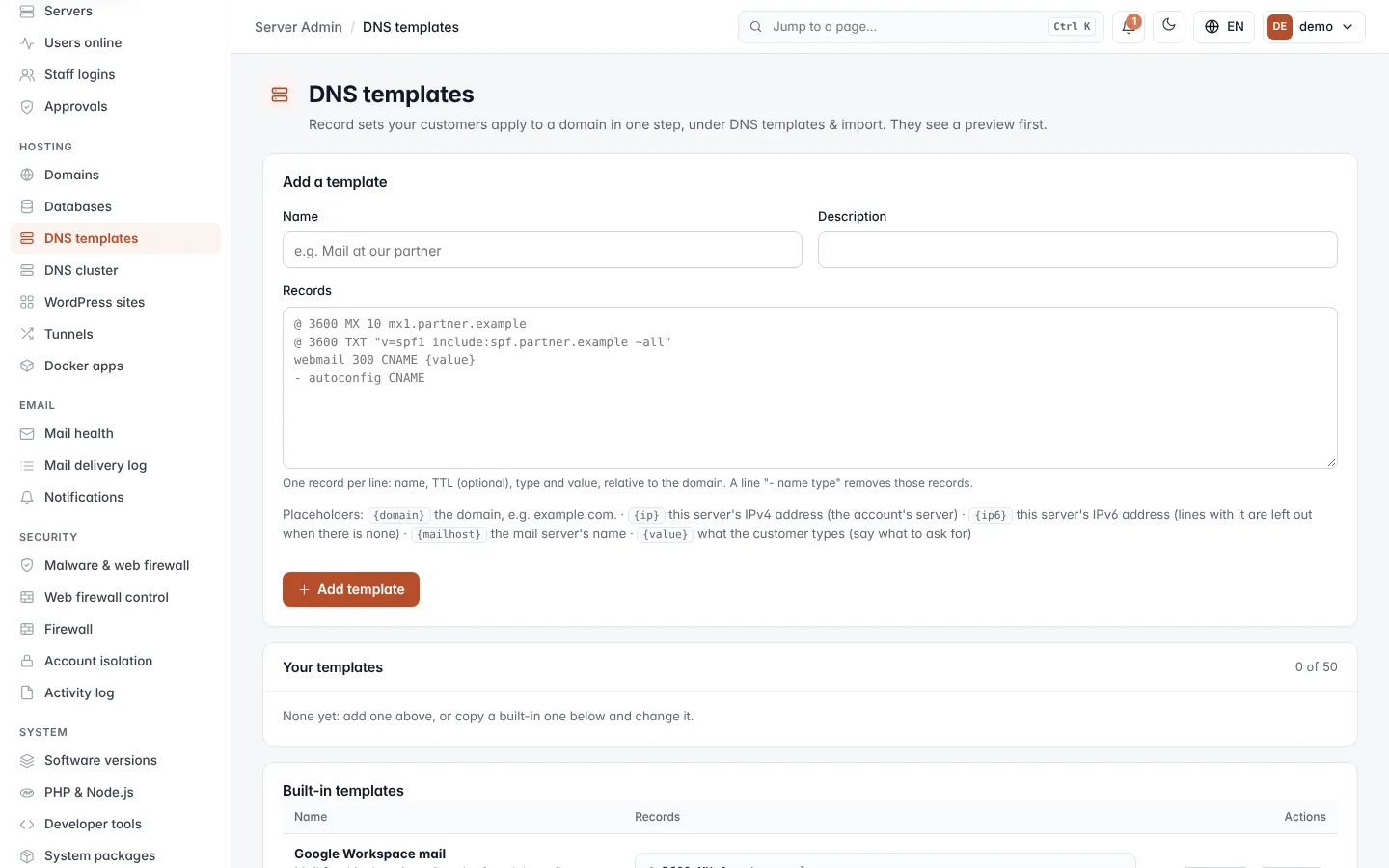
Templates saved by an administrator are offered to every customer on the server. Resellers have the same screen; their templates are shown only to their own customers, and they also see the administrators' templates (read-only) under From the server administrators.
Built-in templates
Every server comes with these templates:
| Template | What it sets |
|---|---|
| Google Workspace mail | Google's mail server (MX) and SPF record. |
| Microsoft 365 mail | The Microsoft 365 MX host (the customer types it), SPF and Autodiscover for Outlook. |
| Mail on this server | MX, SPF and the set-up names mail apps use (autoconfig, autodiscover). |
| Website on this server | The domain and www pointing to this server. |
| Website elsewhere | The domain and www pointing to another web server (the customer types its IPv4 address). |
Hide a built-in template
- Find the template under Built-in templates.
- Click Hide.
The template gets a Hidden label and is no longer offered to any customer. Click Show to offer it again. Only administrators can hide or show built-in templates.
Add a template
- Fill in the Add a template form at the top of the screen (see the fields below).
- Click Add template.
| Field | What it does |
|---|---|
| Name | What customers see in the list. Up to 80 characters. Required. |
| Description | One line on what the template is for. Up to 300 characters. |
| Records | One record per line: name, TTL (optional), type and value, relative to the domain. A line - name type removes those records. Up to 50 lines. |
| What to ask the customer for {value} | Shown only when the records use {value}. The question the customer answers, up to 200 characters. Required in that case. |
Example records:
@ 3600 MX 10 mx1.partner.example
@ 3600 TXT "v=spf1 include:spf.partner.example ~all"
webmail 300 CNAME {value}
- autoconfig CNAME
Placeholders
| Placeholder | Replaced with |
|---|---|
{domain} |
The domain, for example example.com. |
{ip} |
The IPv4 address of the account's server. |
{ip6} |
The server's IPv6 address. Lines that use it are left out when the server has none. |
{mailhost} |
The mail server's name. |
{value} |
What the customer types. Say what to ask for in What to ask the customer for {value}. |
The records are checked when you save. If a line is wrong, the message names the line number and the problem, for example an unknown placeholder.
Note: you can keep up to 50 templates of your own. The counter next to Your templates shows how many you have.
Change a built-in template
Built-in templates cannot be edited directly. Copy one and change the copy:
- Click Copy next to the template.
- The copy is saved under Your templates with "(copy)" added to its name, and opens in the form.
- Change it and click Save.
If you want customers to see only your version, hide the original.
Edit or delete your own template
- Click Edit next to the template, change the form and click Save. Click Cancel to leave without saving.
- Click Delete and confirm to remove the template.