 HF Panel
Cron jobs
Run commands on a schedule as your account with the visual schedule builder, preview the next runs, and email the output.
The Cron jobs screen runs a command on a schedule — for example a WordPress or Laravel task runner. Commands run as your account.
Where: Control Panel › Software › Cron jobs
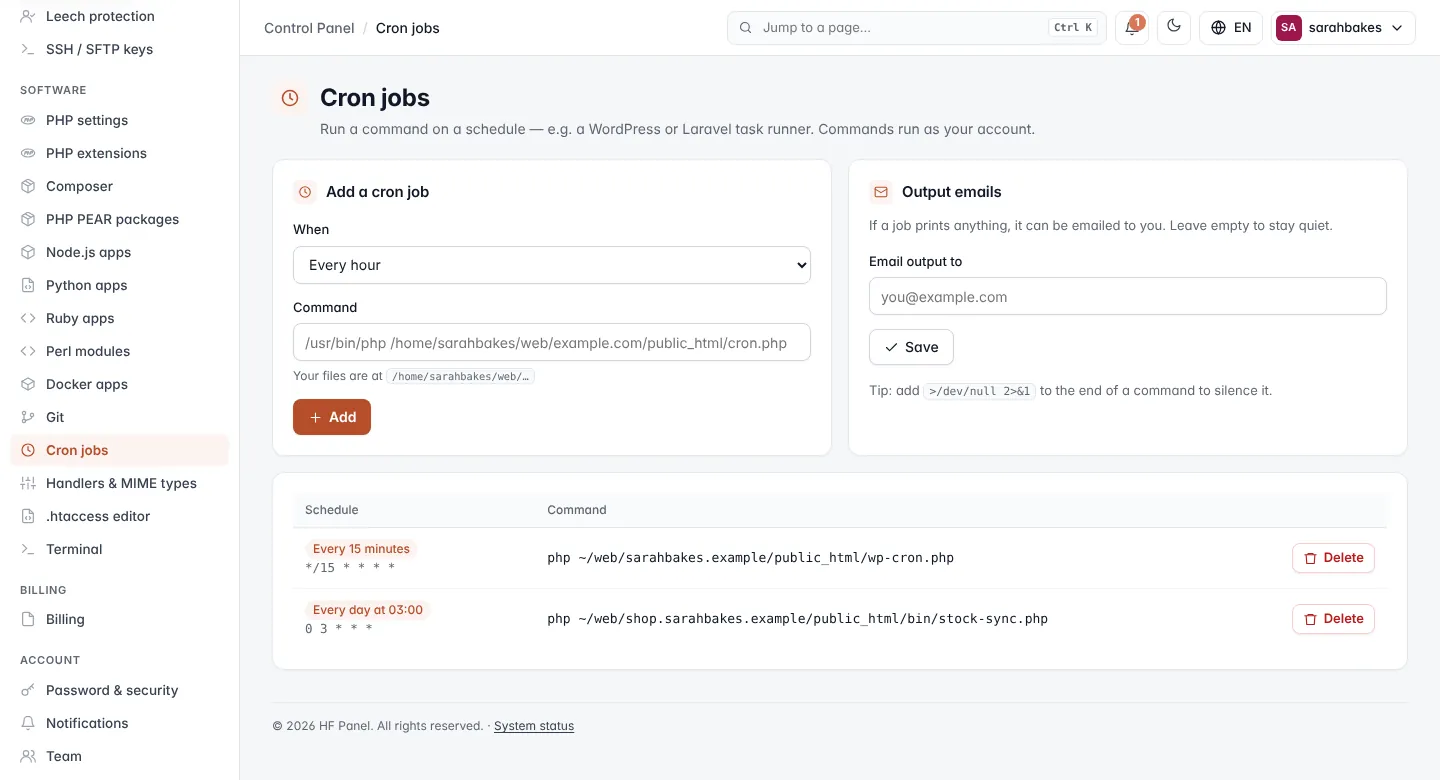
Add a cron job
-
Under Add a cron job, choose how often it Repeats:
Choice You set Example schedule Every few minutes Every … minutes (1–59) */15 * * * *Every few hours Every … hours (1–23) and At minute 30 */6 * * *Daily Time 0 3 * * *Weekly Days and Time 0 3 * * 1,5Monthly Day of the month (1–31) and Time 0 3 1 * *Custom (advanced) the Custom schedule in five fields — minute hour day month weekday */10 9-17 * * 1-5Under the choices the schedule is shown in words (for example Every Monday at 03:00) with its five fields, and the next 5 run times in the server's time zone (its name and UTC offset are shown), so you can see exactly when the job will run. In Custom (advanced) the keywords
@hourly,@daily,@weekly,@monthly,@yearlyand@rebootalso work. A month without the chosen day (31 in April) is skipped. -
Enter the Command, for example
/usr/bin/php /home/sarahbakes/web/example.com/public_html/cron.php. Your files are at/home/<your username>/web/…. Hints appear under the field while you type when something looks wrong: a%sign (cron cuts the command there — write\%or use a script),sudo(jobs run as your account), a program without its full path, or a path outside your home folder. -
Or open Common commands, choose one and a Website, and click Use this command:
Command What it fills in WordPress cron (wp-cli) cd /home/sarahbakes/web/example.com/public_html && wp cron event run --due-now --quietLaravel scheduler cd /home/sarahbakes/web/example.com && /usr/bin/php8.3 artisan schedule:run >/dev/null 2>&1(the folder abovepublicwhen the website's folder ends inpublic)PHP script in a website /usr/bin/php8.3 /home/sarahbakes/web/example.com/public_html/cron.php(enter the Script path)The PHP binary is the website's PHP version.
-
Click Add.
| Rule | Detail |
|---|---|
| Command | one line, up to 900 characters |
| Jobs | at most 50 per account |
Tip: for WordPress, the wp-cli command is the reliable way to run its scheduled tasks; you can then switch off WordPress's own page-load cron with
define('DISABLE_WP_CRON', true);inwp-config.php.
Output emails
If a job prints anything, it can be emailed to you.
- Under Output emails, enter the address in Email output to, or leave it empty to stay quiet.
- Click Save.
Tip: add
>/dev/null 2>&1to the end of a command to silence it.
Your cron jobs
The table shows each job's Schedule (in words, with the five fields) and Command. Click Delete and confirm to remove a job.
Monitoring
Every job is monitored unless you switch it off: each run's start, exit code, duration and the first 16 KB of its output are recorded, and the Monitor column shows Working, Failed, Did not run or No run yet, with the last and the next run.
- Run now runs the job at once as your account (at most 2 minutes) and shows its exit code and output.
- History shows the last 50 runs with their output.
- Monitoring switches it on or off and sets the Grace time (minutes) — how late a run may start before it counts as missed (15 by default).
You are notified (by email unless you chose other channels under Notifications) when a job ends with an error (Cron job failed) or does not start within its schedule and grace time (Cron job did not run) — once, until it works again.
Note: a command with a
%sign can't be monitored (cron would cut it there); put it in a script.