 HF Panel
Folders and search
Create, rename and delete folders in HF Mail, and search the open folder by sender, recipient, subject or text.
Your mailbox has five special folders, and you can add your own folders and sub-folders to file your mail.
Where: HF Mail › Manage folders (side menu)
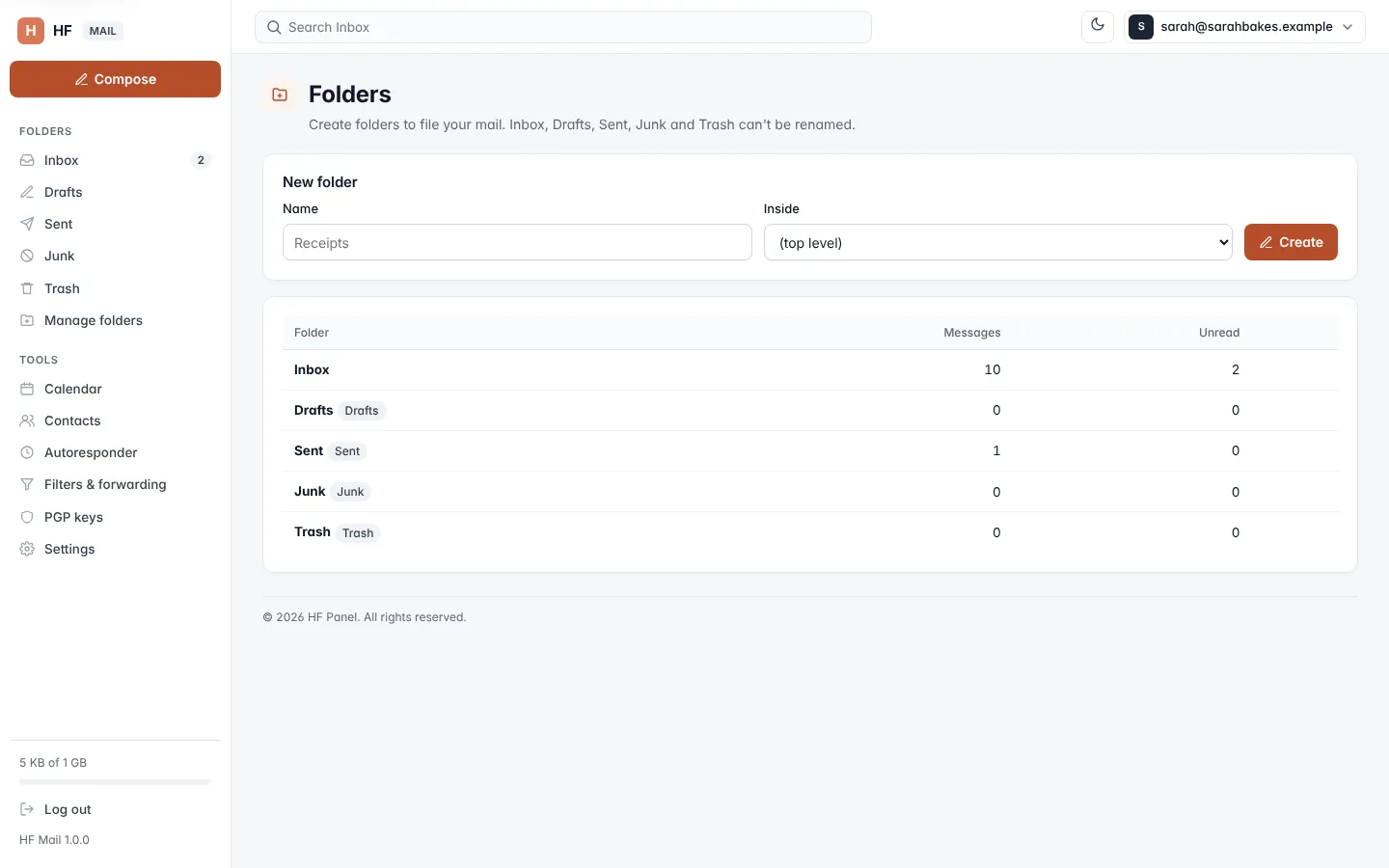
The special folders
| Folder | What it holds |
|---|---|
| Inbox | new mail |
| Drafts | messages you saved to finish later |
| Sent | copies of the messages you send |
| Junk | mail the spam filter caught, and messages you marked as spam |
| Trash | deleted messages |
Inbox, Drafts, Sent, Junk and Trash can't be renamed or deleted. HF Mail recognises them by their role on the mail server, so mail apps and webmail use the same folders.
Create a folder
- Click Manage folders in the side menu.
- Under New folder, type a Name (up to 60 characters).
- To make a sub-folder, choose its parent in Inside; leave (top level) for a main folder.
- Click Create.
Folder names can't contain \ / * % or ", and two folders can't have the same name. Sub-folders are shown indented
in the side menu.
Rename or delete a folder
- Click Manage folders.
- Click Manage ▾ next to the folder.
- To rename it, type the New name and click Rename.
- To delete it, click Delete folder. If it still holds messages, first tick Also delete its n messages.
Warning: deleting a folder with Also delete its messages ticked deletes those messages permanently.
The table on the same page shows each folder's Messages and Unread counts.
Move messages to a folder
Select messages in the list (or open one), choose the folder in Move to… and click Move. To file mail automatically as it arrives, use a filter.
Search
- Open the folder you want to search.
- Type in the search box at the top (Search Inbox, Search Sent…) and press Enter.
Search looks in the open folder only. The results page shows how many messages match, and lets you narrow down where to look:
| Search in | Looks at |
|---|---|
| Everything | the whole message: headers and text (the default) |
| From | the sender |
| To | the recipients |
| Subject | the subject |
| Message text | the body of the message |
You can combine a search with the Unread and Flagged tabs. Click Clear search to see the whole folder again.
Tip: press
/anywhere to jump to the search box. See Keyboard shortcuts.
Storage
The bottom of the side menu shows how much of your mailbox's storage you use (for example 1.2 GB of 5 GB). The bar turns red above 90%. When there is no limit, only the space used is shown. The limit is set by whoever manages your hosting.