 HF Panel
Git
Clone Git repositories over HTTPS, pull updates, switch branches and deploy a repository to a website folder.
The Git screen (titled Git version control) clones a repository from GitHub, GitLab or Bitbucket, pulls
updates and deploys them to a website. Repositories live in ~/web/repositories in your home.
Where: Control Panel › Software › Git
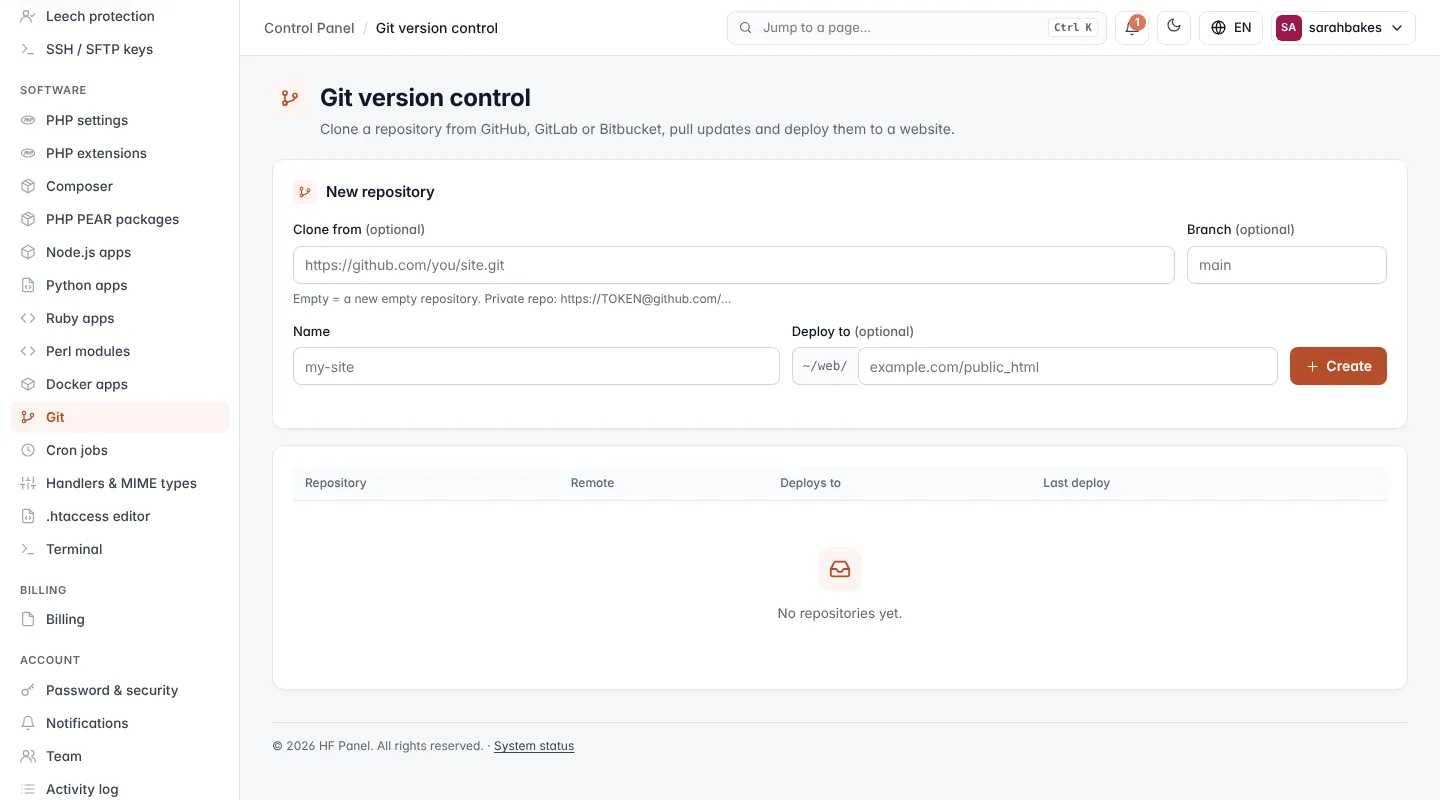
Create a repository
- Under New repository, enter the address in Clone from (optional), for example
https://github.com/you/site.git. Leave it empty for a new empty repository. - Enter a Branch (optional) to clone only that branch, for example
main. - Enter the Name, for example
my-site. - Optionally enter Deploy to — a website folder inside
~/web/, for exampleexample.com/public_html. Your website folders are suggested as you type. - Click Create.
The repository is ready in ~/web/repositories/<name>.
| Field | Rules |
|---|---|
| Clone from | an https:// address, up to 300 characters. For a private repository put a token before the host: https://TOKEN@github.com/…. The token is not stored with the address. |
| Branch | letters, numbers, ., _, / and -, up to 100 characters |
| Name | lowercase letters, numbers, _, . and -, up to 40 characters |
The repositories table shows each Repository, its Remote (or local), where it Deploys to and the Last deploy. Click Manage to open one.
Work with a repository
The repository page shows its Branch, Remote, Uncommitted changes, Folder and the Clone over SSH
address (sarahbakes@<server>:web/repositories/<name>). All repositories goes back to the list.
- Pull updates fetches the latest commits from the remote (only when it has one). The message shows the commit it is now at.
- Switch branch — choose a branch and click it (when there is more than one branch).
Recent commits lists the latest commits with their hash, subject, author and date.
Deploy to a website
Deploy copies the repository's files (without .git) into a website folder.
- In Deploy to, enter the folder inside
~/web/, for exampleexample.com/public_html. - Click Save folder. Leave the box empty and save to stop deploying.
- Click Deploy now and confirm.
Files with the same name in the website folder are overwritten. The card shows when the repository was last
deployed. The deploy folder cannot be inside repositories.
Tip: to deploy automatically on every push, with a deploy script and a preview address for every branch, use Deploys & previews.
Delete a repository
- Under Delete repository, type the repository name.
- Click Delete.
Deployed files are kept.