 HF Panel
My brand
Show your own brand, logo, panel address and nameservers to your customers, see your pools and set customer disk quotas.
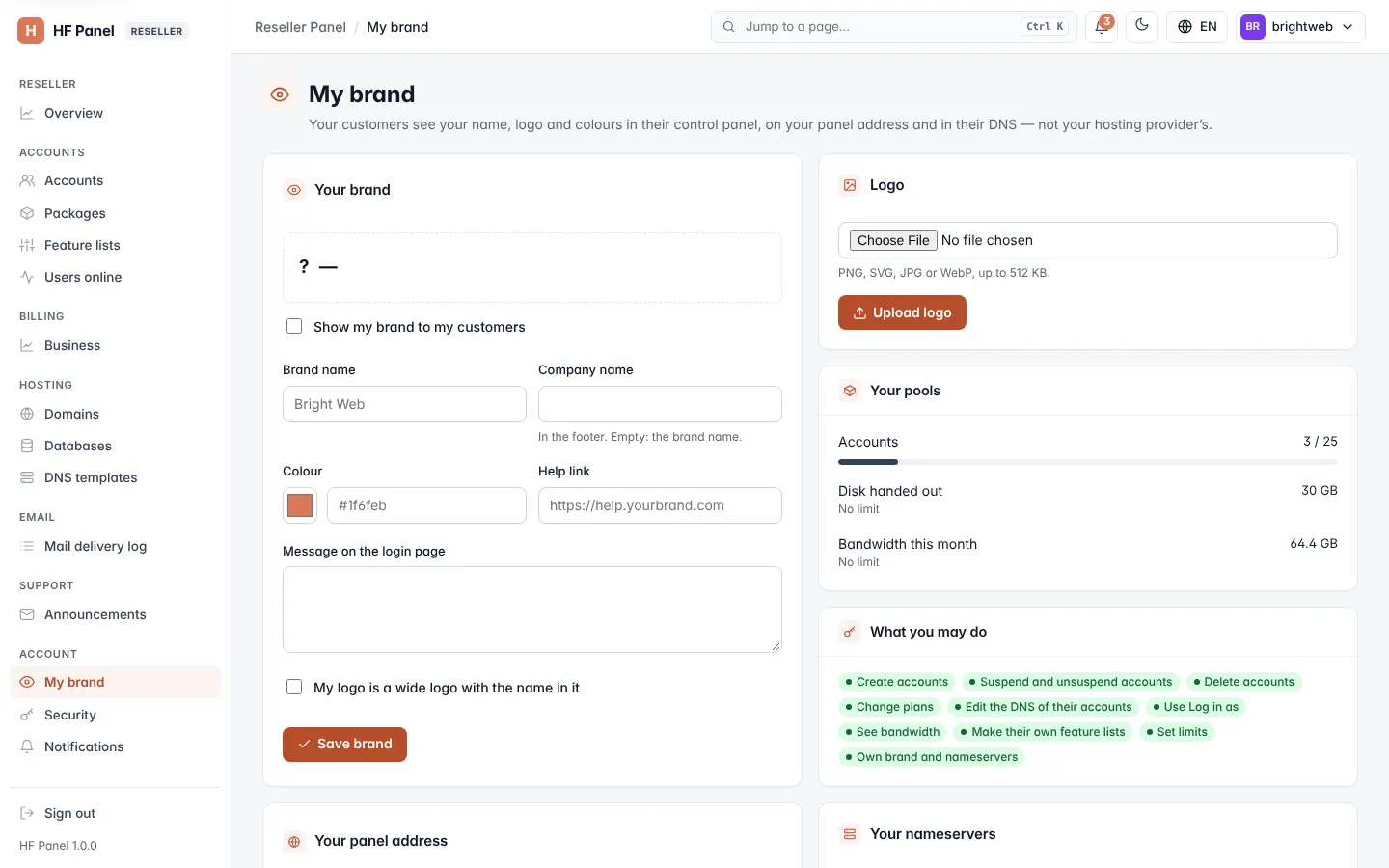
My brand makes your customers see your name, logo and colours in their Control Panel, on your panel address and in their DNS — not your hosting provider's. It also shows your pools and privileges, and lets you give single customers a lower disk quota.
Where: Reseller Panel › Account › My brand
Note: the brand, logo, panel address and nameserver forms need the Own brand and nameservers privilege. If the screen says Your hosting provider has not given you your own brand and nameservers, they are switched off.
Your brand
- Tick Show my brand to my customers.
- Enter the Brand name (up to 60 characters; it must be your own name, not the default).
- Optionally enter the Company name for the footer (empty: the brand name).
- Choose the Colour with the picker or type it, for example
#1f6feb. - Optionally enter a Help link (it must start with
https://) and a Message on the login page (up to 300 characters). - Tick My logo is a wide logo with the name in it if your logo already contains the name.
- Click Save brand.
The preview shows the brand as your customers see it in their menu. With the box unticked, your customers see the server's brand.
Logo
- Under Logo, choose a PNG, SVG, JPG or WebP file of up to 512 KB.
- Click Upload logo.
Your customers see it in their panel, on the login page of your panel address and as the browser icon. An SVG must not contain scripts. Remove logo removes it after you confirm.
Your panel address
Give your customers their own sign-in address, for example panel.yourbrand.com, with optional webmail and files
names, your website for the bare name and a sender name for their emails. The server checks the DNS, gets the
certificate and, once the name points here, uses it in your customers' links and emails. See
Your panel address.
Your nameservers
Your customers' domains can show your own nameservers, for example ns1.yourbrand.com and ns2.yourbrand.com.
- Enter Nameserver 1 and Nameserver 2 (two different names).
- Click Save nameservers.
Your customers' zones are written again to list them. Leave both empty to use the server's nameservers (shown on the screen).
Then create the glue records at your domain's registrar — your registrar may call them "child nameservers", "host records" or "register nameservers". Create each name with the IP address shown. When your domain is hosted on the server, the A record is added to its zone for you; otherwise also add an A record for each name where your domain's DNS is.
Your pools
Your pools shows what the administrator lets you hand out, and how much is used:
| Line | What it shows |
|---|---|
| Accounts | your accounts, of your account limit |
| Disk handed out | the disk sizes of your customers' plans, of your disk pool |
| Disk used | with overselling on: what your customers really use, of your disk pool |
| Bandwidth this month | your customers' traffic this month, of your bandwidth pool |
What you may do
This card lists every reseller privilege, marked as given or not. See Reseller Panel for what each one allows.
Disk quotas of your customers
With the Set limits privilege, you can give a customer less disk than their plan.
- Find the customer in Disk quotas of your customers (it shows their plan and use).
- Enter the quota in MB — from 100 MB up to the plan's size — or 0 for the plan's size.
- Click Save.
The quota stays while the customer keeps that plan. Changing their plan brings back the plan's size.