 HF Panel
Backups
Schedule nightly backups of every account, copy them to S3-type object storage, keep copies of the panel data and test that backups restore.
HF Panel backs up every customer account each night: files, databases, email, cron jobs and settings. The backups
are kept on the server in /var/backups/hostfog. On the Backups screen you set the schedule and how long backups
are kept, copy them to object storage off the server, keep copies of the panel's own data, check that backups can
really be restored, and see every account's backups.
Where: Server Admin › System › Backups
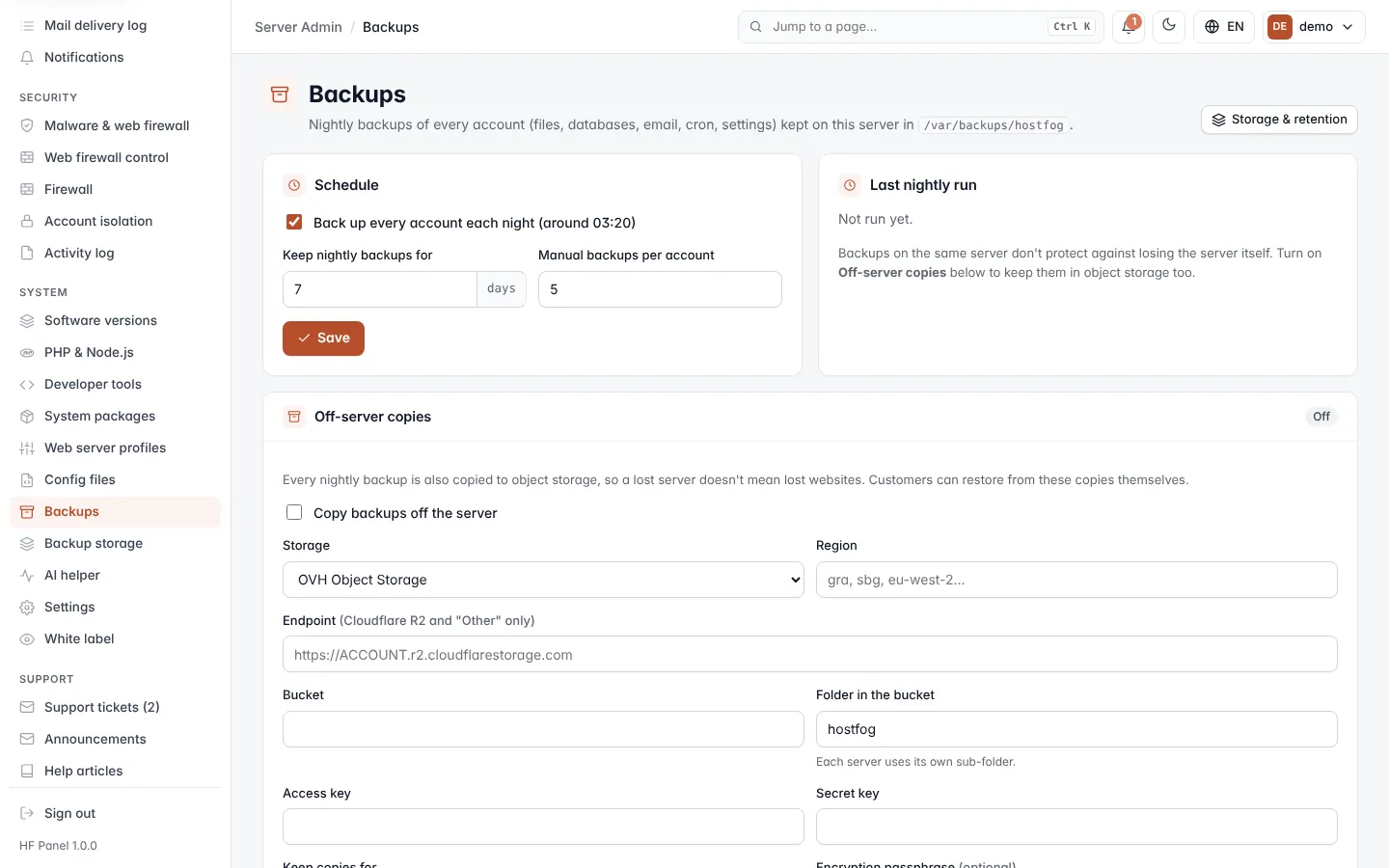
Click Storage & retention at the top to open Backup storage, where you set incremental backups, limits per plan and further destinations.
Set the schedule
- In the Schedule card, set the options below.
- Click Save.
| Setting | What it does |
|---|---|
| Back up every account each night (around 03:20) | Switches the nightly backup on or off. On by default. |
| Keep nightly backups for | How many days of nightly backups are kept, 1–90. The default is 7. |
| Manual backups per account | How many backups made by hand are kept for each account, 1–30. The default is 5. |
Last nightly run shows when the nightly job last ran.
Important: backups on the same server do not protect you if you lose the server itself. Turn on off-server copies as well.
Copy backups off the server
Every nightly backup can also be copied to S3-type object storage, so a lost server does not mean lost websites. Customers can restore from these copies themselves.
- In the Off-server copies card, tick Copy backups off the server.
- Fill in the storage details (see below).
- Click Save and test.
When the box is ticked, HF Panel connects to the storage before it saves. If the connection fails, nothing is saved and the message shows why.
| Field | What it does |
|---|---|
| Storage | OVH Object Storage, Amazon S3, Backblaze B2, Wasabi, Cloudflare R2 or Other S3-compatible (MinIO…). |
| Region | The storage region, for example gra, sbg or eu-west-2. Leave it empty for the provider's usual region. |
| Endpoint | The storage address. Needed for Cloudflare R2 and Other only; for the others it is worked out from the region. |
| Bucket | The bucket name: 3–63 lowercase letters, numbers, dots and dashes. |
| Folder in the bucket | The folder the copies go in (hostfog by default). Each server uses its own sub-folder. |
| Access key / Secret key | The storage keys. A saved secret key shows as dots; leave the box empty to keep it. |
| Keep copies for | Days the copies are kept in the storage, 1–3650. The default is 30. |
| Encryption passphrase (optional) | Copies are encrypted (AES-256) before they leave the server. At least 12 characters. Leave empty to keep the saved one. |
| Stop encrypting new copies | Shown when a passphrase is saved. New copies are then sent unencrypted. |
Warning: keep the encryption passphrase somewhere safe. Without it the copies cannot be read, not even by HF Panel.
Once copies are on, the card shows the result of the last copy. Click Copy newest backups now to copy the newest backup of every account straight away, in the background.
Copies of the control panel data
Every night the panel also copies its own data (logins, accounts, packages, invoices, settings, tickets and history) with its settings file inside. When off-server copies are on, these copies go to the storage too.
- Click Make a copy now to make one at once.
- Set Keep for (3–365 days, 14 by default) and click Save.
- The table lists the newest 10 copies with when they were Made and their Size. Click Download to save one. Because a copy holds saved passwords and keys, you are asked for your password again.
If the panel ever breaks, put a copy back with this command on the server. Websites, email and databases are not touched:
sudo hf-panel panel-restore <name>
These copies stay on this server (and its storage). To be able to rebuild a lost server, also switch on the encrypted Panel backup.
Test that backups restore
Every week each account's newest backup is read from start to end: the archive must unpack completely, the files and settings must be in it, and every database dump must be complete. You get an email if one fails. The Restore test card shows All good or how many failed, and when the last test ran.
To test now, click Test the newest backups now and confirm. Up to 50 active accounts are tested, one after another. Big backups take a while.
See every account's backups
The table lists every customer account:
| Column | What it shows |
|---|---|
| Account | The customer account. |
| Backups | How many backups it has. |
| Latest | When the newest was made. |
| Space used | The total size of its backups. |
| Restore test | The last test result (OK or Failed), or that there was nothing to test. |
On each row:
- Test runs the restore test on that account's newest backup.
- Back up now makes a backup of that account at once.
- Open logs you in to the customer's Control Panel, where they restore backups.