 HF Panel
FTP accounts
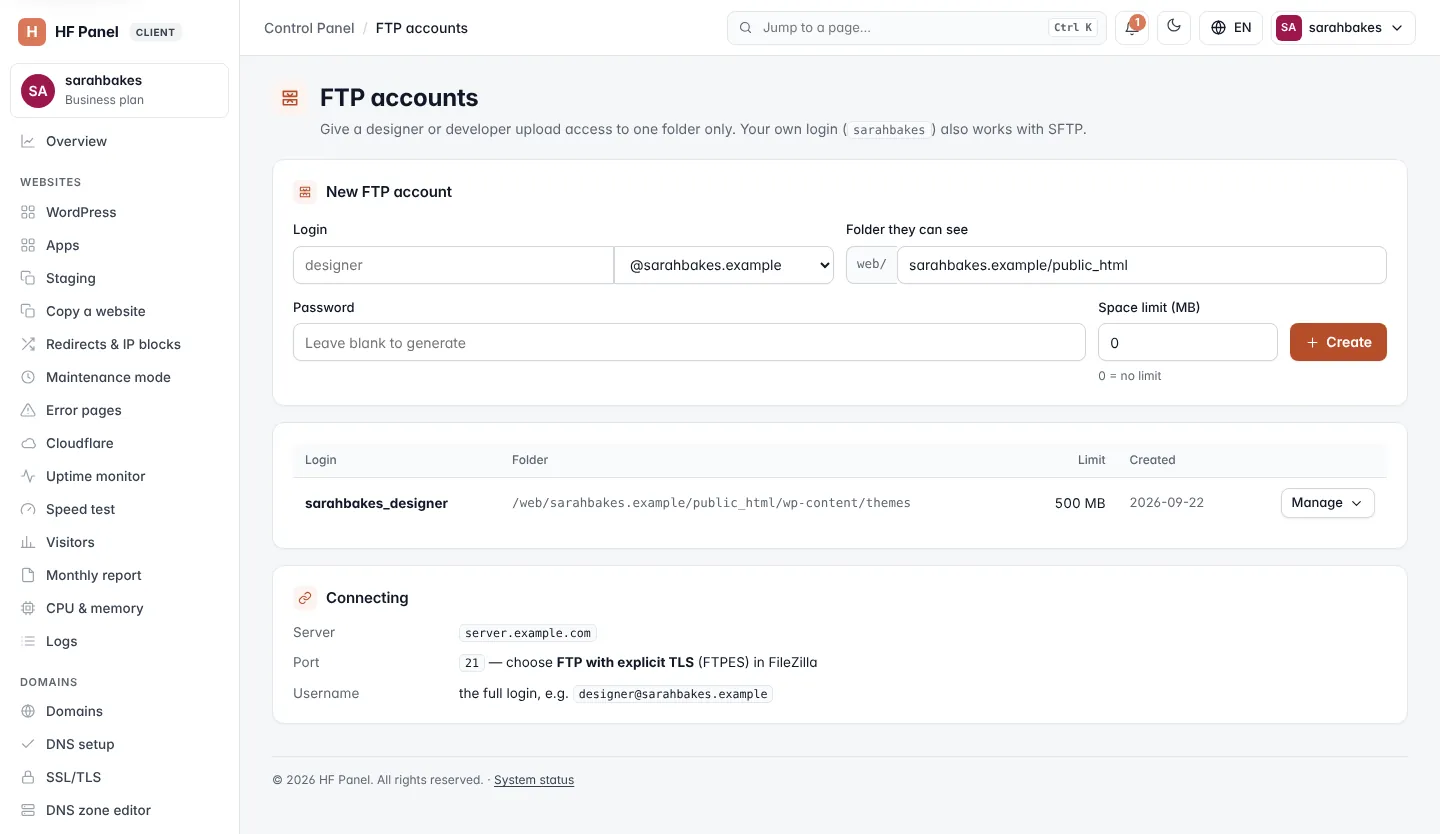
Create extra FTP logins kept to one folder, set their passwords and space limits, and connect with FTPES.
The FTP accounts screen gives a designer or developer upload access to one folder only. Each FTP login looks
like designer@yourdomain.com and sees only the folder you choose inside web/. Your own account login also works
with SFTP.
Where: Control Panel › Files › FTP accounts
Note: you need at least one domain first. FTP logins end in one of your domains.
Create an FTP account
- Under New FTP account, type the Login name and choose the domain after the
@. - In Folder they can see, enter the folder inside
web/. The first website's folder is filled in for you. - Type a Password, or leave it blank to generate one.
- Set the Space limit (MB) (0 = no limit).
- Click Create.
The message shows the new password once, and the folder the login can see.
| Field | Rules |
|---|---|
| Login | lowercase letters, numbers, dots, dashes and _; starts and ends with a letter or number; up to 32 characters before the @ |
| Folder they can see | inside web/; letters, numbers, ., _, - and / only. Empty = all of web/. |
| Password | 8–128 characters, no quotes ('), backslashes or control characters. Generated passwords are 16 characters. |
| Space limit (MB) | 0 = no limit; at most 1,048,576 MB (1 TB) |
Manage an FTP account
Click Manage next to a login:
- New password — type one (blank = generate) and click Set. The new password is shown once.
- Space limit (MB, 0 = none) — change the number and click Save.
- Delete account — removes the login after you confirm. Its files are kept.
Connecting
The Connecting card shows the details for your FTP program:
| Setting | Value |
|---|---|
| Server | the FTP server name shown on the screen |
| Port | 21 — choose FTP with explicit TLS (FTPES), for example in FileZilla |
| Username | the full login, for example designer@yourdomain.com |