 HF Panel
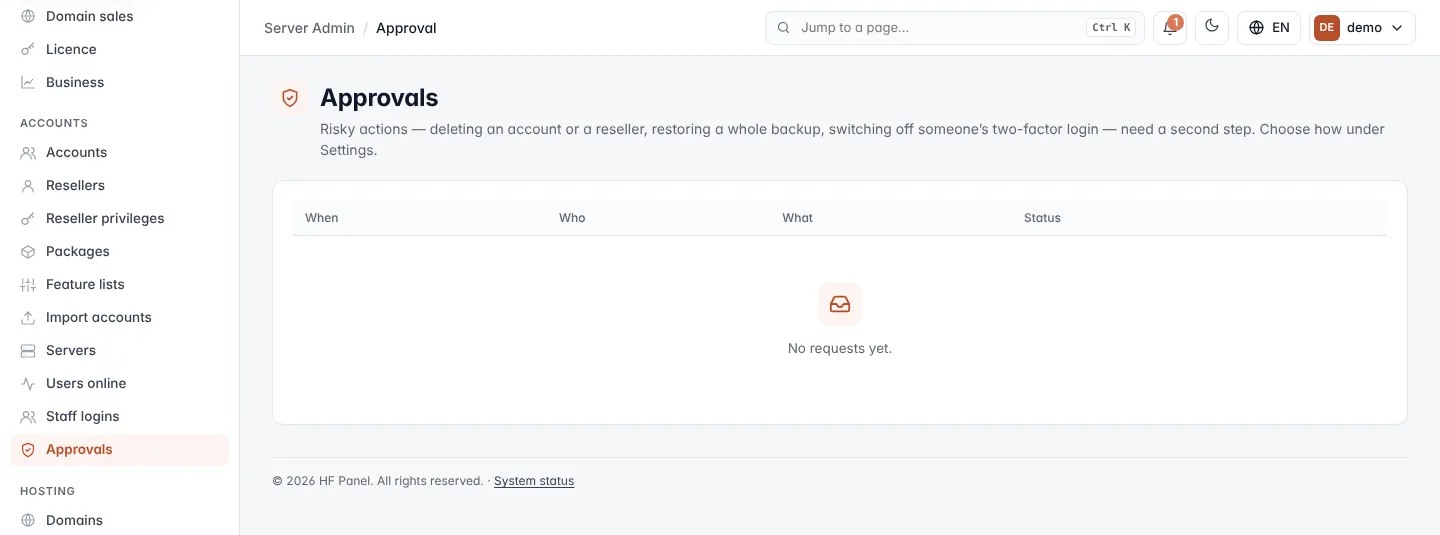
Approvals
Risky actions such as deleting an account need a second step — your password again, or another administrator's approval.
Some actions cannot be undone, so HF Panel asks for a second step before they run. Approvals lists these requests and is where you confirm, approve, reject or cancel them.
Where: Server Admin › Accounts › Approvals
Which actions need a second step
| Action | Who it can concern |
|---|---|
| Delete a hosting account | Administrators and resellers |
| Restore a customer's whole backup | Administrators and resellers |
| Delete a reseller | Administrators |
| Switch off someone's two-factor login | Administrators |
| Download the control panel's data | Administrators |
| Give someone full administrator access | Administrators |
| Remove a staff login | Administrators |
Choose how approval works
The server-wide rule is set under Settings, in Risky actions:
| Choice | What happens |
|---|---|
| Ask for the password (or two-factor code) again | The person confirms the action themselves. This is the default. |
| Another administrator must approve | The request waits for another administrator, who is emailed. When there is no other administrator, the password is asked instead. |
| Only ask "are you sure?" | No second step beyond a confirmation question. |
For resellers, a separate setting decides whether their deletes and whole restores wait for an administrator. You can change it per reseller under Resellers.
Confirm your own request
When you start a risky action, the panel opens the request instead of running it.
- Check What will happen.
- Type Your password (or Your password or a code from your authenticator app with two-factor login).
- Click Confirm.
- Click Run it now.
To drop it, click Cancel — don't do it. Nothing is changed.
Note: after five wrong attempts you must sign out and in again. A request confirmed with your password is valid for one hour.
Approve someone else's request
With Another administrator must approve, the other administrators get an email.
- Open the request from the email or from the list.
- Type your password (or a code from your authenticator app).
- Click Approve, or Reject to refuse it.
The person who asked is told. After approval, they click Run it now on their request. A request that waits for another administrator ends 24 hours after it was made.
While your own request waits, the page says so and updates by itself. Click Cancel the request to withdraw it.
The request list
The list shows the newest 50 requests: When, Who asked, What and Status, and who approved it. Click Open to see one.
| Status | Meaning |
|---|---|
| Waiting | Waiting to be confirmed or approved. |
| Approved | Approved; it runs when the person who asked clicks Run it now. |
| Done | It has run. |
| Rejected | Another administrator refused it. |
| Cancelled | The person who asked withdrew it. |
| Expired | It was not run in time. |
Note: administrators see everyone's requests; resellers see only their own.