 HF Panel
Tax & currencies
Charge VAT by the customer's country, keep VAT rates, check VAT numbers with VIES, sell in more currencies and download the tax report.
Tax & currencies sets how VAT is worked out on your invoices, quotes and orders, which currencies you sell in, and gives you a tax report for any period.
Where: Server Admin › Billing › Tax & currencies (on the official edition: Server Admin › Business › Tax & currencies)
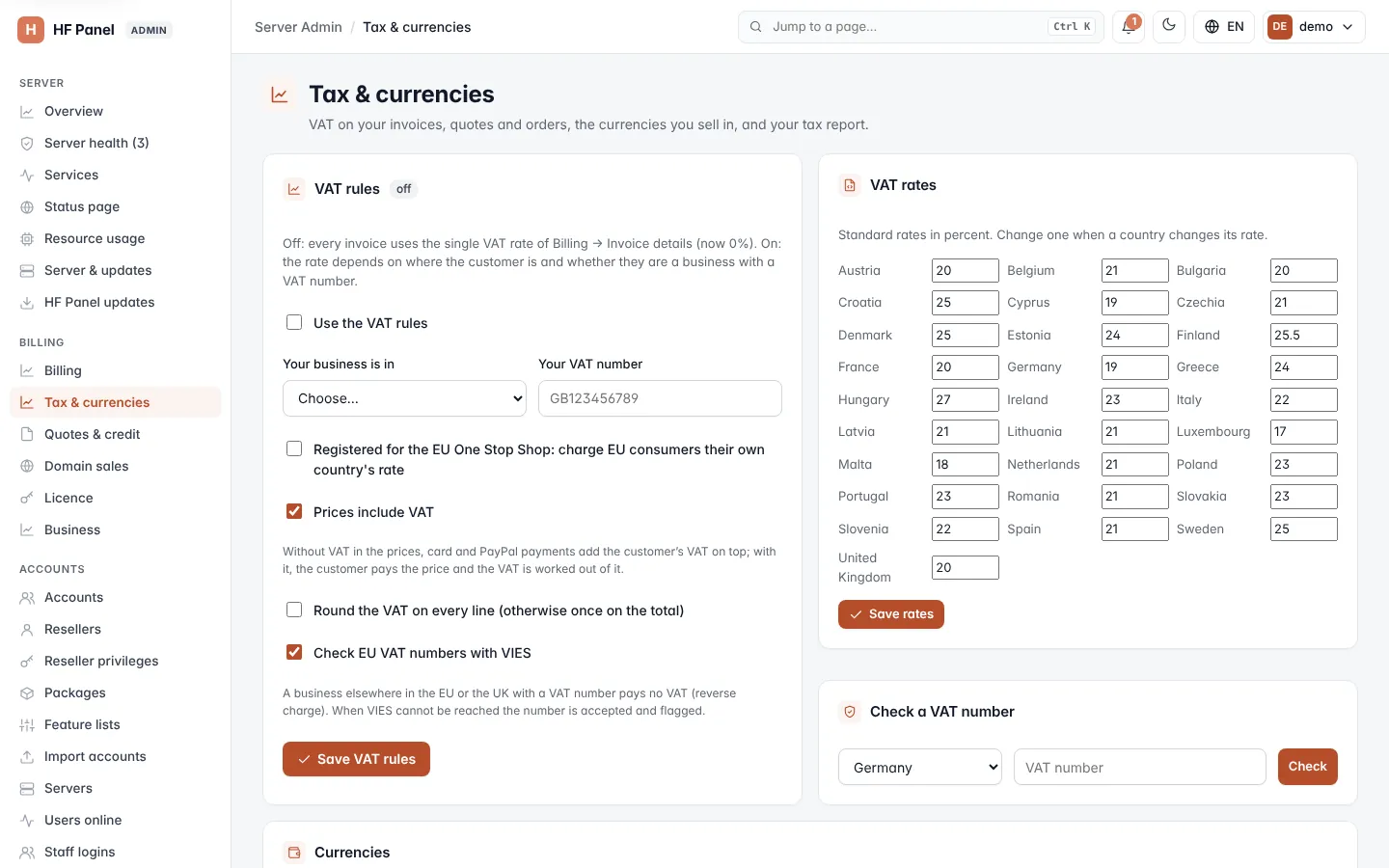
Use the VAT rules
While the VAT rules are off, every invoice uses the single VAT rate set under Billing → Invoice details. With them on, the rate depends on where the customer is and whether they are a business with a VAT number.
-
In VAT rules, tick Use the VAT rules.
-
Choose Your business is in — the country your business is registered in.
-
Type Your VAT number (up to 40 characters). For an EU or UK business it is checked for the right format.
-
Choose the options you need:
Option What it does Registered for the EU One Stop Shop: charge EU consumers their own country's rate EU consumers pay the VAT rate of their own country. Prices include VAT Without it, card and PayPal payments add the customer's VAT on top; with it, the customer pays the price and the VAT is worked out of it. Round the VAT on every line (otherwise once on the total) How VAT is rounded. Check EU VAT numbers with VIES Checks business customers' VAT numbers with the EU's VIES service. -
Click Save VAT rules.
A business elsewhere in the EU or the UK with a VAT number pays no VAT (reverse charge). When VIES cannot be reached, the number is accepted and flagged; the card says how many customers have an unchecked VAT number.
Keep the VAT rates up to date
VAT rates lists the standard rate of each country in percent. A rate you have changed from the standard one stands out.
- Change the rate of a country when it changes its rate (0 to 50).
- Click Save rates.
Check a VAT number
- In Check a VAT number, choose the country.
- Type the VAT number.
- Click Check.
The answer says whether the number is valid according to VIES, not valid, or could not be checked right now.
Sell in more currencies
Your main currency is the one chosen under Billing → Selling. You can accept more, but prices are never converted: each package gets its own price in each currency. Customers pick the currency when they order and keep it.
- In Currencies, tick each extra currency to accept: EUR, USD, GBP, CHF, SEK, NOK, DKK, PLN, CZK, CAD, AUD or NZD (your main currency is not in the list).
- In the table, type each paid package's monthly price in each ticked currency (0 to 100,000). Leave a box empty for not sold in that currency.
- Click Save currencies.
Important: every currency you accept needs a price for at least one package.
Exchange rates
Exchange rates holds how much of each currency one unit of your billing currency buys. Tick Sell packages without their own price in a currency at the converted price and a package with no price of its own in an accepted currency is sold at its main price times the rate (rounded to cents). A price you typed for a package always wins.
To keep the rates current, enter an https address under Fetch the rates from that answers JSON with a rates
object (any base currency works, e.g. {"base": "EUR", "rates": {"GBP": 0.85, "USD": 1.08}}), tick Fetch the
rates every night, or click Fetch now. The last fetch and its error, if any, are shown. Customers who already
pay keep the price they signed up at.
Tax outside the EU and the UK
Countries outside the EU and the UK are outside the scope (no tax) unless you give them a rate under Tax outside the EU and the UK — for sales tax or GST you are registered for there. Customers in that country are then charged that rate on the order page, their invoices and the tax report.
Your own VAT number check
Leave Your own VAT number check empty to check EU numbers with VIES. An https address with {country} and
{number} (or {vat}, the whole number) in it is asked instead, for EU and UK numbers; it must answer JSON with
"valid": true or false (and may give "name"). When it cannot be reached the number is accepted and flagged, as
with VIES.
Tax report
The report is also available to programs: GET /v1/tax-report?from=…&to=… (&detail=1 for every document) and GET /v1/invoices with an administrator token.
The Tax report adds up your invoices by currency, country and kind of VAT for a period. It starts at the beginning of the current quarter.
- Set From and To.
- Click Show.
| Column | What it shows |
|---|---|
| Country | The customer's country. |
| Kind | VAT charged, Reverse charge, Outside the scope or No VAT. |
| Rate | The VAT rate. |
| Documents | How many invoices and credit notes. |
| Net / VAT / Gross | The amounts, per currency. |
Invoices count by their date; void invoices are left out, and credit notes count against them.
To save the report, click CSV for the totals or CSV, every document for one line per invoice and credit note.