 HF Panel
Error pages
Show your own page when something goes wrong on a website — for a missing page (404), a server error (500) and other error codes.
Error pages lets you show your own page when something goes wrong on a website, such as a missing page (404). Each website and each error code can have its own page. Without one, visitors see the standard page.
Where: Control Panel › Websites › Error pages
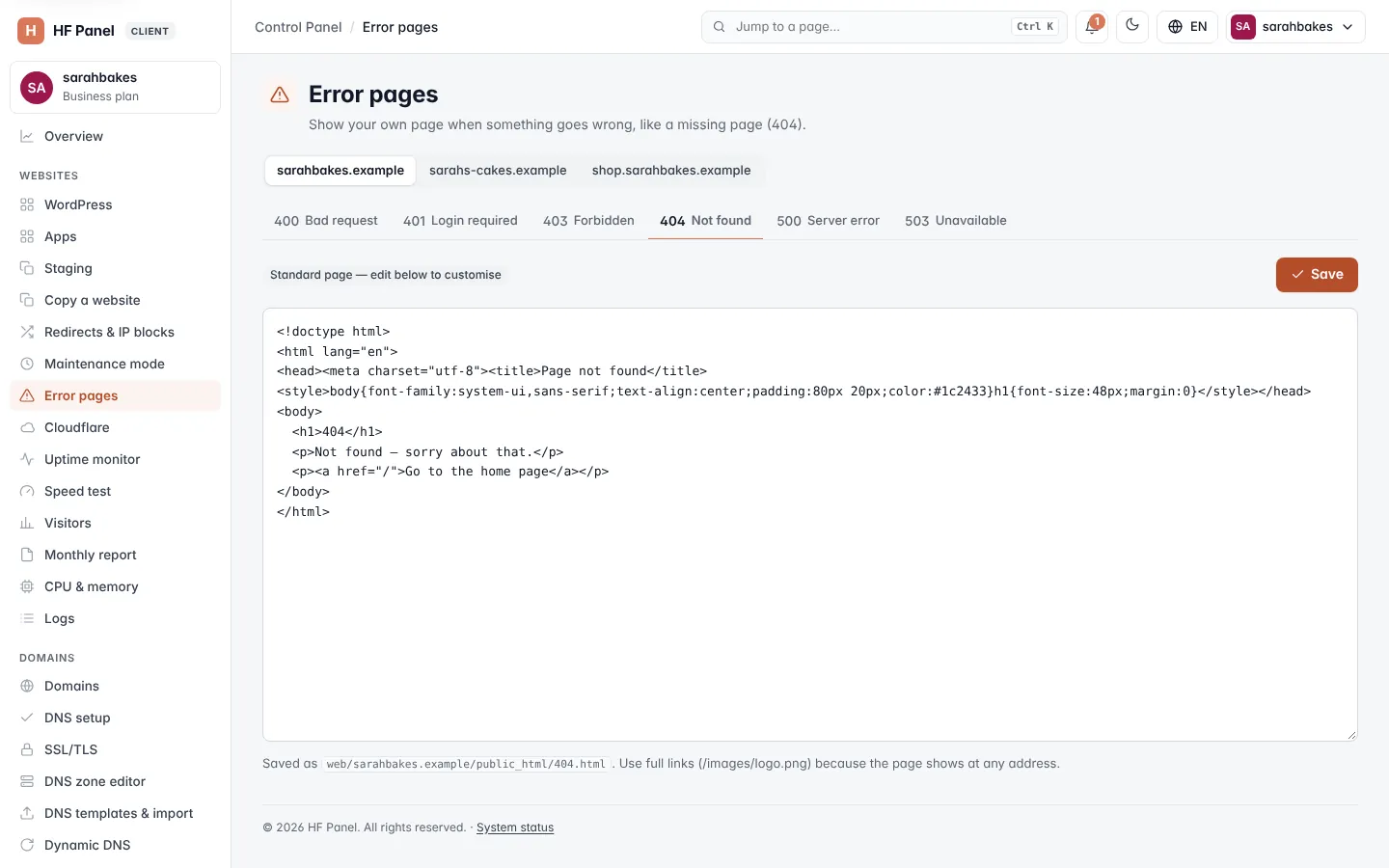
Error codes
| Code | Tab label | When visitors see it |
|---|---|---|
| 400 | Bad request | the browser sent a request the server can't read |
| 401 | Login required | the page needs a login, for example a folder protected with Directory privacy |
| 403 | Forbidden | the visitor may not open the page, for example a blocked IP |
| 404 | Not found | the page does not exist |
| 500 | Server error | the website's code failed |
| 503 | Unavailable | the website is temporarily unavailable |
Create a custom error page
- Choose the website in the picker at the top.
- Click the tab of the error code, for example 404.
- Edit the page in the editor. When there is no custom page yet, it is filled with a simple template to start from.
- Click Save (or press Ctrl+S / Cmd+S in the editor).
The pill above the editor changes from Standard page — edit below to customise to Custom page in use.
The page is saved as <code>.html in the website's folder, for example web/yourdomain.com/public_html/404.html. It
can be up to 200,000 bytes.
Tip: use full links, such as
/images/logo.png, for images and stylesheets. The page shows at any address, so relative links can break.
Go back to the standard page
- Choose the website and the error code.
- Click Use standard page.
- Confirm Remove the custom page?
The custom page file is deleted, and visitors see the standard page again.
Related
- Maintenance mode
- Redirects & IP blocks
- Logs — find out why a page fails