 HF Panel
Sign in
Sign in to HF Mail with your email address and password, use two-factor login, change the language and sign out.
You sign in to HF Mail with your full email address and the mailbox's password. If two-factor login is on for the mailbox, a code from your authenticator app is asked for next.
Where: https://webmail.yourdomain.com
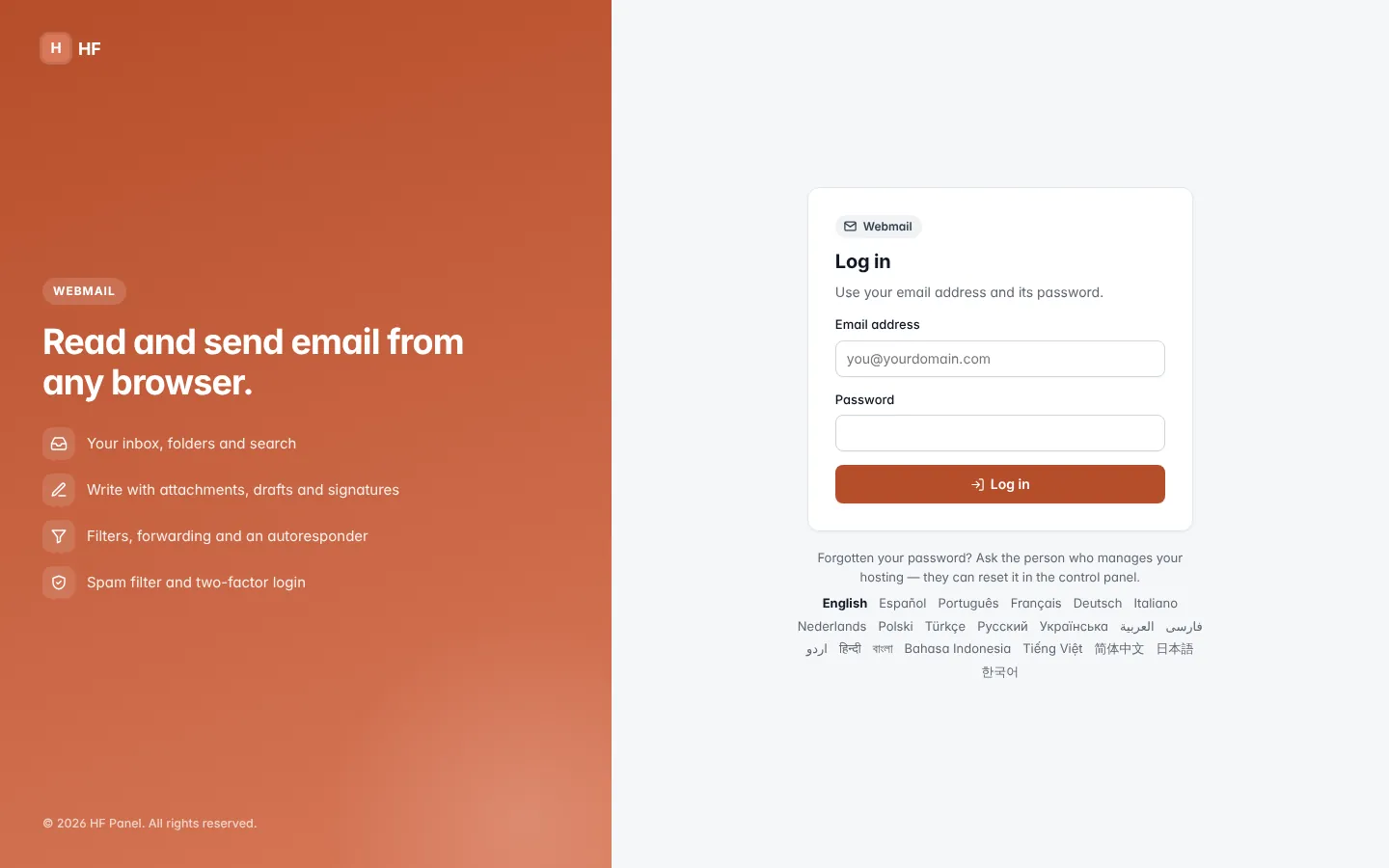
Sign in
- Open the webmail address in your browser.
- Enter your Email address (for example
sarahbakes@yourdomain.com) and your Password. - Click Log in.
If the mailbox uses two-factor login, the Two-factor login page opens:
- Type the 6-digit Code from your authenticator app.
- Click Continue.
Tip: lost your phone? Type one of your backup codes in the Code field instead. Each backup code works once.
To leave the two-factor step without signing in, click Cancel and sign out.
When sign-in is refused
| Message | What it means |
|---|---|
| Too many failed attempts — wait 15 minutes and try again. | 10 failed sign-ins from your address, or 30 on the mailbox, in the last 15 minutes |
| Too many wrong codes — please sign in again. | 5 wrong two-factor codes in a row; start again with your password |
| That code is not right. Try the newest code in your app, or a backup code. | the code was wrong or has expired |
Open webmail from the Control Panel
Hosting customers can open a mailbox without its password: click Webmail in the Control Panel menu (Email › Webmail), or open a mailbox from Email accounts. The webmail opens signed in to that mailbox. If another mailbox is already signed in in the same browser, HF Mail asks before it switches.
Note: some things can only be done by the mailbox's owner signed in with the password, such as making app passwords.
Forgotten your password?
Click Forgotten your password? under the sign-in form. Depending on the server, this opens the control panel's password reset for mailboxes, or tells you to ask the person who manages your hosting. They can set a new password in the Control Panel under Email accounts.
Choose the language
The languages are listed under the sign-in form. Click one to switch at once. After you sign in, you can change it under Settings.
Sign out
Click your address at the top right, then Log out. Log out is also at the bottom of the side menu.
Your session ends by itself after 2 hours without use. You then see the sign-in page again; anything you were typing in a message that was not saved as a draft is lost.
Tip: turn on two-factor login to protect your mailbox. You also get an email when someone signs in to webmail from a new place.