 HF Panel
Deliverability
A guided email check per domain — MX, SPF, DKIM, DMARC, reverse DNS, TLS and blocklists — with one-click fixes, and your sending limits.
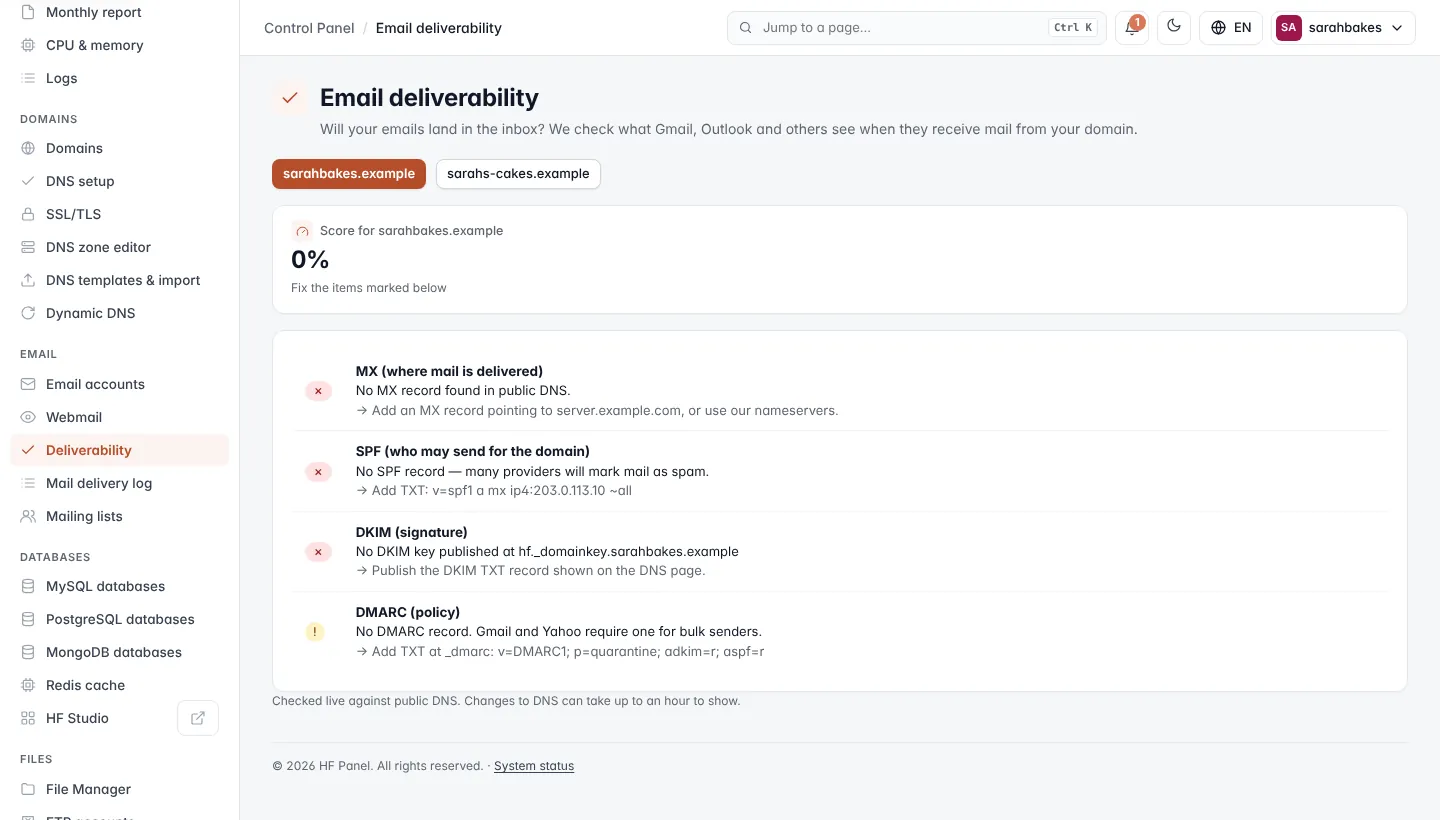
Deliverability (Email deliverability) checks whether your emails will land in the inbox. It looks at what Gmail, Outlook and other providers see when they receive mail from your domain, explains each result in plain words and, when this server runs the domain's DNS, fixes problems for you with one click.
Where: Control Panel › Email › Deliverability
Only domains with email switched on are listed. If none has email yet, switch it on in Email accounts › Domains.
Check a domain
Click the domain at the top. The checks run live against public DNS (and one connection to the domain's mail server for the encryption check).
| Figure | What it shows |
|---|---|
| Score for yourdomain.com | the share of checks that pass. 100% = Everything set up correctly. |
| Sent this hour | how many emails your account sent this hour, its hourly limit (or no hourly limit), and how many were held back |
| Last 24 hours | how many emails your account sent in the last 24 hours, and its daily limit (or no daily limit) |
The checks
Each check shows ✓ (pass), ! (a warning) or ✗ (fail), what was found, and what to do (after →).
| Check | What it looks at |
|---|---|
| MX: where your mail is delivered | the domain's MX record. A warning when it points to another server — fine if your mail is handled elsewhere. |
| SPF: who may send for your domain | there must be exactly one SPF record, it should include this server, and it must not use +all |
| DKIM: the signature on your mail | the key at hf._domainkey.yourdomain.com must be published and match the key the server signs with |
| DMARC: what receivers do with failing mail | a DMARC record at _dmarc, with a reporting address (rua=) so you get reports |
| Reverse DNS of the sending server | the sending IP address has a reverse DNS name, and it is the mail server's name |
| Encryption (TLS) when mail arrives | the domain's mail server (its first MX) offers STARTTLS with a certificate valid for its name |
| Blocklists | the sending IP address on the big IP blocklists, and the domain on domain blocklists (DNS look-ups only) |
Fix it for me
When this server runs the domain's DNS (its nameservers are this server's), the MX, SPF, DKIM and DMARC checks have a Fix it for me button. It writes the record shown into your DNS zone and publishes the zone:
| Check | What the fix does |
|---|---|
| MX | adds an MX record pointing to this server's mail name |
| SPF | replaces the SPF records with one record that includes this server (ip4:<server IP>); +all becomes ~all |
| DKIM | publishes the key the server signs with |
| DMARC | adds v=DMARC1; p=quarantine; adkim=r; aspf=r; rua=mailto:<address>, or adds the reporting address to your record. Type the address that should get the reports next to the button (your account's email by default). |
DNS run somewhere else
When the domain's DNS is run elsewhere (your registrar or another DNS host), each problem shows the exact record to add there — its type, name and value — with a Copy button. Add it at your DNS provider. See DNS setup.
Note: the reverse DNS (PTR) of the server's IP address is set at the server provider, not in a DNS zone. Ask your host if that check fails.
Note: DNS changes can take a few minutes (this server's DNS) or up to an hour (elsewhere) to show here.
Sending limits
Your hosting plan can limit how many emails your account sends per hour and per day — from mailboxes and from your
websites (contact forms, shops, PHP mail()). Over a limit, email is not lost: it waits and is sent automatically when
the limit allows it again. The screen shows a notice when a limit was reached in the last 24 hours.
If your account suddenly sends far more than usual — often a hacked website form or a mailbox whose password was stolen — its sending is put on hold to protect your email reputation, and you get a notification. Receiving keeps working. Change your mailbox passwords, update your websites, then contact your host to switch sending back on.