 HF Panel
Web Disk
Open your website files as a network drive on Windows, macOS or Linux, manage Web Disk logins and share links.
Web Disk lets you open your website files as a drive on your computer and drag and drop like any other folder.
It uses WebDAV at the File Manager's address, https://files.yourdomain.com/dav/ (the exact address is shown on the
screen). Each Web Disk login has its own password, is kept to one folder, and is read-only or read-write.
Where: Control Panel › Files › Web Disk
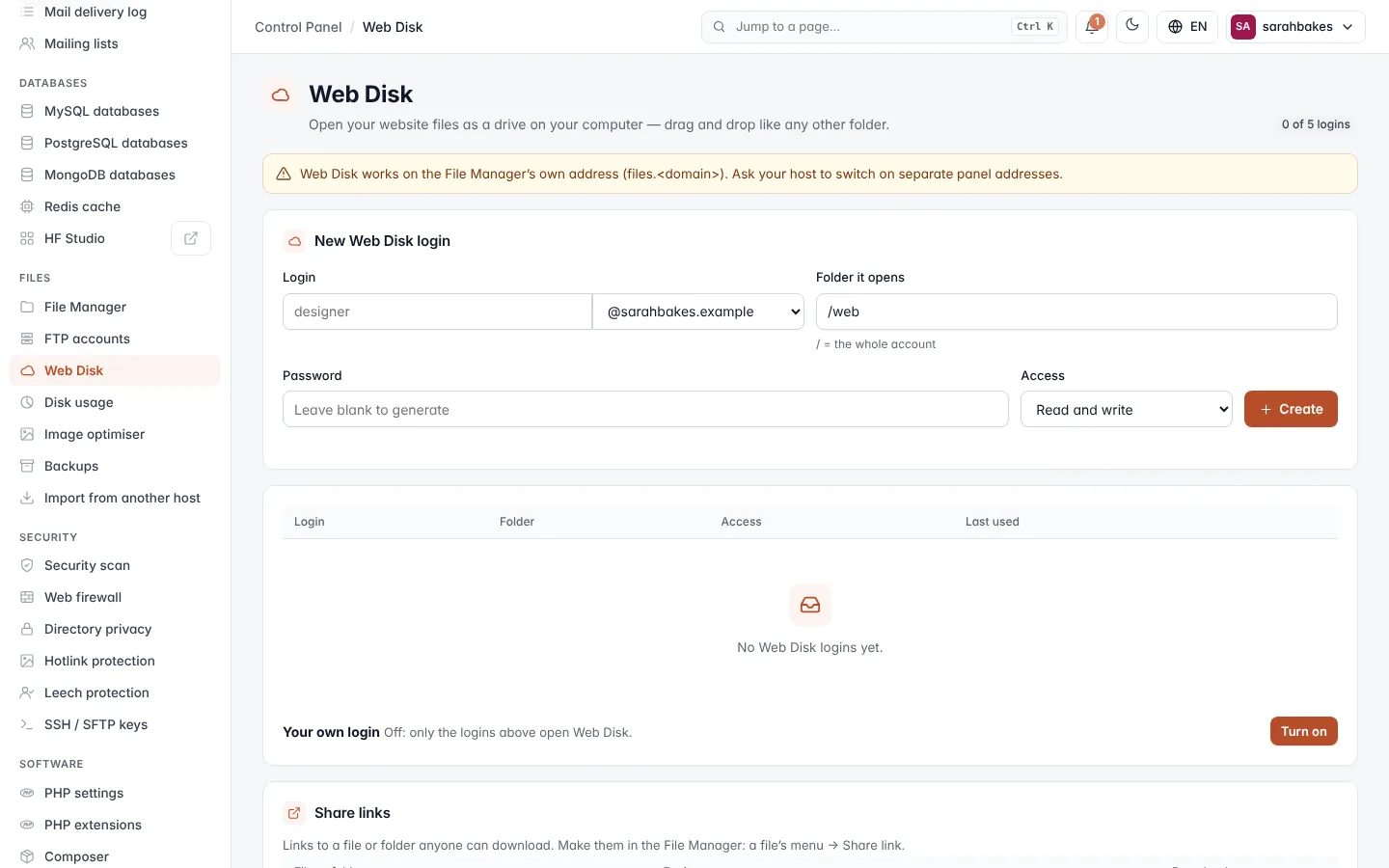
The badge at the top shows how many logins you use of your plan's limit, for example 2 of 5 logins.
Note: Web Disk works on the File Manager's own address. If the screen shows a warning about this, ask your hosting provider to switch on separate panel addresses. If it says Web Disk is not part of your plan, ask about a plan with Web Disk logins.
Create a Web Disk login
- Under New Web Disk login, type the Login name and choose the domain after the
@. - In Folder it opens, enter a folder in your account, for example
/webor/web/example.com. Enter/for the whole account. - Type a Password, or leave it blank to generate one.
- Choose the Access: Read and write or Read only.
- Click Create.
The message shows the password once. Save it now.
| Field | Rules |
|---|---|
| Login | lowercase letters, numbers, dots, dashes and _; up to 32 characters before the @ |
| Folder it opens | must already exist in your account (create it in the File Manager first); letters, numbers, spaces, ., _, - and / |
| Password | 8–128 characters, no quotes ('), backslashes or control characters |
Manage a login
The table shows each login's Folder, Access and when it was Last used (or Never). Click Manage:
- New password — type one (blank = generate) and click Set.
- Folder it opens — change the folder and click Save.
- Make read only / Allow changes — switch the access.
- Delete login — removes the login after you confirm. The files stay.
Your own login
Under the table, Your own login lets your account username and password open the whole account in Web Disk. Click Turn on and confirm, or Turn off to stop it.
Note: this is not available while two-factor login is on for your account, because a network drive cannot ask for the code. Make a Web Disk login instead.
Connecting
The Connecting card shows the Address (with a Copy button) and the Username to use — always the full
login, such as designer@yourdomain.com. Pick your system for the steps:
Windows
- Open File Explorer, right-click This PC and choose Map network drive….
- Pick a drive letter and type the address as the folder.
- Tick Connect using different credentials, then click Finish.
- Sign in with the full login and its password.
Note: Windows copies files up to 50 MB over Web Disk unless its WebClient limit (
FileSizeLimitInBytes) is raised. For bigger files use the File Manager or SFTP.
macOS
- In Finder choose Go › Connect to Server… (⌘K).
- Type the address.
- Choose Registered User and sign in with the full login.
- The drive appears in Finder's sidebar under Locations.
Linux
- In Files (GNOME) or Dolphin (KDE), open Other Locations or the address bar and type
davs://files.yourdomain.com/dav/. - From a terminal:
gio mount davs://files.yourdomain.com/dav/ - As a mounted folder with davfs2:
sudo mount -t davfs https://files.yourdomain.com/dav/ /mnt/webdisk
Sign in with the full login.
Share links
Share links lists the links to a file or folder that anyone can download. You make them in the File Manager (a file's menu › Share link). For each link you see the File or folder (with a Password badge when it is protected), when it Expires, and Downloads used of its limit. Expired links are greyed out.
- Copy link copies the address of a link that still works.
- Revoke stops a link at once, after you confirm.