 HF Panel
Backup storage
Switch on incremental backups, set backup limits per hosting plan, and copy backups to SFTP servers, Backblaze B2 or Google Drive.
The Backup storage screen controls how nightly backups are made and where copies go besides this server. You can switch on incremental backups, set how many backups each hosting plan keeps, and add off-server destinations: SFTP servers, Backblaze B2 and Google Drive.
Where: Server Admin › System › Backup storage
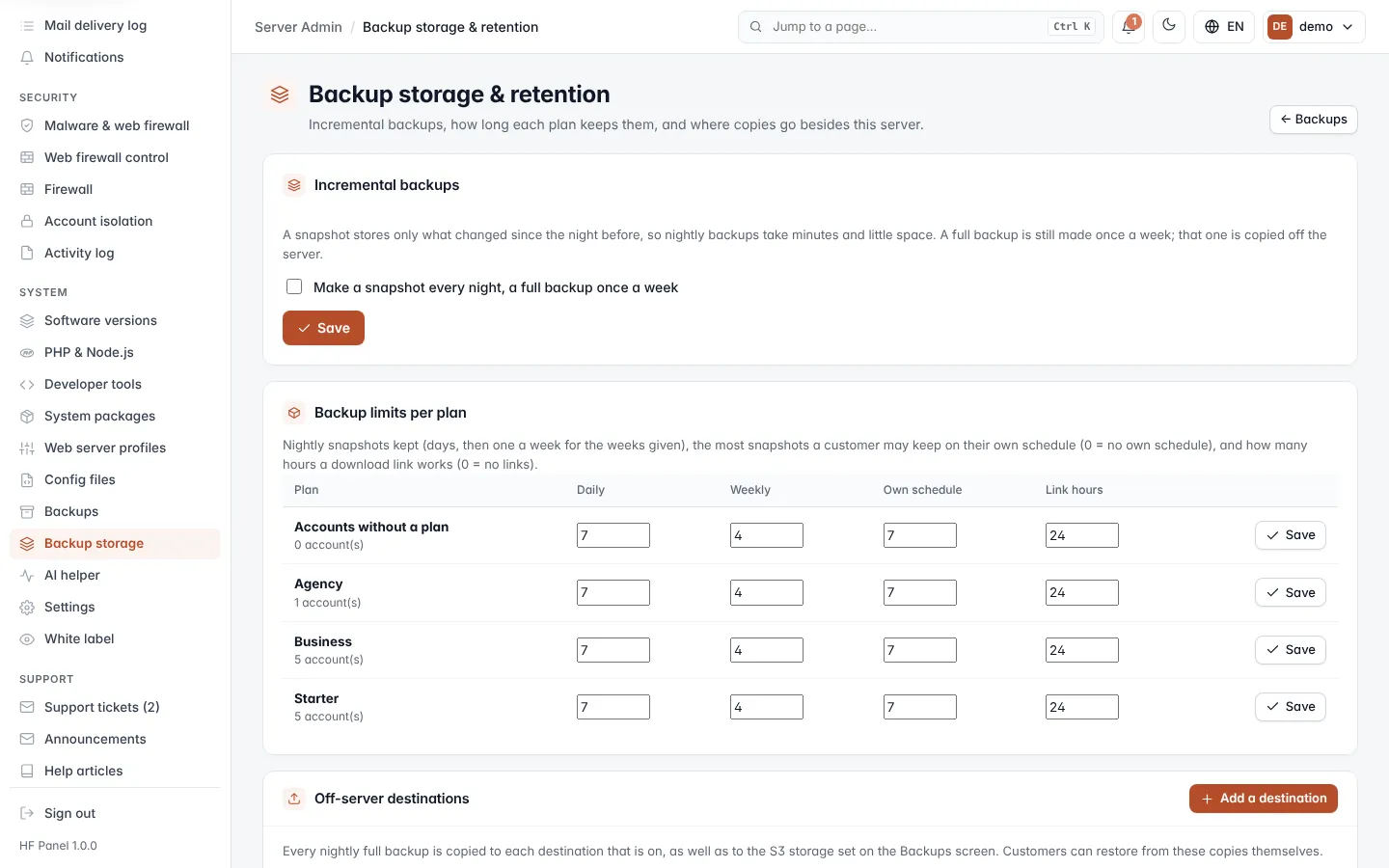
The screen's heading is Backup storage & retention. Click ← Backups to go back to Backups.
Switch on incremental backups
A snapshot stores only what changed since the night before, so nightly backups take minutes and little space. A full backup is still made once a week, and that one is copied off the server.
- In Incremental backups, tick Make a snapshot every night, a full backup once a week.
- Choose the day in Full backup on.
- Set Keep full backups for (1–52 weeks, 4 by default).
- Click Save.
Untick the box to make a full backup of every account each night instead (the default).
Set backup limits per plan
The Backup limits per plan table has one row for each hosting plan, plus Accounts without a plan. Each row shows how many accounts it covers.
- Change the values on the plan's row.
- Click Save on that row.
| Column | What it does |
|---|---|
| Daily | Nightly snapshots kept, in days, 0–60. The default is 7. |
| Weekly | After the daily ones, one snapshot a week is kept for this many weeks, 0–52. The default is 4. |
| Own schedule | The most snapshots a customer may keep on their own schedule, 0–30. 0 = no own schedule. The default is 7. |
| Link hours | How many hours a backup download link works, 0–168. 0 = no download links. The default is 24. |
| Own storage | How many places of their own (S3-compatible storage or an SFTP server) a customer may add on Own backup storage, 0–10. 0 = none. The default is 2. |
Note: customers' own storage is part of the licence's Backup storage module. A plan can also leave it out with a feature list (Own backup storage). Their copies are made as the customer's account, never as root, and a copy brought back is checked before it can be restored.
Add an off-server destination
Every nightly full backup is copied to each destination that is on, as well as to the S3 storage set on the Backups screen. Customers can restore from these copies themselves.
- In Off-server destinations, click Add a destination.
- Choose the Kind: SFTP server, Backblaze B2 or Google Drive.
- Fill in the fields (see below).
- Tick Copy backups here every night to switch it on.
- Click Save.
When you switch a destination on, it is tested first. If the test fails, it is saved but stays off, and the message shows why.
Fields for every destination
| Field | What it does |
|---|---|
| Name | Your name for it, for example Office NAS. Up to 40 characters, unique. |
| Folder | The folder the copies go in (hostfog-backups by default). Each server uses its own sub-folder inside it. |
| Keep copies for | Days the copies are kept there. The default is 30. |
| Encryption passphrase (optional) | Copies are encrypted before they leave the server. At least 12 characters. Without the passphrase they cannot be read. |
| Stop encrypting new copies | Shown when a passphrase is saved. |
SFTP server
| Field | What it does |
|---|---|
| Host | The SFTP server's name or IP address. |
| Port | 1–65535. The default is 22. |
| User | The login name. |
| Password or a private key | Enter the password, or paste a private key without a passphrase. Its public key goes in the server's authorized_keys. |
The SFTP server's host key is pinned on the first test (trust on first use). Later connections must show the same key.
Backblaze B2
| Field | What it does |
|---|---|
| Key ID | The application key's ID from Backblaze. |
| Application key | The application key itself. |
| Bucket | 6–50 letters, numbers and dashes. |
Google Drive
In your Google Cloud project, make an OAuth client of type "TVs and Limited Input devices" and enable the Google Drive API. The panel only sees the files it makes itself.
| Field | What it does |
|---|---|
| Client ID | The OAuth client ID (ends in apps.googleusercontent.com). |
| Client secret | The OAuth client secret. |
| Folder ID | Optional: the folder to use, the last part of the folder's address. |
After saving, connect the destination to Google Drive:
- Click Connect Google Drive on the destination's card.
- Click the link shown, sign in to Google and enter the code shown on the card. Allow access.
- Click I have allowed access.
The destination is then tested and switched on.
Note: saved passwords, keys and tokens are shown as dots and never sent back to the browser. Leave a secret field empty to keep the saved value.
Manage destinations
Each destination's card shows its kind, whether it is On or Off, its target, how many days copies are kept, encrypted when a passphrase is set, the pinned host key (SFTP), the last test and the last nightly copy.
| Button | What it does |
|---|---|
| Test connection | Writes a test file, reads it back and deletes it. |
| Change | Opens the destination's settings. |
| Pin new host key | SFTP only. Trusts the host key the server shows now. Only do this when the server's owner told you the key changed. |
| Delete | Deletes the destination after you confirm. The copies already stored there are left as they are. |
Click Copy newest backups now at the top of the card to copy the newest backup of every account to every destination that is on, in the background.
Important: secrets are stored encrypted with this server's own key file, whose path is shown at the bottom of the screen. That file is never part of the panel's backups. Keep a copy of it somewhere safe, or the saved secrets cannot be read after a rebuild.