 HF Panel
SSH / SFTP keys
Add, import and remove SSH keys, make a key pair on the server, and switch SSH and SFTP logins on or off.
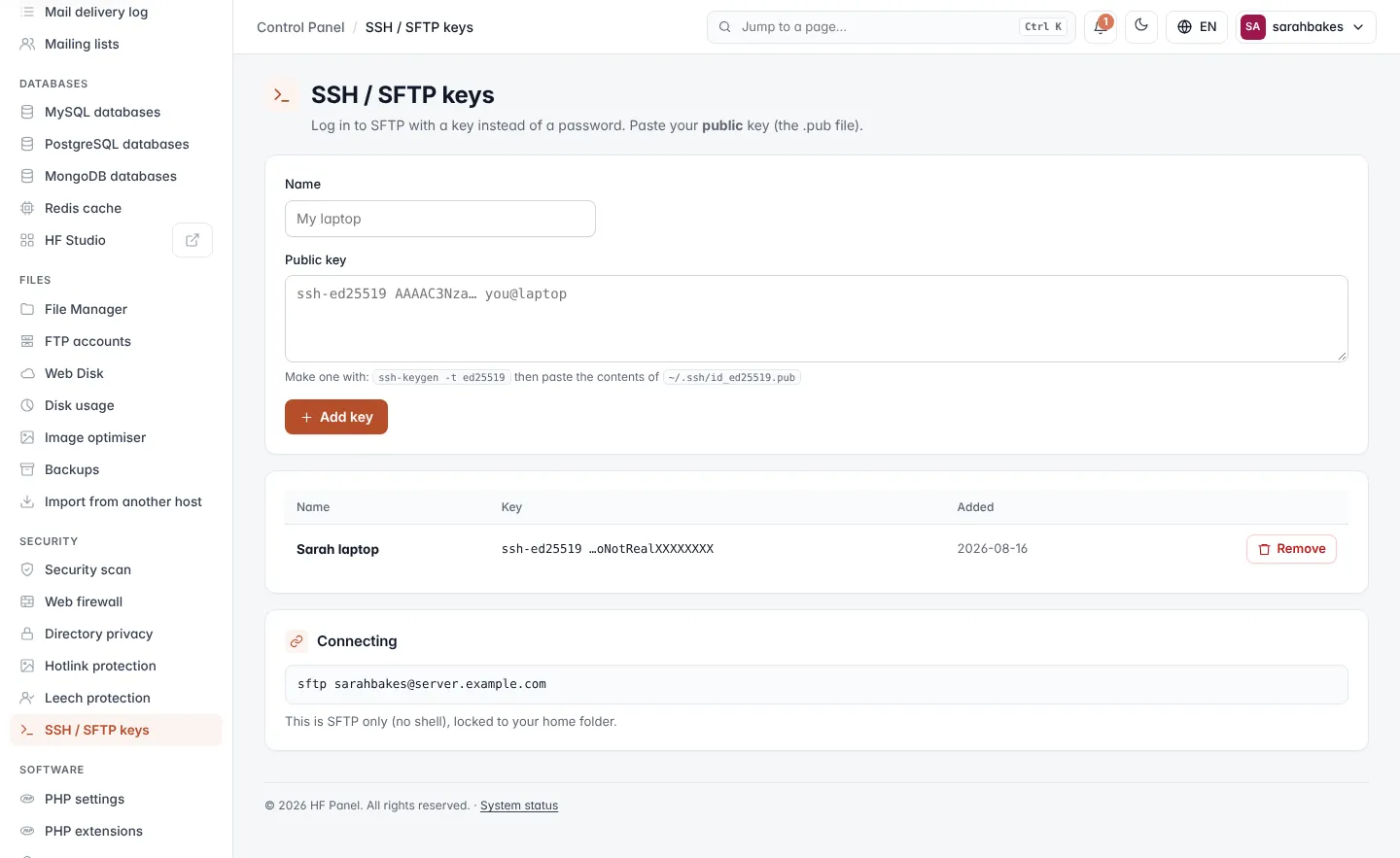
The SSH / SFTP keys screen manages the keys that let you sign in over SFTP (and SSH, when your provider gives a
shell) without a password. You add your public key (the .pub file); the private key stays on your computer.
Where: Control Panel › Security › SSH / SFTP keys
SSH access
The SSH access card shows whether SSH and SFTP logins are On or Off for your account.
- Click Switch off and confirm to refuse every SSH and SFTP login. Sessions that are open are ended. FTP and the File Manager keep working.
- Click Switch on to allow them again.
Note: the buttons are there only when your hosting plan lets you switch SSH access. Otherwise the card says Your plan does not let you switch SSH access.
Add a key
- If you don't have a key yet, make one on your computer:
ssh-keygen -t ed25519, or use Make a key pair below. - Enter a Name for the key, for example
My laptop(up to 50 characters; the key's comment when empty). - Paste the contents of the public key file, for example
~/.ssh/id_ed25519.pub, into Public key. - Click Add key.
Accepted keys:
| Key type | Accepted |
|---|---|
ssh-ed25519 (recommended) |
yes |
ecdsa-sha2-nistp256, -nistp384, -nistp521 |
yes |
ssh-rsa |
3072 bits or more |
sk-ssh-ed25519@openssh.com, sk-ecdsa-sha2-nistp256@openssh.com (security keys) |
yes |
A key with options (command=, from= …), a private key, a key that is already added or an RSA key under 3072 bits
is refused with the reason under the field. An account can have up to 30 keys.
Your keys
The table shows each key's Name, its type, the last characters of the Key, its size and SHA256 fingerprint, and when it was Added. An older key that is weaker than what is accepted now is marked Weak key: replace it with an ed25519 key or an RSA key of 3072 bits or more. Click Remove and confirm to delete a key. Without any keys, password login still works.
Import keys
Import keys adds several keys at once:
- Paste them into Public keys, one per line (as in an
authorized_keysfile; empty lines and#comments are skipped), or click Choose a file to read a.puborauthorized_keysfile. Then click Import. - Click Import from the server (authorized_keys) to add the keys that are already in
~/.ssh/authorized_keysin your home folder, for example ones you uploaded over SFTP.
The panel tells you how many keys were added and which lines were left out, and why.
Important: every change on this screen writes
~/.ssh/authorized_keysagain with the keys listed here. Keys you put in that file yourself are replaced, so import them first.
Make a key pair
- Choose the Key type: ed25519 (recommended), RSA 4096 bits or ECDSA P-384.
- Optionally enter a Comment (for example
sarahbakes-laptop). - Leave Add the public key to this account ticked to add the new key straight away.
- Click Make a key pair.
The key pair is made on the server as your account. A window shows the private key once: click Download the private
key (or Copy) and keep it in ~/.ssh/ on your computer, readable only by you (chmod 600). The private key is
not kept anywhere on the server; after you close the window it can't be shown again.
Connecting
The Connecting card shows the command to use, for example:
sftp sarahbakes@server.example.com
Depending on your provider, this is SFTP only (no shell), locked to your home folder, or SSH with a shell locked to your own account. For commands in the browser, use the Terminal.