 HF Panel
Cloudflare
Connect your own Cloudflare account, copy a domain's DNS records there, switch the proxy on or off, purge the cache and use development mode.
The Cloudflare screen puts your websites behind Cloudflare's free CDN and DDoS protection. You connect your own Cloudflare account with an API token, and HF Panel copies your DNS records there for you.
Where: Control Panel › Websites › Cloudflare
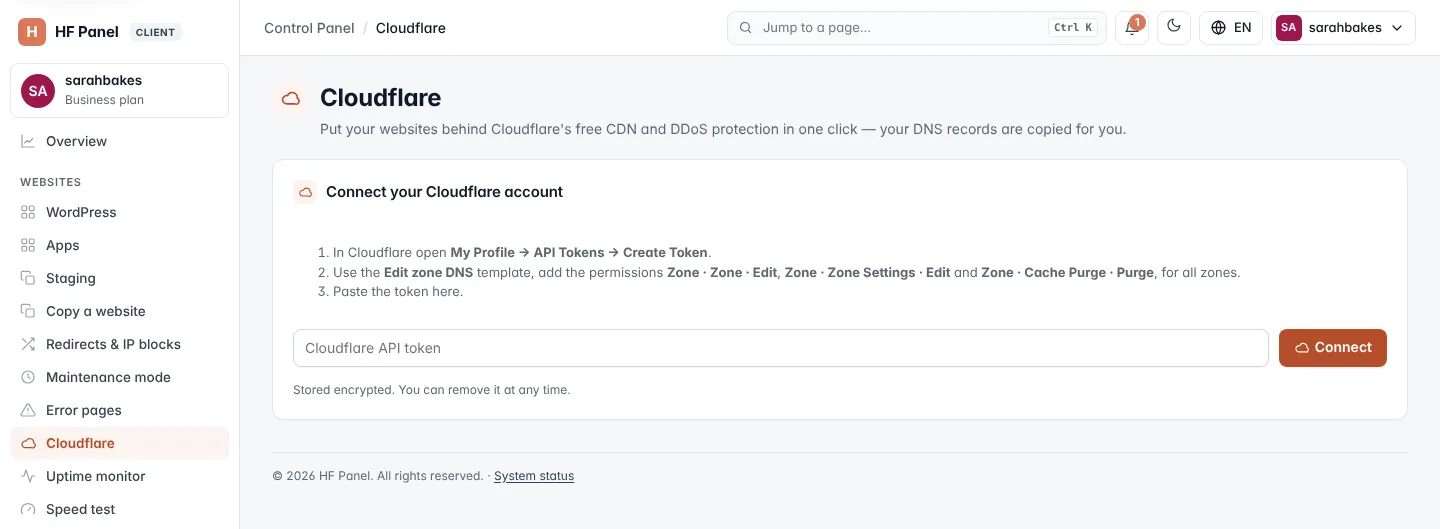
Connect your Cloudflare account
First, make an API token in Cloudflare:
- In Cloudflare, open My Profile → API Tokens → Create Token.
- Use the Edit zone DNS template and add the permissions Zone · Zone · Edit, Zone · Zone Settings · Edit and Zone · Cache Purge · Purge, for all zones.
- Create the token and copy it.
Then, in the Control Panel:
- Paste the token into Cloudflare API token.
- Click Connect.
The token is stored encrypted. You can remove it at any time.
Note: if the token can't see a Cloudflare account, the panel says: "This token cannot see a Cloudflare account — give it "Zone: Edit" permission." Edit the token in Cloudflare and try again.
Your domains
Once connected, the table lists your main domains:
| Column | What it shows |
|---|---|
| Domain | the domain |
| On Cloudflare | Active, Waiting for nameservers (with the Cloudflare nameservers to set), or No |
| Proxy | On (orange cloud) when visitors go through Cloudflare, or Off |
Add a domain to Cloudflare
- On the domain's row, click Add to Cloudflare.
- HF Panel makes the zone in your Cloudflare account and copies the domain's DNS records there, with the proxy on. The message tells you how many records were added, updated or already right.
- Last step: at your domain registrar, set the nameservers to the two Cloudflare nameservers shown in the message (and under Waiting for nameservers).
When Cloudflare sees the new nameservers, the domain shows Active.
Important: until you change the nameservers at your registrar, Cloudflare does nothing for the domain.
Sync DNS records again
When you change records in the DNS zone editor, copy them to Cloudflare again:
- Sync DNS + proxy on — copies the records and proxies the website names through Cloudflare.
- Sync DNS, proxy off — copies the records without the proxy (grey cloud), so Cloudflare only answers DNS.
Syncing adds and updates records. It never deletes records you made in Cloudflare.
Note: mail, FTP, webmail and other service names (such as
smtp,imap,pop,ftp,autodiscover,autoconfig,paneland the nameservers) are never proxied, so email keeps working.
Purge the cache
Click Purge cache on the domain's row. Cloudflare empties its whole cache for the domain, and visitors get fresh files within 30 seconds.
Development mode
Click Dev mode to switch on Cloudflare's development mode for 3 hours. Cloudflare then passes every request straight to your site, so you see changes at once. It switches itself off after 3 hours.
Disconnect Cloudflare
- Click Disconnect Cloudflare.
- Confirm Remove the Cloudflare token from the panel?
The panel forgets the token. Your domains stay as they are on Cloudflare — to stop using Cloudflare, set your registrar's nameservers back to the ones on DNS setup.