 HF Panel
Hotlink protection
Stop other websites from showing your pictures, videos and downloads on their pages and using your bandwidth.
Hotlink protection stops other websites from showing your pictures, videos and downloads on their own pages — and using your bandwidth. A request for a protected file that comes from another website is refused or sent to an address you choose.
Where: Control Panel › Security › Hotlink protection
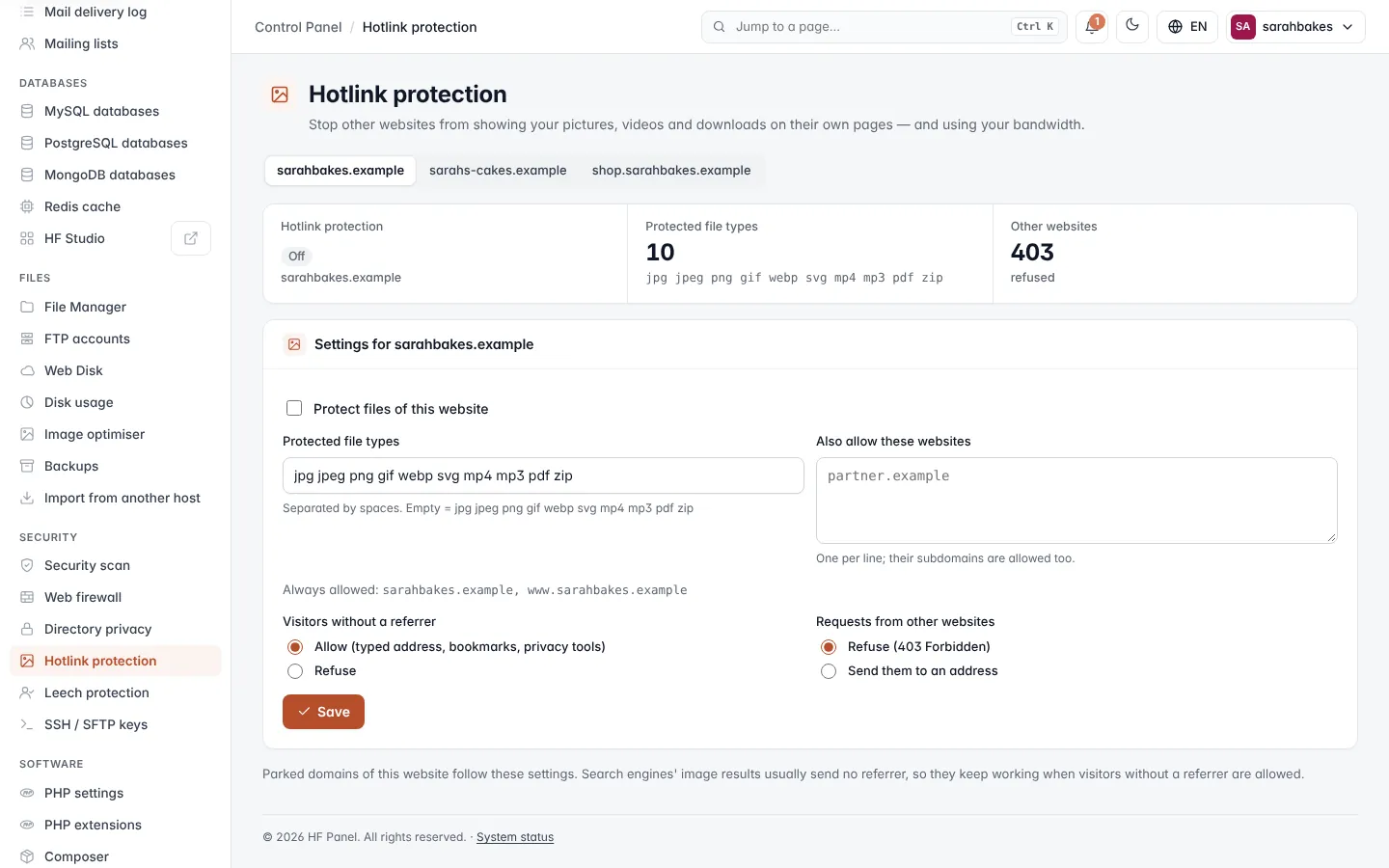
You set it per website. Parked domains of a website follow its settings.
Figures
| Figure | What it shows |
|---|---|
| Hotlink protection | On or Off for the picked website |
| Protected file types | how many file types are protected, and which |
| Other websites | what happens to requests from other websites: 403 (refused) or Redirected |
Set up hotlink protection
- Pick the website at the top.
- Tick Protect files of this website.
- Check Protected file types, separated by spaces. Empty uses the defaults:
jpg jpeg png gif webp svg mp4 mp3 pdf zip. - In Also allow these websites, list other sites that may show your files, one per line. Their subdomains are
allowed too. The website itself, its
www.name and its parked domains are always allowed (shown under Always allowed). - Choose what to do with Visitors without a referrer: Allow (typed address, bookmarks, privacy tools) or Refuse.
- Choose what to do with Requests from other websites: Refuse (403 Forbidden) or Send them to an address. For the second, enter the Redirect address — a page, not a protected file type.
- Click Save.
| Rule | Detail |
|---|---|
| File types | letters and numbers only, at most 30. Page types such as php or html cannot be protected: links to pages from other websites must keep working. |
| Allowed websites | domain names, at most 20 |
| Redirect address | a full address that is not itself a protected file type |
Tip: search engines' image results usually send no referrer, so they keep working when visitors without a referrer are allowed.
Turn hotlink protection off
Click Turn off and confirm. Your other settings are kept for next time.