 HF Panel
Copy a website
Make a full copy of a website — files and database — on a new domain or subdomain, or over another of your websites.
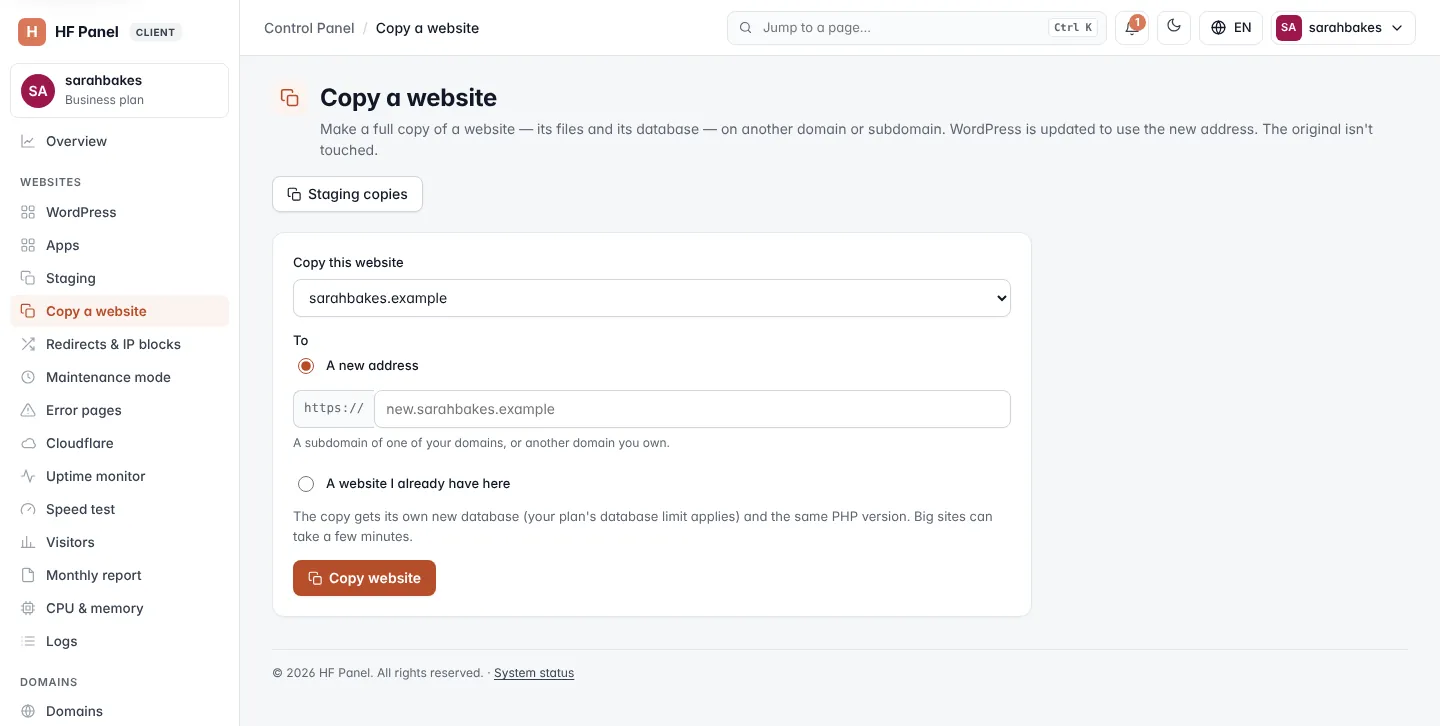
Copy a website makes a full copy of one of your websites — its files and its database — on another domain or subdomain. WordPress is updated to use the new address. The original isn't touched.
Where: Control Panel › Websites › Copy a website
Note: to test changes and then send them back to the live site, use Staging instead.
Copy to a new address
- In Copy this website, choose the website to copy.
- Under To, choose A new address.
- Enter the new address after
https://, for examplenew.yourdomain.comorexample.org. - Click Copy website.
The new address can be a subdomain of one of your domains, or another domain you own. It is added to your account as a new website, so your plan's domain limits apply.
Copy over a website you already have
- In Copy this website, choose the website to copy.
- Under To, choose A website I already have here and pick the target website.
- Tick Replace its files with the copy.
- Click Copy website.
Warning: the target website's current files are removed. Make a backup first if you need them.
Options
| Option | What it does |
|---|---|
| Database to copy | for apps other than WordPress and Laravel: the database to copy when the site's settings don't name one |
| Replace the old address in the database (apps other than WordPress) | a plain replacement of the old address with the new one in the copied database |
| Set up free SSL straight away | tries a free certificate for the copy at once (ticked by default) |
When the copy's app isn't WordPress and has no .env, the message shows the new database name, user and password:
enter them in the app's settings. To start many websites from one, save it as a
site template.
What the copy gets
- Its own new database, when the original has one. Your plan's database limit applies.
- The same PHP version as the original.
- For WordPress, the new address everywhere.
Big sites can take a few minutes. When the copy is done, the message names the new database. Then point the new address's DNS to the server (see DNS setup) and free SSL follows.
If the copy fails
| Message | What to do |
|---|---|
| "A parked domain shows another website — copy that one." | choose the website the parked domain points to |
| "Choose a different website to copy to." | the source and target are the same website |
| "A parked domain can't hold a copy — choose another one." | pick a real website as the target |
| "Enter the new address, e.g. new.example.com or example.org." | the address is not a valid domain name |
| "Tick the box to confirm that the files of the other website will be replaced." | tick the confirmation box |
If anything goes wrong during the copy, a newly created domain and database are removed again.