 HF Panel
Resource usage
The server's CPU, memory, disk and traffic over time, and the CPU and memory of each hosting account.
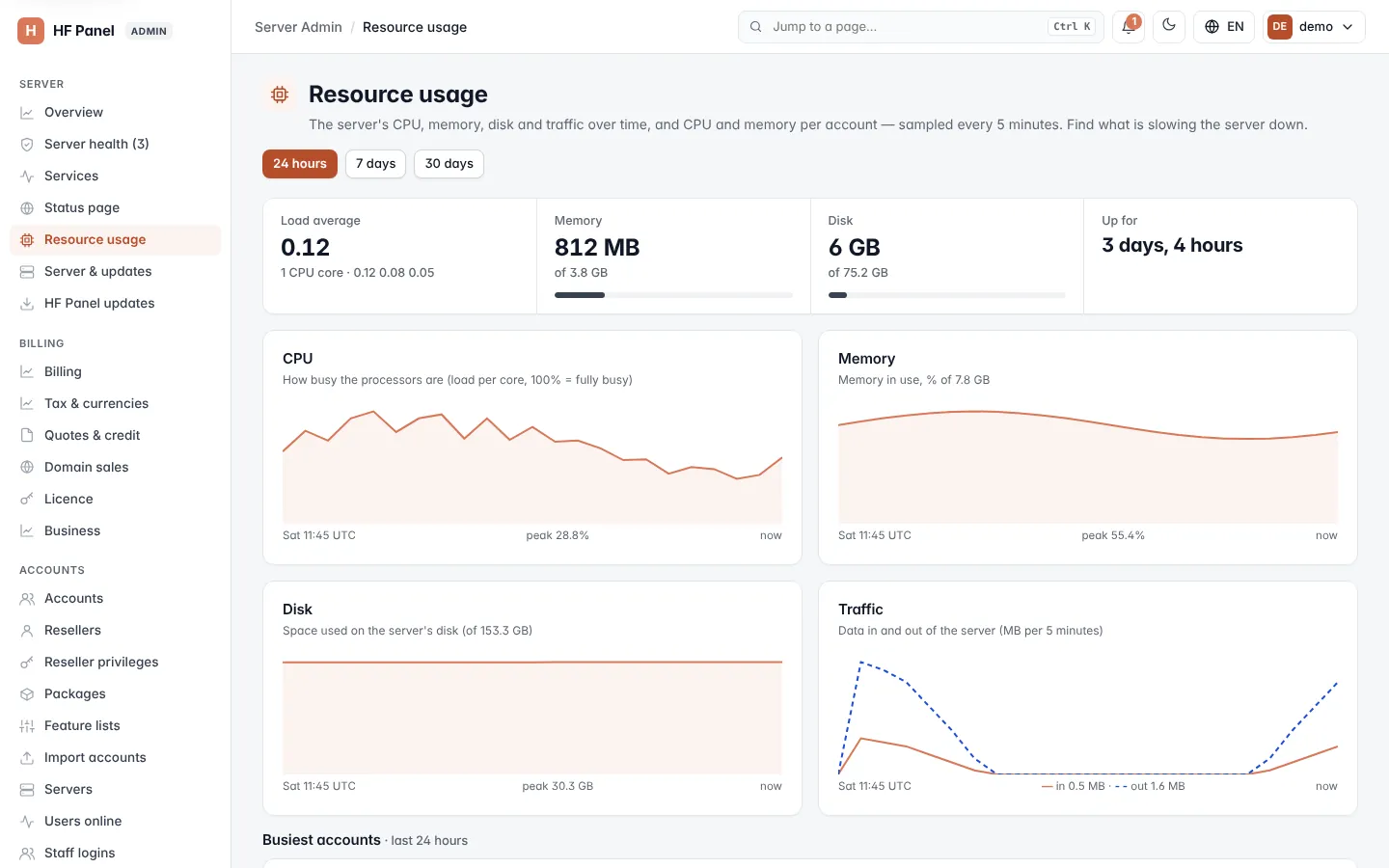
Resource usage shows how hard the server has been working and which accounts are using the most. Use it to find out what is slowing the server down. Figures are sampled every 5 minutes.
Where: Server Admin › Server › Resource usage
Choose the period
Click 24 hours, 7 days or 30 days at the top. The server charts cover the whole period. The account figures cover at most the last 7 days, so the 30-day view shows the last 7 days for accounts.
Figures now
| Figure | What it shows |
|---|---|
| Load average | The 1-minute load average, with the number of CPU cores and the 1, 5 and 15-minute averages underneath. |
| Memory | Memory in use, out of the total, with a bar that turns red above 90 %. |
| Disk | Disk space in use, out of the total, with a bar that turns red above 90 %. |
| Up for | How long since the server last started. |
Charts
| Chart | What it shows |
|---|---|
| CPU | How busy the processors are: load per core, where 100 % means fully busy. |
| Memory | Memory in use as a percentage of the total. |
| Disk | Space used on the server's disk, in GB. |
| Traffic | Data in and out of the server, in MB per 5 minutes (24 hours), per hour (7 days) or per 4 hours (30 days), with the totals in and out. |
Each chart shows when it starts and its peak value. Until the server has collected its own history, you see Server load and Server memory used (MB) charts instead, built from the account samples. A chart says Not enough data yet until there are at least two samples.
Busiest accounts
The table lists every hosting account, the busiest first:
| Column | What it shows |
|---|---|
| Account | The username and package; suspended accounts are marked. |
| CPU now | CPU use right now; 100 % is one full core. Shown in red at 80 % or more. |
| Memory now | Memory in use right now. |
| Processes | Processes running as the account. |
| Avg CPU / Peak CPU | Average and highest CPU over the period. |
| Peak memory | Highest memory use over the period. |
The figures include PHP, cron jobs, Node.js apps and SSH sessions running as the account. Click Log in as to open that account's Control Panel.
Accounts inside their limits
When account isolation collects its own measurements, a second table, Accounts inside their limits, shows each account's CPU, memory, processes and disk use over the last 5 minutes, and how often it hit a limit in the last 24 hours. Click Charts for one account's history. If limits are not enforced, the card says so: the figures are measured, but nothing is held back.
Tip: to stop one account slowing everyone down, give its package CPU and memory limits and enforce them under Packages. See also Account isolation.