 HF Panel
Support tickets
Answer customers' support tickets, see staff notes, close and reopen tickets, and keep saved replies in several languages.
Customers open support tickets from their Control Panel. On the Support tickets screen you see their tickets, answer them, and close or reopen them. You can also keep saved replies for answers you give often, inserted with one click and in the customer's language.
Where: Server Admin › Support › Support tickets
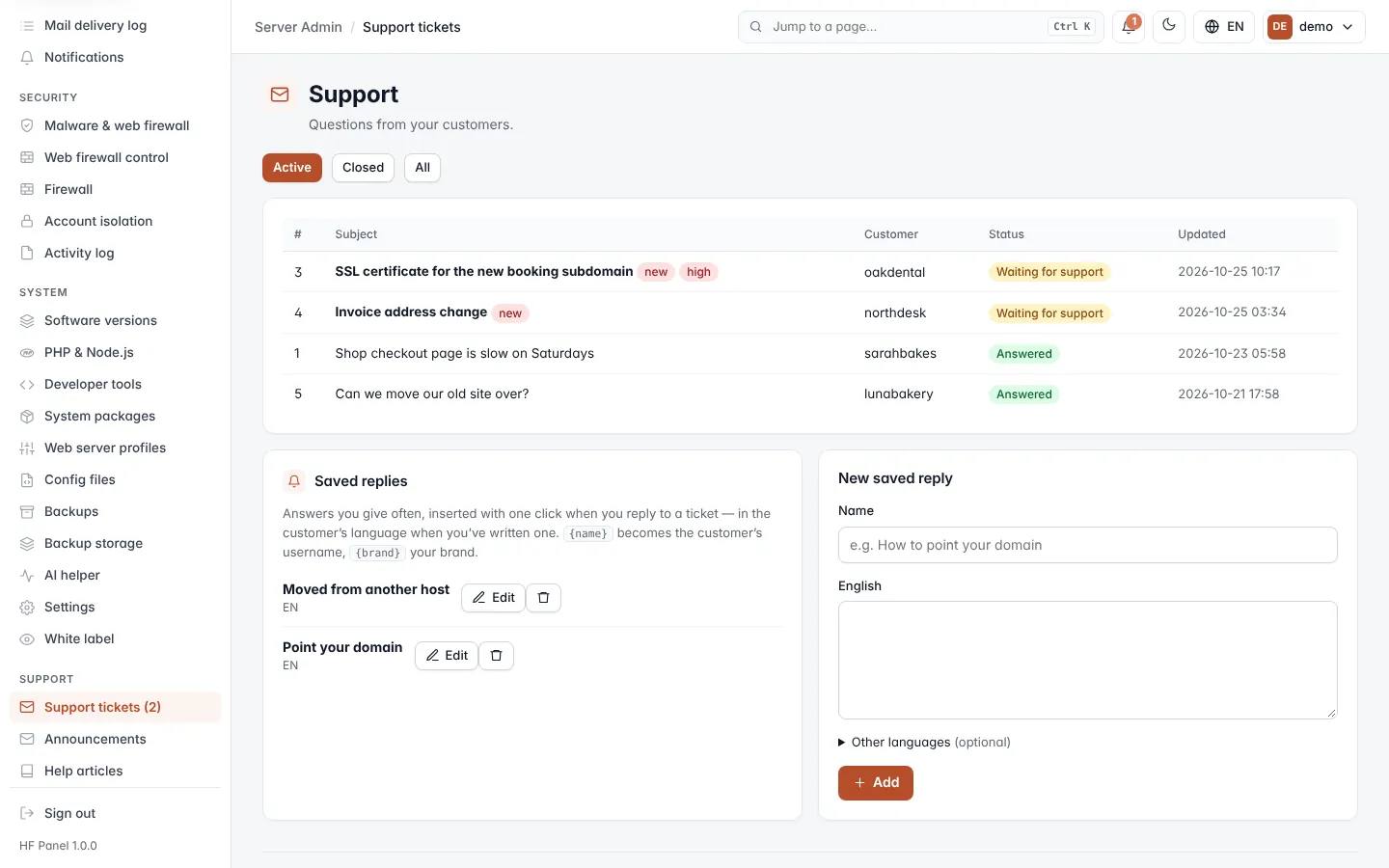
The menu entry shows the number of unread tickets in brackets, for example Support tickets (3). The screen's heading is Support.
Read the ticket list
Choose Active (open and answered tickets, the default), Closed or All. Up to 200 tickets are listed, those waiting for support first, then the most recently updated.
| Column | What it shows |
|---|---|
| Subject | The ticket's subject. new marks a ticket you have not opened since the customer wrote; high marks high priority. |
| Customer | The customer account. |
| Status | Waiting for support, Answered or Closed. |
| Updated | When the ticket last changed. |
Note: tickets cannot be opened from a staff login. To open one for a customer, log in as the customer.
With Email to ticket on, customers can also open and answer tickets by email. A message that came by email says Sent by email, and its attachments are listed under it (a clean file can be downloaded; an infected or too-large one is listed without its content). Emails from unknown senders appear under Waiting for verification: enter the Account (username) and click Open as ticket, or click Put aside.
Answer a ticket
- Click the ticket's subject.
- Read the messages. Under the subject you see the status, the customer's username and email, their tags, the website the ticket is about and its priority.
- Type your answer in Reply. To use a saved reply, choose it in Insert a saved reply…; it is added to the end of the box, with the customer's username and your brand filled in.
- Click Send reply.
The ticket becomes Answered and the customer gets an email with a link to the ticket. When the customer replies, the ticket goes back to Waiting for support and you are emailed.
If the customer has Staff notes, they are shown above the messages. The customer does not see them.
Click ← All tickets to go back to the list.
Close or reopen a ticket
- Click Close ticket when the matter is settled. When staff answered in the ticket, the customer is asked to rate it.
- Click Reopen to open a closed ticket again. You must reopen a closed ticket before you can reply to it. A customer's reply reopens it by itself.
Saved replies
Saved replies are answers you give often. They appear under the ticket list, with the languages each one is written in. They are the same canned replies as in Live chat: one list for both.
- Shared replies belong to the team: administrators share one set (written by administrators who can change things), and each reseller has their own.
- Your own replies are only yours. Every staff login that can change things can keep them.
Add a saved reply
- Under Saved replies, fill in New saved reply:
- Name: a short name, for example "How to point your domain". Up to 80 characters.
- English: the reply in English. Required.
- Other languages (optional): the same reply in other languages.
- Shared with my team: tick it for a shared reply; leave it off for your own.
- Click Add.
When you insert a saved reply, it is filled in in the customer's language when you have written one, otherwise in
English. In the text, {customer} (or {name}) becomes the customer's username, {domain} the ticket's website
(else the account's first domain), {ticket} the ticket number (#12) and {brand} your brand.
Edit or delete a saved reply
- Click Edit, change the reply and click Save. Click Cancel to leave without saving.
- Click Delete and confirm to remove it.
Note: a shared reply can only be changed by who may write shared replies. Staff logins that can only look cannot change any.