 HF Panel
Import and export
Import .sql files into a MySQL or PostgreSQL database with HF Studio, and export tables or whole databases as SQL or CSV.
The Import & export tab loads a .sql file into the database and downloads tables or the whole database.
Where: HF Studio › a database › Import & export
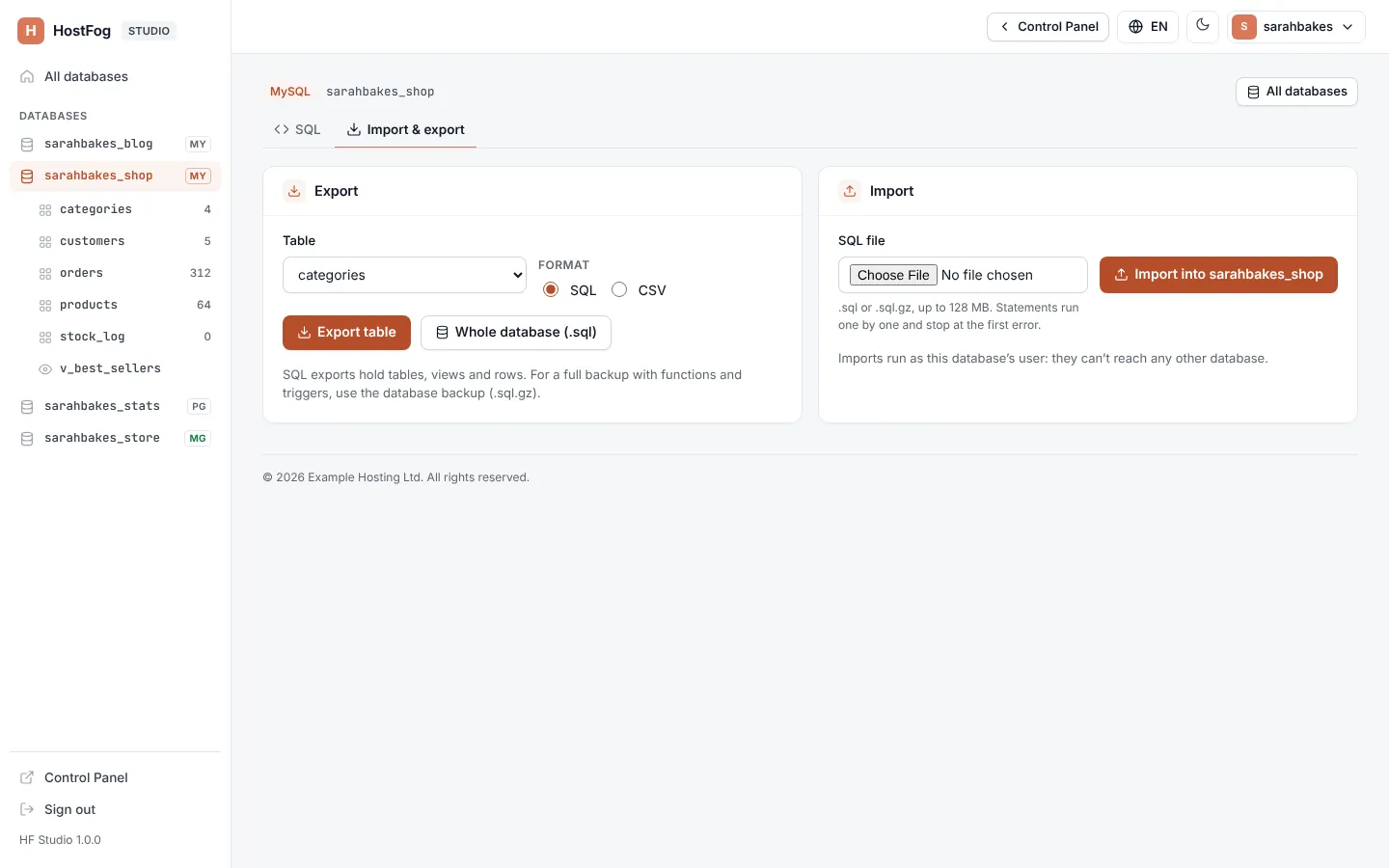
Export
- Choose the Format: sql or csv.
- Click Export table to download the open table, or the button for the whole database:
| Format | Whole database |
|---|---|
| sql | Whole database (.sql): tables, views and rows |
| csv | Whole database (.zip of CSV files): one CSV file per table |
Tip: SQL exports hold tables, views and rows. For a full backup with functions and triggers, use the database backup (.sql.gz) on the database's page in the Control Panel.
Import
- Under Import, choose the SQL file: a
.sqlfile, or a.sql.gzcompressed one. - Check Import into shows the right database.
- Click Import.
The file uploads (Uploading… 40%), then its statements run (Running the statements…). When it is done you see Imported file.sql into shop: 812 statements.
| Limit | Value |
|---|---|
| File size | 128 MB, unless your hosting provider set another limit (a .gz file may unpack to 4 times that) |
| One statement | 10 minutes |
| The whole import | 30 minutes |
For a bigger file, use Import on the database's page in the Control Panel.
Note: imports run as this database's user: they can't reach any other database.