 HF Panel
Mail apps and phones
Use your mailbox in mail apps over IMAP and SMTP, sync calendars and contacts with CalDAV and CardDAV, make app passwords and use webmail on a phone.
Your mailbox works in HF Mail and in the mail, calendar and contacts apps on your phone and computer at the same time. Everything stays in step, because all of them use the same mailbox on the server.
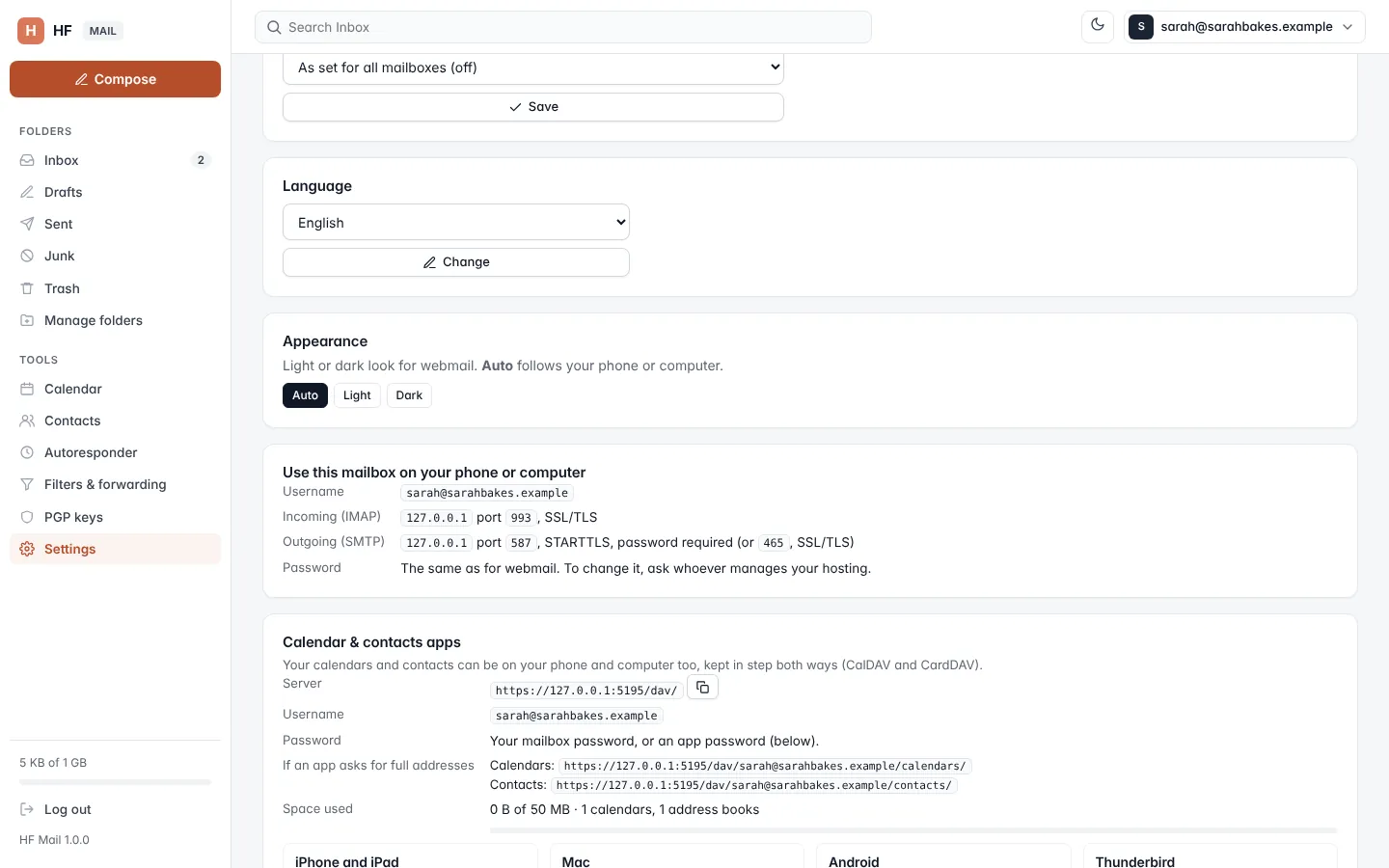
Where: HF Mail › Tools › Settings › Use this mailbox on your phone or computer and Calendar & contacts apps
Webmail on a phone or tablet
HF Mail adjusts to small screens. On a phone:
- tap the menu button at the top left to open the folders and tools;
- tap the round pen button at the bottom right to write a message;
- the message list, reader and editor use the full width of the screen.
There is nothing to install. Add the webmail address to your home screen from your browser's menu if you want an icon for it.
Mail apps (IMAP and SMTP)
Many mail apps set themselves up from just your email address and password. If yours asks for the details, use the values shown in Settings:
| Setting | Value |
|---|---|
| Username | your full email address |
| Password | the same as for webmail |
| Incoming (IMAP) | the mail server shown in Settings, port 993, SSL/TLS |
| Outgoing (SMTP) | the same server, port 587, STARTTLS, password required (or port 465, SSL/TLS) |
POP3 is also available on port 995 with SSL/TLS, for apps that ask for it.
Note: two-factor login applies to webmail only. Mail apps keep using your mailbox password.
To change the password, ask whoever manages your hosting; they change it in the Control Panel under Email accounts.
Calendar and contacts apps
Your calendars and contacts can also be on your phone and computer, kept in step both ways with CalDAV (calendars) and CardDAV (contacts). The Calendar & contacts apps card in Settings shows what to enter:
| Item | What it is |
|---|---|
| Server | the address to enter in the app, https://webmail.yourdomain.com/dav/ (click the copy button) |
| Username | your full email address |
| Password | your mailbox password, or an app password; with two-factor login on, an app password only |
| If an app asks for full addresses | the full Calendars address (…/dav/sarahbakes@yourdomain.com/calendars/) and Contacts address (…/contacts/), for apps that can't find them from the server address |
| Space used | how much of the calendar and contacts storage you use, and how many calendars and address books you have |
The card also has short set-up steps for:
- iPhone and iPad: Settings › Apps › Calendar › Calendar Accounts › Add Account › Other › Add CalDAV Account; for contacts, Contacts › Contacts Accounts › Add Account › Other › Add CardDAV Account.
- Mac: System Settings › Internet Accounts › Add Other Account, then CalDAV account and CardDAV account, account type Manual.
- Android: install a CalDAV/CardDAV sync app from your app store, add an account with Login with URL and user name, then choose which calendars and address books to sync.
- Desktop mail apps: add a network calendar and a CardDAV address book with the same server address.
The storage for calendars and contacts is 50 MB per mailbox unless your hosting provider set another limit.
App passwords
An app password lets a device sync your calendars and contacts without knowing your mailbox password. You can remove it at any time, for example if the device is lost.
- With two-factor login off, app passwords are optional.
- With two-factor login on, calendar and contacts apps must use an app password.
Make an app password
- In Calendar & contacts apps, type a Device name (for example My phone).
- Click Make an app password.
- Type the password shown into the app now. It is not shown again. Click Copy to copy it, then Done.
You can have up to 20 app passwords. Each one in the list shows when it was made and when (and from which IP address) it was last used.
Remove an app password
Click Remove next to it and confirm. Apps using it stop syncing at once.
Note: app passwords can only be made by the mailbox's owner signed in with the password, not when the mailbox was opened from the Control Panel.