 HF Panel
WordPress sites
See every customer WordPress site, spot sites behind the newest WordPress, and update plugins and themes across the server.
The WordPress sites screen finds every WordPress installation in every customer account, shows its version, and tells you which ones are behind the newest WordPress release. You can update the plugins and themes of every site on the server in one go, or open a customer's WordPress Toolkit to work on one site.
Where: Server Admin › Hosting › WordPress sites
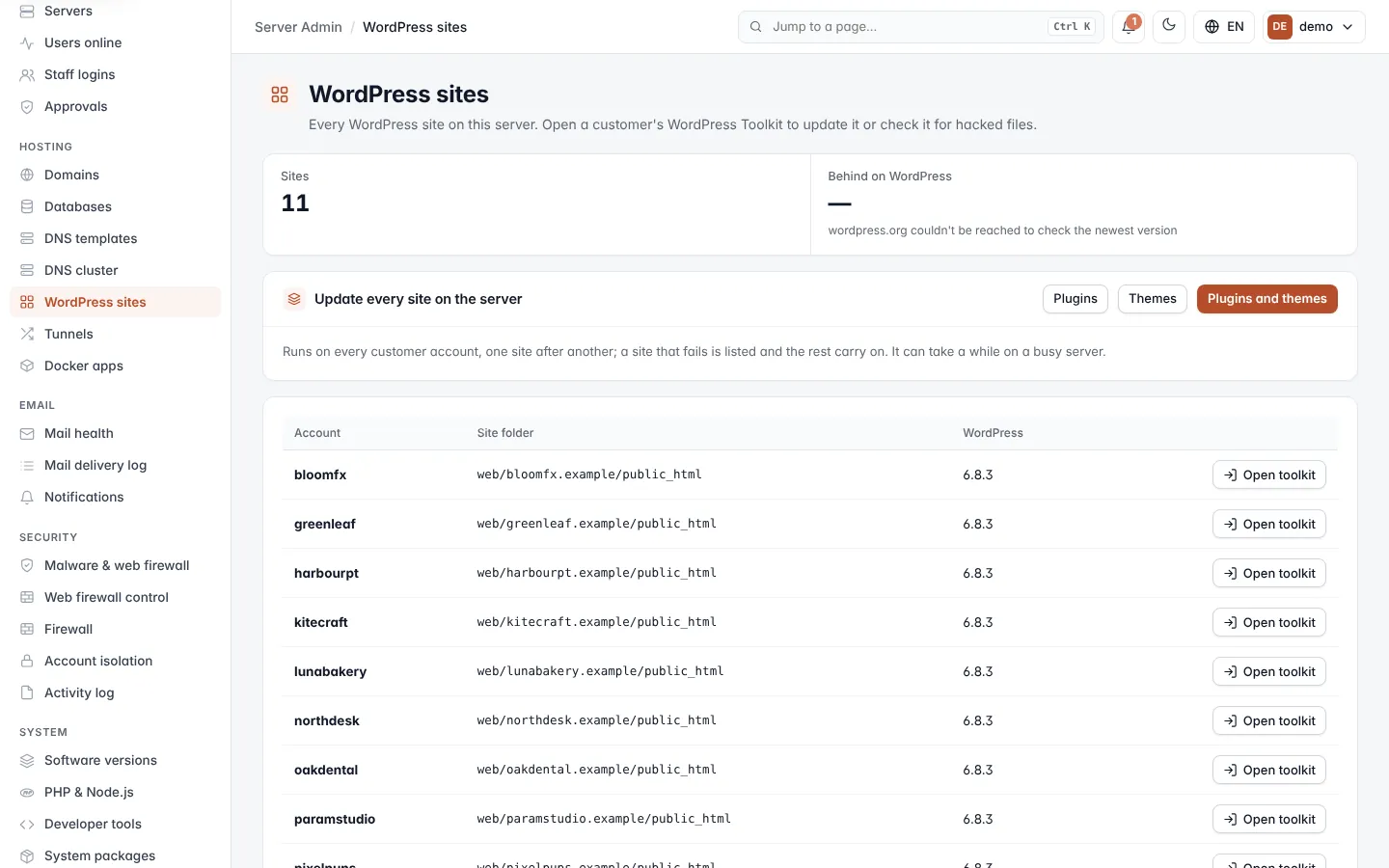
Read the overview
| Item | What it shows |
|---|---|
| Sites | How many WordPress sites were found. |
| Behind on WordPress | How many sites run an older version than the newest release from wordpress.org. Shows — when wordpress.org could not be reached. |
The table lists every site, those behind the newest version first:
| Column | What it shows |
|---|---|
| Account | The customer account. |
| Site folder | The WordPress folder inside the account. |
| WordPress | The installed version (? when it could not be read), marked update waiting or latest. |
Accounts on other servers are scanned on the server they live on. If one account cannot be scanned, a red notice names it and the error; the other accounts are still listed.
Note: the screen scans every account each time it opens, so it can take a moment on a busy server.
Update plugins and themes on every site
The Update every site on the server card runs updates on every active customer account, one site after another.
- Click Plugins, Themes or Plugins and themes.
- Confirm.
When it finishes, a message tells you how many sites in how many accounts were updated. Sites that fail are listed (up to 10) and the rest carry on.
Tip: run updates at a quiet time. On a server with many sites this can take a while.
Open a customer's WordPress Toolkit
- Click Open toolkit on the site's row.
You are logged in as that customer and land on their WordPress Toolkit, where you can update WordPress itself, manage the site or check it for hacked files.