 HF Panel
Mail delivery log
Search what happened to every message on the server, read new log lines now, and choose how long the log is kept.
The Mail delivery log shows what happened to every message on the server, taken from the mail server's own log: whether it was sent, received, deferred, bounced or rejected, who sent it, who it was for, when, and what the other server said. As an administrator you see every row; you can also read new log lines straight away and choose how many days are kept.
Where: Server Admin › Email › Mail delivery log
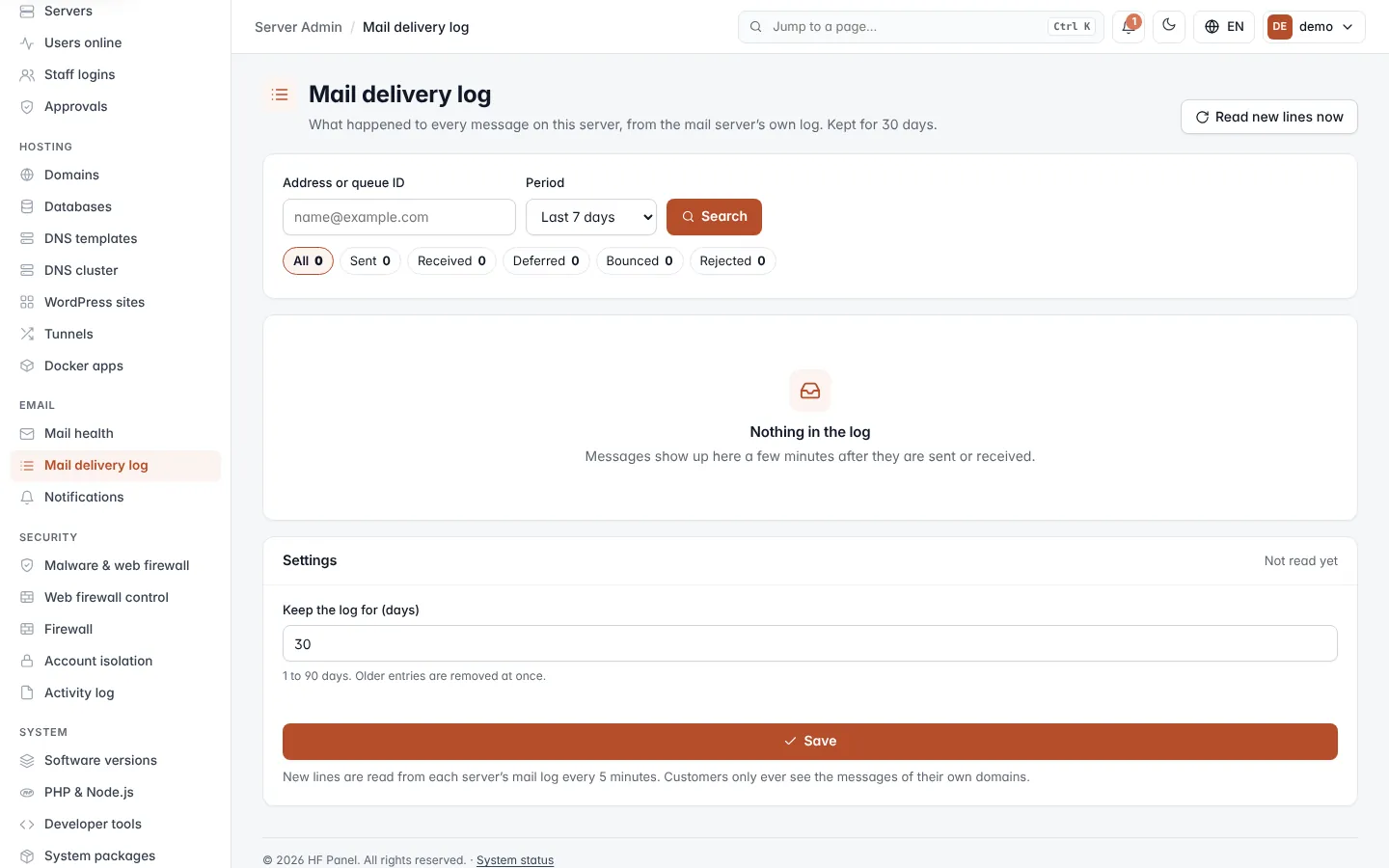
New lines are read from each server's mail log every 5 minutes. Customers see only the messages of their own domains, and resellers those of their customers.
Search the log
- In Address or queue ID, type an email address, part of one, or a queue ID. Leave it empty to see everything.
- In Period, choose Last 24 hours or Last n days. Only periods within the kept days are offered.
- Click Search.
Under the search box, the outcome chips filter the list: All, Sent, Received, Deferred, Bounced and Rejected. Each shows how many messages match your search.
Read the log
The newest messages are shown first, 50 to a page. Use ← Newer and Older → to move between pages.
| Column | What it shows |
|---|---|
| When (UTC) | The time of the delivery attempt, in UTC. |
| Outcome | Sent (delivered), Received (incoming mail accepted here), Deferred (waiting, will be retried), Bounced or Rejected. |
| From | The sender. <> means an empty sender, as used by bounce messages. |
| To | The recipient. |
| What the mail server said | The reply from the receiving server. Below it: the status code, the relay and the queue ID. |
Tip: copy a queue ID into Address or queue ID to see every line for that one message.
Read new lines now
Click Read new lines now at the top right to read the servers' new mail log lines without waiting for the next 5-minute run. The message tells you how many new entries were added.
Choose how long the log is kept
The Settings card shows when the log was last read and how many rows it holds.
- In Keep the log for (days), type a number from 1 to 90. The default is 30.
- Click Save.
Warning: when you shorten the period, older entries are removed at once.