 HF Panel
Uptime monitor
Watch your websites, ports and servers every 1, 5 or 15 minutes and get alerts as soon as one stops answering, and again when it is back.
The uptime monitor checks your websites, TCP ports and servers every few minutes and alerts you as soon as one stops answering — and again when it is back. It shows each monitor's uptime, response times and incidents.
Where: Control Panel › Websites › Uptime monitor
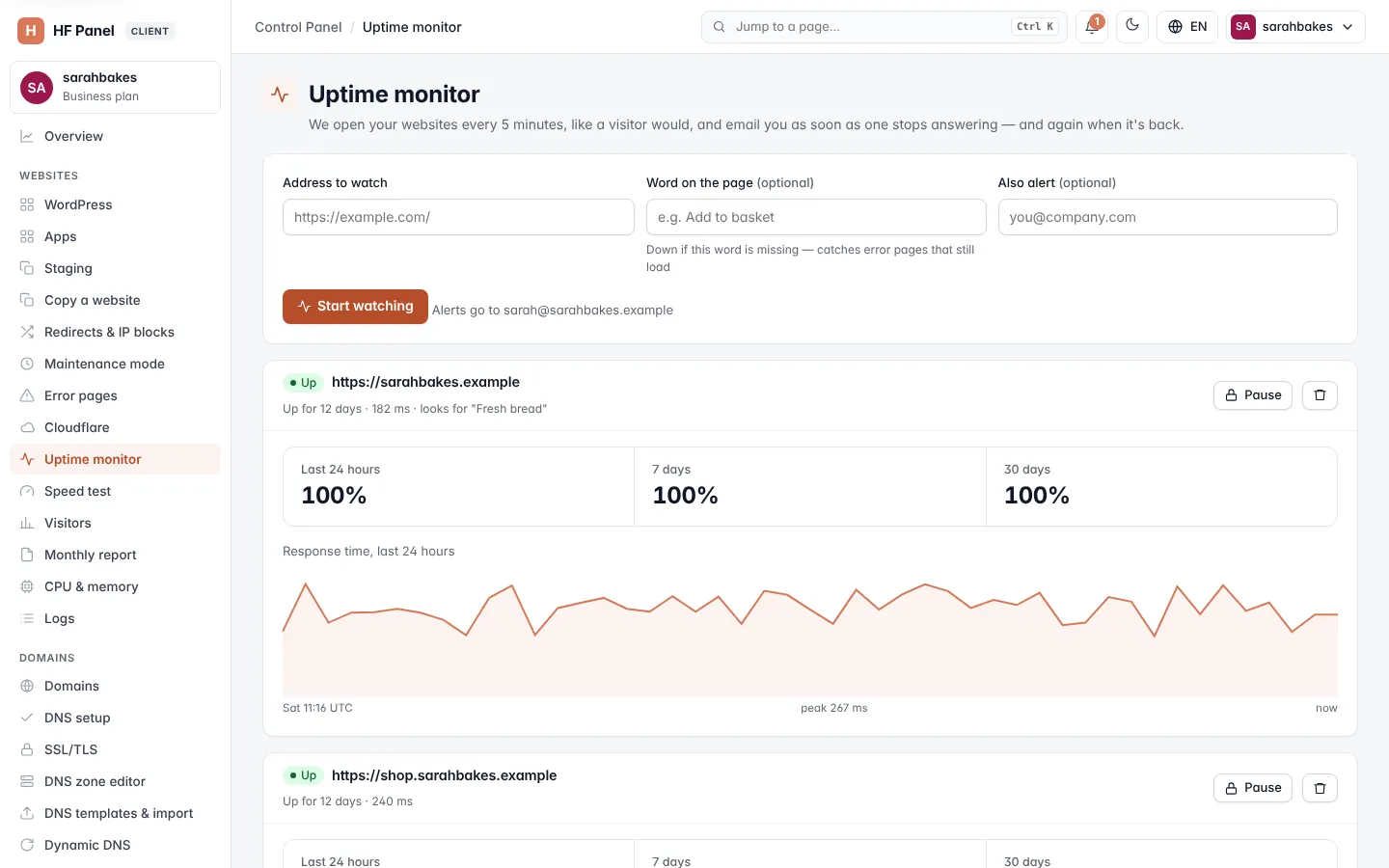
Add a monitor
- Click Add monitor.
- Choose What to check: Website (HTTP/HTTPS), TCP port or Host (ping).
- Enter the Address to watch (websites) or the Host name or IP address (and the Port for a TCP port).
- Choose how often to check in Check every, set the options you want, and click Save.
The first check runs within a few seconds.
| Field | What it does |
|---|---|
| What to check | Website (HTTP/HTTPS) opens the address like a visitor would. TCP port connects to a port, for example 22 or 3306. Host (ping) checks that the server answers on port 443 or 80. |
| Name (optional) | how the monitor is called on the screens and on your status page. Without one, the address is shown. |
| Address to watch | an http:// or https:// address of up to 500 characters. Without https:// it is added for you. Your own domains are suggested as you type. |
| Check every | 1, 5 or 15 minutes. Your hosting plan sets the shortest interval you can choose. |
| Timeout (seconds) | how long to wait for an answer, 5 to 30 seconds |
| Status codes that count as up | websites: the range of HTTP status codes that count as working, 200–399 by default |
| Warn before the SSL certificate ends (days) | websites: you get one warning per certificate when it ends within this many days. 0 = never. |
| Word on the page (optional) | websites: up to 100 characters, for example "Add to basket". The site counts as down if the word is missing — this catches error pages that still load. |
| Down when the word IS on the page | turns the word check around: the site counts as down when the word appears, for example "Database error" |
| Follow redirects | websites: follow up to 5 redirects to the final page. When it is off, a redirect (3xx) is the answer that is checked. |
| Also alert | up to 5 more email addresses, separated by commas |
| Remind while down (hours) | send a reminder every so many hours while the monitor stays down. 0 = never. |
| Show on my status page | list this monitor on your public status page |
Alerts always go to your account's email address too, shown under Also alert.
Note: your hosting plan sets how many monitors you can have. The line under the heading shows how many you use.
When does a monitor count as down?
A check fails when there is no answer in time, the connection is refused, the SSL certificate is not valid, the status code is outside the range, or the word check fails. One failed check is not enough: the monitor checks again after 30 seconds, and only a second failure in a row marks it Down, opens an incident and sends the alert. This avoids alerts for a single lost connection.
When it answers again it is marked Up, the incident is closed and you get a "back up" message with how long it was down.
Alerts go by email, to the notifications in your Control Panel (the bell) and to the channels you chose under Notifications.
Note: monitors can only check public addresses. Addresses in a private network (for example 10.x or 192.168.x) are refused. Your own websites hosted on this server are always allowed, also when their name points to the server's own private address.
Read the list
| Column | What it shows |
|---|---|
| Status | Up, Down, Checking (first checks running) or Paused |
| Monitor | its name, what it checks and how often; for a monitor that is down, the reason |
| Last 24 hours, 7 days, 30 days | the share of checks that passed, for example 99.93%. — means no checks yet. |
| Response time | a small line of the average response time per hour over the last 24 hours |
| Last incident | when the last outage started and how long it lasted |
Click a monitor's name to open it.
One monitor in detail
The detail page shows the uptime over 24 hours, 7 days, 30 days and 90 days, and a Response time graph for Last 24 hours, 7 days or 30 days. Red marks under the line show periods with failed checks. Click Show as table to read every point as a table.
Incidents lists each outage: when it Started and Ended, its Length and Cause. Incidents during a maintenance window are marked.
Every check is kept for 48 hours, hourly figures for 90 days and incidents for a year.
Maintenance windows
Plan a window before you work on a website, so you don't get alerts:
- Under Maintenance windows, choose the Monitor (or All monitors).
- Choose when it Starts and for how many Hours, add a Note if you like, and click Plan.
Checks go on during the window and the history is kept, but no alerts are sent. A monitor that is still down when the window ends is alerted then. A window lasts 30 days at most.
Watch new websites automatically
Click Watch every new website automatically under the list. From then on, every website you add gets a monitor
for https://<domain>/, as long as your plan allows one more.
Pause, change or stop a monitor
- Pause (the stop button) stops checks and alerts until you click Resume (the play button).
- Edit (the pencil) opens the monitor's settings.
- Delete (the bin) asks Stop watching this address? and removes the monitor with its history.