 HF Panel
Help articles
Write the knowledge base customers see under Help and on the public help page, with visibility, categories and a version per language.
Help articles are the knowledge base customers see under Help in their Control Panel and, for public articles, on the public help page. Articles are searchable, suggested to customers when they open a support ticket, and staff can link them into live chat replies (Link a help article). You can write a version of each article per language; customers see their own language when there is one.
Where: Server Admin › Support › Help articles
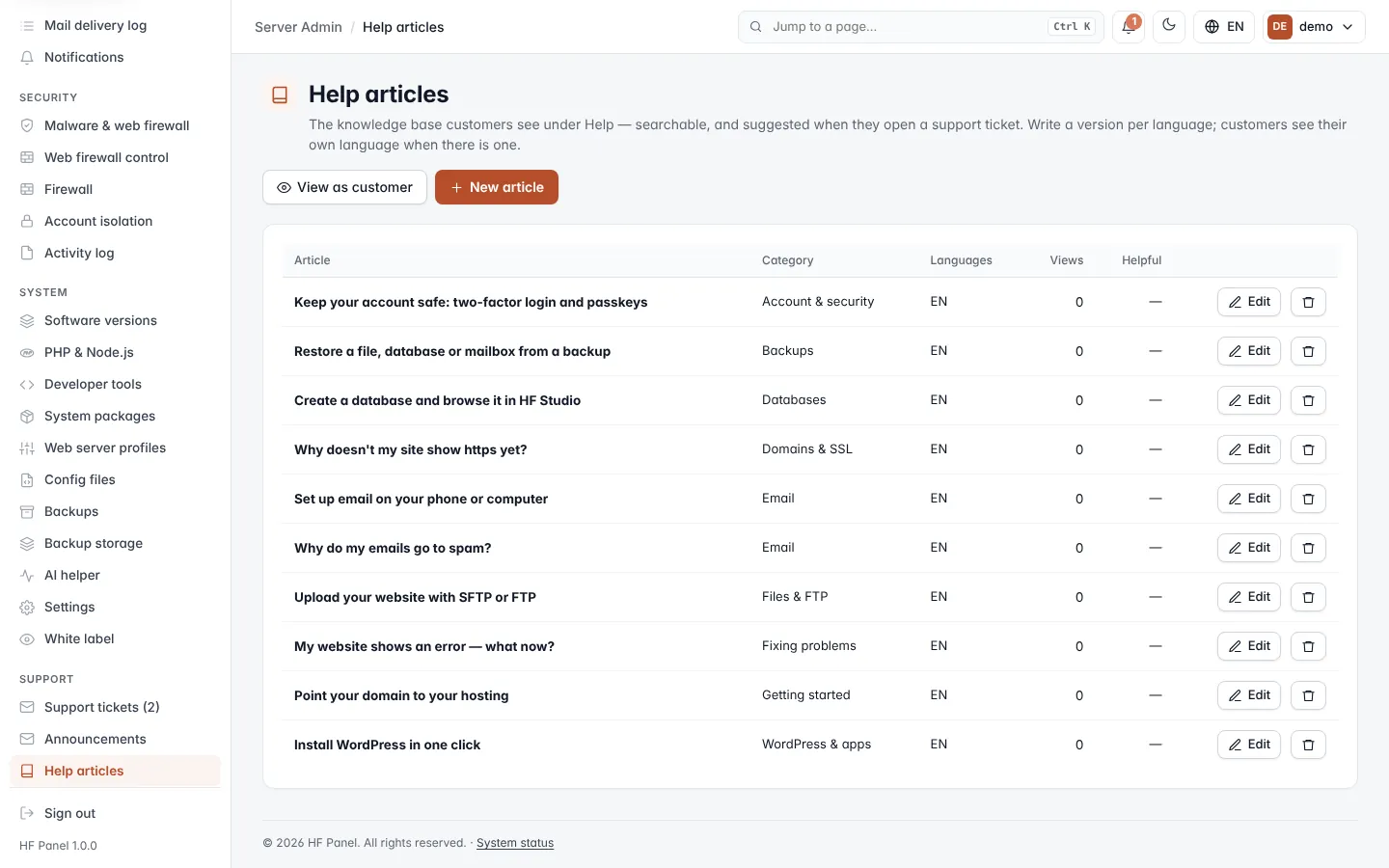
The panel comes with a set of starter articles the first time you open the screen. Edit or delete them as you like. Click View as customer to see the Help pages as customers do.
Read the article list
| Column | What it shows |
|---|---|
| Article | The title. draft marks an article customers cannot see; public and staff only mark its visibility. |
| Category | The section of the Help page it appears in. |
| Languages | EN plus the languages it has been translated into. |
| Views | How often customers have opened it. |
| Helpful | The share of readers who said it helped, or — before anyone has voted. |
Write an article
- Click New article.
- Fill in the fields below.
- Click Save. Click Close to leave the editor.
| Field | What it does |
|---|---|
| Title | 1–150 characters. |
| Category | Getting started, Domains & SSL, Email, Files & FTP, WordPress & apps, Databases, Backups, Account & security or Fixing problems. |
| Article | The text, up to 30,000 characters, in simple Markdown (see below). |
| Who can read it | Public (also the public help page), Signed-in customers, or Staff only (administrators and resellers). |
| Published (customers can see it) | Untick to keep the article as a draft. |
Formatting and placeholders
The article text supports ## Heading, - list, 1. steps, **bold**, `code` and
[link text](https://…).
These placeholders are filled in with your server's details when a customer reads the article:
| Placeholder | Replaced with |
|---|---|
{imap_host}, {smtp_host}, {mail_host} |
The mail server names for mail apps. |
{ftp_host} |
The FTP server name. |
{server_ip} |
The server's IP address. |
{nameservers} |
Your nameservers. |
{webmail} |
The webmail address. |
{panel} |
The panel's address. |
{status} |
The status page address. |
Tip: use placeholders instead of typing your server's names. If they change, every article stays right.
Edit or delete an article
- Click Edit next to the article, change it and click Save.
- Click the bin icon (Delete) and confirm to remove the article and all its translations.
Translate an article
- Click Edit next to the article.
- In the language picker at the top of the editor, choose the language.
- Type the translated Title and Article. The editor names the original you are translating.
- Click Save.
The category and Published setting always come from the original. To stop showing a translation, open it and click Remove this translation and confirm; customers then see the original.
Categories
Besides the built-in categories you can add your own under Your categories: type a name and click Save. Click the pencil to rename one. Removing a category moves its articles to Getting started.
The public help page
Public articles are also on the public help page, /kb on your Control Panel address (shown at the top of the
screen as Public help page). Anyone can read and search them there without signing in, and say whether an article
helped. A reseller with their own panel address (My brand) gets their own public page with their own public
articles.
Resellers' own articles
Resellers have this screen too (Reseller Panel › Support › Help articles). They write articles for their own customers; their customers read the server's articles and their reseller's. A reseller can tick Only my own articles to hide the server's articles from their customers. Staff-only articles of a reseller are seen by that reseller only; nobody else sees or changes another person's articles.