 HF Panel
Image optimiser
Make a website's JPEG and PNG images smaller, add WebP copies for faster pages, and remove the copies again.
The Image optimiser makes the JPEG and PNG images of a website smaller, so pages load faster and use less space. Images already optimised are skipped the next time you run it.
Where: Control Panel › Files › Image optimiser
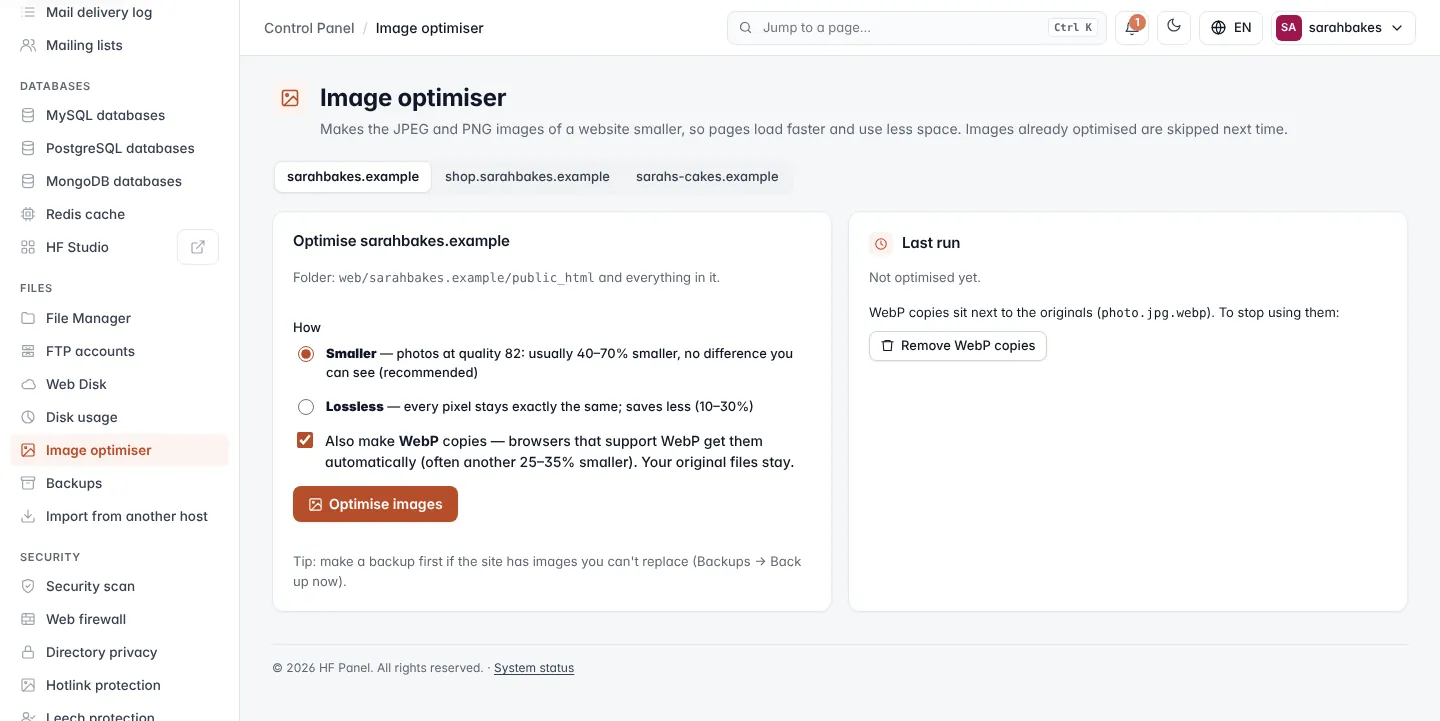
Optimise a website's images
- Pick the website at the top.
- Under Optimise yourdomain.com, check the Folder — the website's folder in
web/and everything in it. - Choose How:
- Smaller — photos at quality 82: usually 40–70 % smaller, with no difference you can see (recommended).
- Lossless — every pixel stays exactly the same; saves less (10–30 %).
- Leave Also make WebP copies ticked to add WebP versions. Browsers that support WebP get them automatically (often another 25–35 % smaller). Your original files stay.
- Click Optimise images.
A window follows the job while it runs. When it ends, the message says how many images were made smaller and how much space was saved, or that the images were already as small as they get.
Tip: make a backup first if the site has images you can't replace (Backups › Back up now).
Last run
The Last run card shows Space saved and when, Images made smaller out of those found (and how many were already done), the mode used and how many WebP copies were made.
Remove the WebP copies
WebP copies sit next to the originals, for example photo.jpg.webp. To stop using them:
- Click Remove WebP copies.
- Confirm. Visitors get the original images again.