 HF Panel
Filters and forwarding
Sort, copy, flag, forward or delete new mail automatically in HF Mail, and forward all your mail to another address.
Filters act on new mail as it arrives at the server, even when webmail is closed. They run from top to bottom. The same page lets you forward all your mail to another address.
Where: HF Mail › Tools › Filters & forwarding
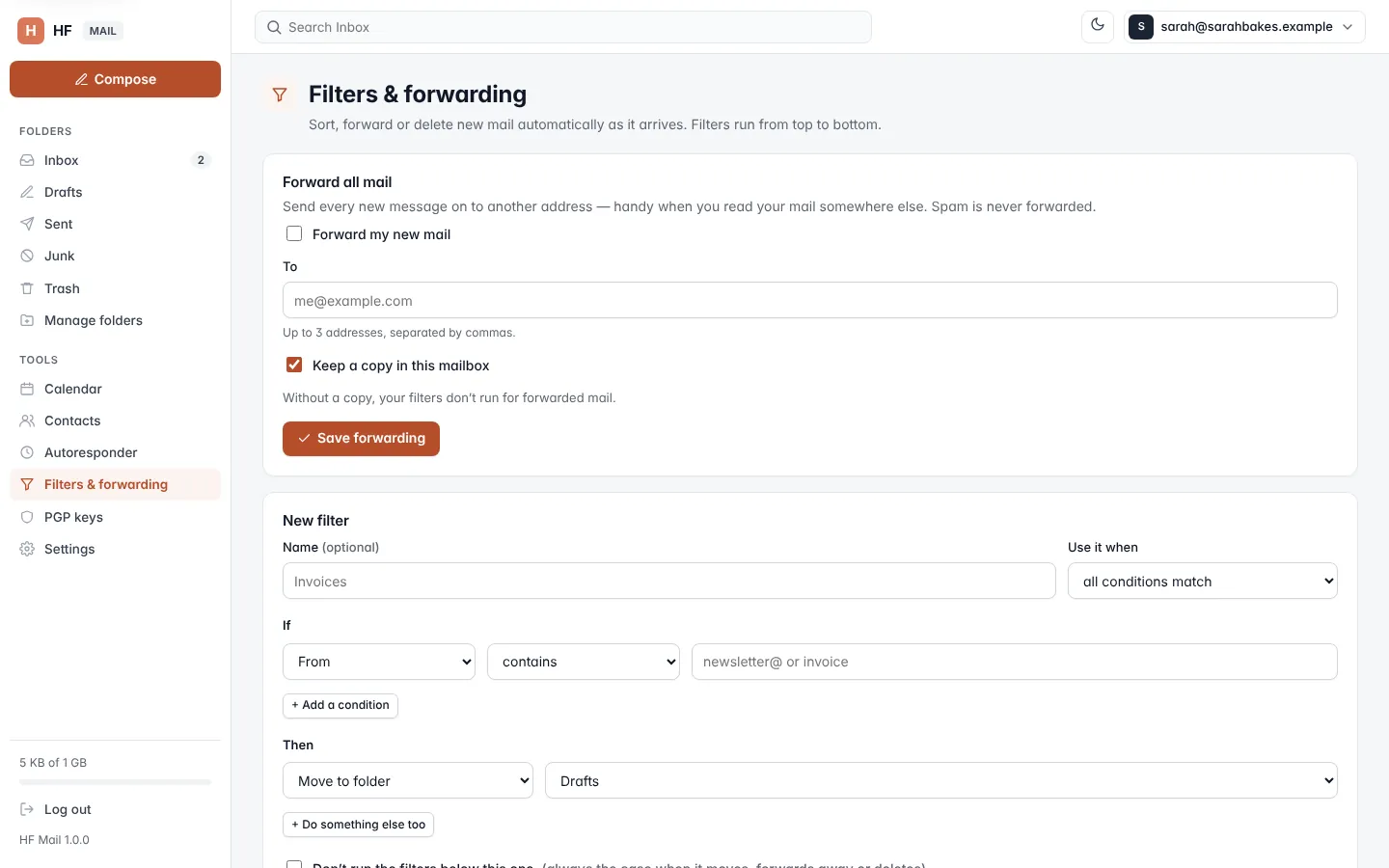
Forward all mail
- Under Forward all mail, tick Forward my new mail.
- In To, type the address. You can forward to up to 3 addresses, separated by commas.
- Leave Keep a copy in this mailbox ticked to keep the mail here as well.
- Click Save forwarding.
Spam is never forwarded. You can't forward a mailbox to itself.
Note: without a copy, your filters (and your autoresponder) don't run for forwarded mail.
Add a filter
- Under New filter, type a Name (optional).
- In Use it when, choose all conditions match or any condition matches.
- Under If, set a condition. Click + Add a condition for more (up to 5).
- Under Then, choose an action. Click + Do something else too for more (up to 4).
- Tick Don't run the filters below this one if later filters should not see the message.
- Click Add filter.
Conditions
| Look at | Tests |
|---|---|
| From | contains, doesn't contain, is exactly, starts with, ends with a text |
| To or Cc | the same tests |
| Subject | the same tests |
| From, To or Subject | the same tests, on any of the three |
| Mailing list name | the same tests, on the list the message came from |
| Size | is bigger than or is smaller than a number of KB or MB |
| Attachments | has attachments or has no attachments |
Actions
| Action | What it does |
|---|---|
| Move to folder | files the message in a folder |
| Copy to folder | puts a copy in a folder and keeps the message in the Inbox |
| Mark as read | marks it read |
| Flag it | adds the star |
| Forward a copy to | sends a copy to an address and keeps the message |
| Forward (don't keep here) | sends it to an address and does not keep it |
| Delete it | deletes the message |
Rules for actions:
- Delete it must be the only action.
- A filter can move to one folder only, and forward to at most 2 addresses.
- A filter that moves, forwards away or deletes always stops the filters below it.
Warning: if a filter moves mail to a folder that no longer exists, the list shows folder missing — mail stays in the Inbox. Edit the filter or create the folder again.
Manage your filters
Your filters lists every filter in plain words, for example If From contains "invoice": move to Receipts.
| Button | What it does |
|---|---|
| Edit | opens the filter in the form; click Save filter (or Cancel) |
| Switch off / Switch on | pauses or resumes the filter; switched-off filters are marked off |
| Copy | makes a copy of the filter |
| ↑ / ↓ | moves the filter up or down; filters run from the top |
| ✕ | deletes the filter |
You can have up to 50 filters.
Spam filtering
The note at the bottom of the page says whether spam filtering is on and at which score mail goes to Junk. This is set for all your mailboxes in the Control Panel, not per mailbox. You can choose a daily spam summary in Settings.