 HF Panel
Developer tools
Choose which optional PHP extensions customers may switch on for their own accounts, set Composer limits and update Composer.
The Developer tools screen decides what customers may use on their developer screens in the Control Panel (Perl, PEAR, Composer and PHP extensions). You choose which extra PHP extensions a customer may load for their own account, how much time and memory a Composer run may take, and keep the server's Composer up to date.
Where: Server Admin › System › Developer tools
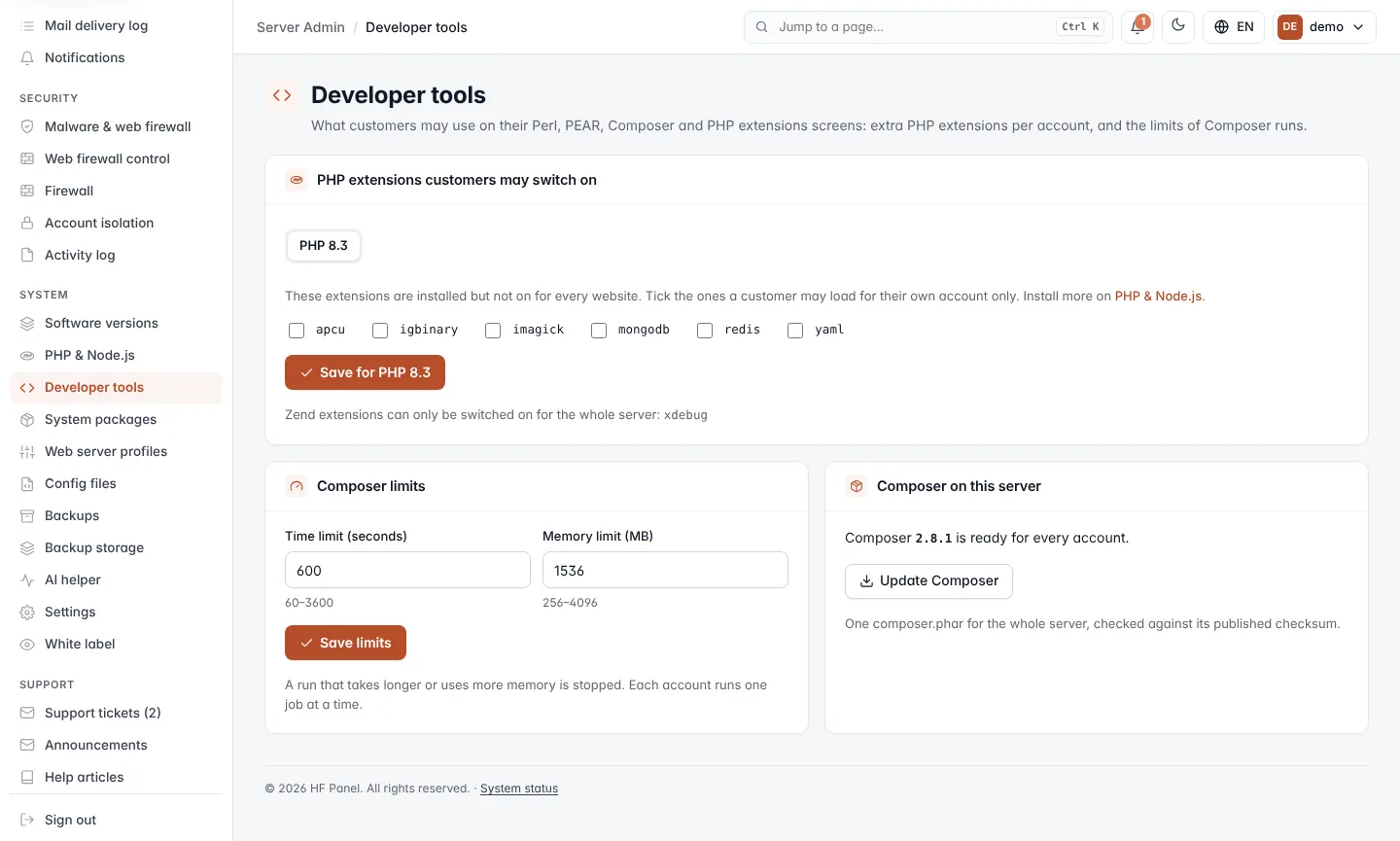
Offer PHP extensions to customers
Optional extensions are installed on the server but not switched on for every website. You can let customers switch them on for their own account only.
- In PHP extensions customers may switch on, choose the PHP version with the PHP version buttons.
- Tick the extensions customers may load. Untick the ones they may no longer use.
- Click Save for PHP version.
Extensions you stop offering are also taken out of the accounts that had them on. Customers then see the ticked extensions on their own PHP extensions screen.
Note: to install more extensions, use PHP & Node.js. Zend extensions are listed separately: they can only be switched on for the whole server, not per account.
If no PHP version is installed, the card says so. If a version has nothing to offer, it says that version has no optional extensions.
Set Composer limits
- In Composer limits, set the two values below.
- Click Save limits.
| Field | What it does |
|---|---|
| Time limit (seconds) | How long one Composer run may take, 60–3600. The default is 600. |
| Memory limit (MB) | How much memory one Composer run may use, 256–4096. The default is 1536. |
A run that takes longer or uses more memory is stopped. Each account runs one job at a time.
Download or update Composer
The server keeps one composer.phar for every account, checked against its published checksum. The Composer on
this server card shows its version, or that it has not been downloaded yet (it is then fetched with the first
run).
- Click Download Composer to fetch it now.
- Click Update Composer to replace it with the newest version.