 HF Panel
Settings
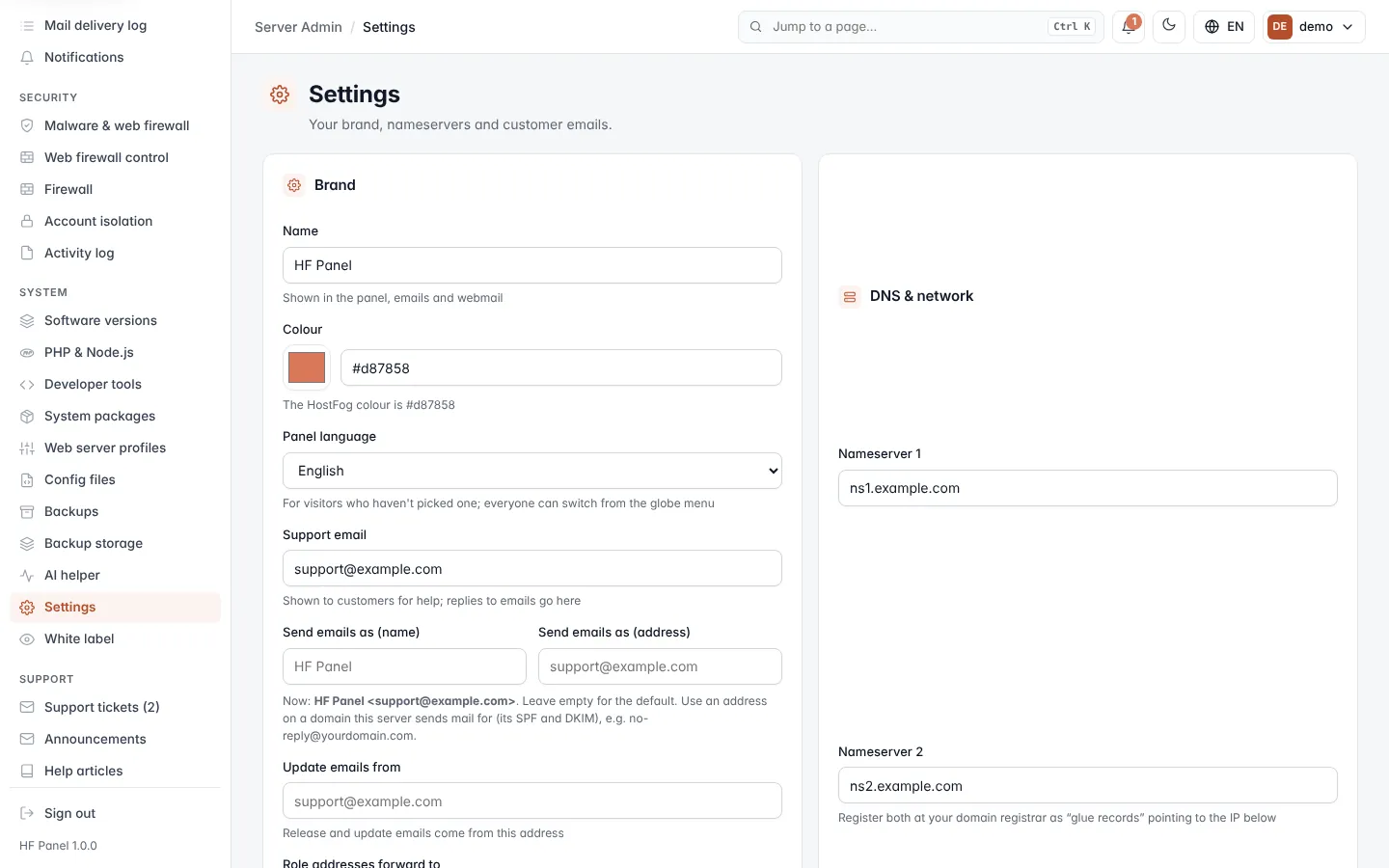
Set the panel's brand, language, support and sender emails, customer emails, risky-action approvals, two-factor rules, nameservers and server IP.
The Settings screen holds the panel's main server-wide settings: your brand and language, the email addresses the panel uses, which emails customers get, how risky actions are confirmed, two-factor login for staff, and the nameservers and IP address used for DNS. It also explains how to give each kind of user their own panel address, and how to remove HF Panel from the server.
Where: Server Admin › System › Settings
Save your changes
All settings in the Brand and DNS & network cards are one form. Change what you need, then click Save settings at the bottom. Everything is checked first; if a value is wrong, the message tells you which one and the other settings are not saved.
Note: Send emails as and Update emails from are saved as soon as they are valid, even if another field (such as the server IP) is wrong.
Brand
| Setting | What it does |
|---|---|
| Name | Your brand name, shown in the panel, emails and webmail. 1–30 characters. |
| Colour | The brand colour, as a hex value such as #d87858. Use the colour picker or type the value. |
| Panel language | The language for visitors who have not picked one. Everyone can switch language from the globe menu. |
The name and colour are passed on to the other apps (webmail, HF Files and so on) when you save. For a full white label with logos, see White label.
Emails the panel sends
| Setting | What it does |
|---|---|
| Support email | Shown to customers for help. Replies to the panel's emails go here. Required. |
| Send emails as (name) | The sender name of the panel's emails. Up to 60 characters, without quotes or < >. Leave empty for the default. |
| Send emails as (address) | The sender address. Leave empty for the default. |
| Update emails from | The address release and update emails come from. Leave empty for the default. |
| Role addresses forward to | Shown when email hosting is on. Where mail to the role addresses of your panel's domain goes (see below). |
The line under the sender fields shows the sender in use now (Now: name <address>).
Tip: use a sender address on a domain this server sends mail for, such as
no-reply@yourdomain.com, so its SPF and DKIM records match. Otherwise the panel's emails may land in spam. Check the result on Mail health.
Role addresses
The role addresses of your panel's domain are postmaster, abuse, hostmaster, webmaster, dmarc, tls and
security. Mail sent to them is forwarded to the address in Role addresses forward to. A role address that is
its own mailbox or forwarder is left as it is, and is marked its own mailbox or forwarder. The forwarding target
cannot be one of the role addresses itself.
Customer emails and features
| Setting | What it does |
|---|---|
| Send a welcome email with login details to new accounts | On by default. |
| Follow-up emails on day 3 and day 7 when a new customer hasn't finished setting up | On by default. |
| In the welcome email | A link to choose their own password (safer), or The password itself. The link works once, within 7 days. |
| AutoSSL | Gives every customer domain a free certificate as soon as it points at the server. On by default. |
| Email customers a monthly report | Visitors, uptime, space, backups and speed. Each customer can switch it off. On by default. |
| Test every website's speed once a week | Emails the customer when their website gets slower. On by default. |
| Customers can open a web terminal | The terminal is jailed to the customer's own account. When off, Terminal is removed from the Control Panel menu. On by default. |
| Terminals per account at once | With the terminal on: how many terminals one account may have open, 1–10. The default is 2. |
| Longest session (minutes) | A terminal closes after this long, 5–480. The default is 120. |
| Close after minutes without a key pressed | The idle time, 1–240. The default is 15. |
Note: the web terminal runs as the customer's account in the same sandbox as its SSH shell (see Account isolation), never as root. Each session's start and end are written to the activity log; what is typed is not. Hosting plans can leave the terminal out with a feature list.
Approvals and two-factor login
Risky actions are deleting an account or reseller, restoring a whole backup, and switching off someone's two-factor login. Choose how they are confirmed:
| Choice | What happens |
|---|---|
| Ask for the password (or two-factor code) again | The default. |
| Another administrator must approve | The request waits until another administrator approves it; they are emailed. When there is no other administrator, the password is asked instead. |
| Only ask "are you sure?" | A simple confirmation. |
| Setting | What it does |
|---|---|
| Resellers need an administrator's approval to delete a customer account or restore a customer's whole backup | Off by default. Can be changed per reseller under Resellers. |
| Require two-factor login for administrators and resellers | Staff must use two-factor login. Off by default. |
Important: before you require two-factor login, turn it on for your own login under Password & security. The setting cannot be saved until you have, so you cannot lock yourself out.
Changes to the approval mode and to reseller approvals are written to the Activity log separately.
DNS & network
| Setting | What it does |
|---|---|
| Nameserver 1 / Nameserver 2 | The nameservers customers point their domains at, for example ns1.yourdomain.com. Register both at your domain registrar as glue records pointing to the server IP. |
| Server IP address | The server's public IPv4 address. Used for new DNS records and SPF. |
| Panel address | The panel's address, set by the installer. Read-only. |
Tip: to run Nameserver 2 on a second machine, see DNS cluster.
Separate panels
You can give administrators, customers and resellers their own panel, each at its own address with its own sign-in. The panel address set by the installer keeps working for everyone, so you can always get in.
When separate panels are off, the card shows the addresses you would get: server. (Server Admin), panel. (Control
Panel), reseller. (Reseller Panel) and files. (File Manager) in front of your domain. To switch them on:
-
Point those names at the server's IP address with A records.
-
Run this as root on the server:
textsudo hf-panel portals on
Free SSL for the new names is added by itself.
When separate panels are on, the card lists each panel, its address and who signs in there: Administrators,
Hosting customers, Resellers, Hosting customers (only their files), Hosting customers (only their
databases) and Scripts, billing systems and apps (API tokens). The card also shows the commands to change the
addresses, go back to one panel (sudo hf-panel portals off) and switch the File Manager, HF Studio and API addresses
on or off.
Remove HF Panel from the server
The last card lists the commands to remove the panel. Run one as root over SSH. Your panel settings are saved to
/root first.
| Command | What it removes |
|---|---|
sudo hf-panel uninstall |
The control panel only. Websites, databases, email and DNS keep running. |
sudo hf-panel uninstall --purge |
Also every hosting account and its data. You must type DELETE EVERYTHING. |
sudo hf-panel uninstall --purge --packages |
Also Nginx, Apache, PHP, MariaDB, mail and DNS software, for a server used for nothing else. |
Warning:
--purgedeletes every customer website, database and mailbox on the server. Take off-server backups first.