 HF Panel
Import from another host
Copy website files, a MySQL database or a mailbox straight from your old hosting company or email provider.
Import from another host copies your website files, databases and email straight from your old server into this account. Nothing changes on the old server. Copies run in the background; the page shows when they are done.
Where: Control Panel › Files › Import from another host
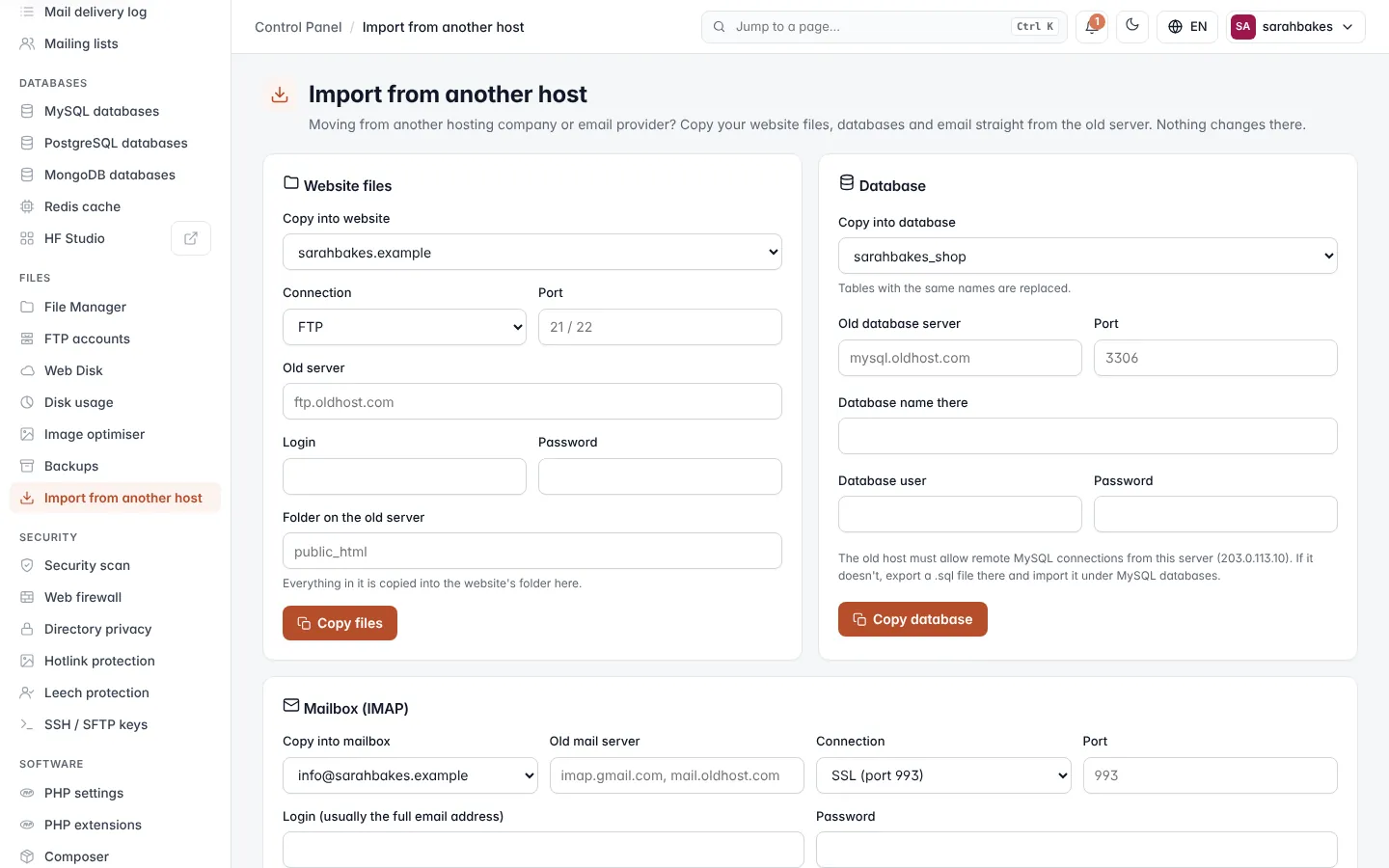
Copy website files
- In Website files, choose the website in Copy into website.
- Choose the Connection: FTP, FTP with TLS (FTPS) or SFTP (SSH).
- Enter the Port if it is not the usual one (21 for FTP, 22 for SFTP).
- Enter the Old server name, for example
ftp.oldhost.com, and the Login and Password. - In Folder on the old server, enter the folder to copy, for example
public_html. Everything in it is copied into the website's folder here. - Click Copy files.
Copy a database
- Create an empty database first under MySQL databases.
- In Database, choose it in Copy into database. Tables with the same names are replaced.
- Enter the Old database server (for example
mysql.oldhost.com), the Port (default 3306), the Database name there, the Database user and the Password. - Click Copy database.
Important: the old host must allow remote MySQL connections from this server; the screen shows this server's IP address. If it doesn't, export a
.sqlfile there and import it under MySQL databases.
When the copy finishes, update your website's settings file with the new database name, user and password.
Copy a mailbox
- Create the mailbox here first under Email accounts.
- In Mailbox (IMAP), choose it in Copy into mailbox.
- Enter the Old mail server (for example
imap.gmail.comormail.oldhost.com). - Choose the Connection: SSL (port 993), STARTTLS (port 143) or No encryption (143), and the Port if it differs.
- Enter the Login (usually the full email address) and the Password.
- Click Copy mail.
Every folder is copied with its read and flagged state and dates.
Tip: Gmail and Outlook.com need an app password. Run the copy again later to pick up mail that arrived meanwhile — messages already copied are skipped.
Follow the copies
The Copies table lists your last 20 copies: What, From, Into, Status (Waiting, Copying…, Done or Failed) and the Result. While a copy is waiting or running, the table updates every few seconds.
| Rule | Detail |
|---|---|
| At once | up to three copies can wait or run at the same time |
| Old server | must be a public name or IP address |
| Port | 1 to 65535 |
| Password | kept encrypted only until the copy has finished |