 HF Panel
System packages
Search the operating system's software and install or remove packages on the server without the command line.
The System packages screen lets you search the operating system's software and install or remove packages on the
server, the same as apt install, without the command line. Use it for tools such as ImageMagick or ffmpeg that
customers' websites need.
Where: Server Admin › System › System packages
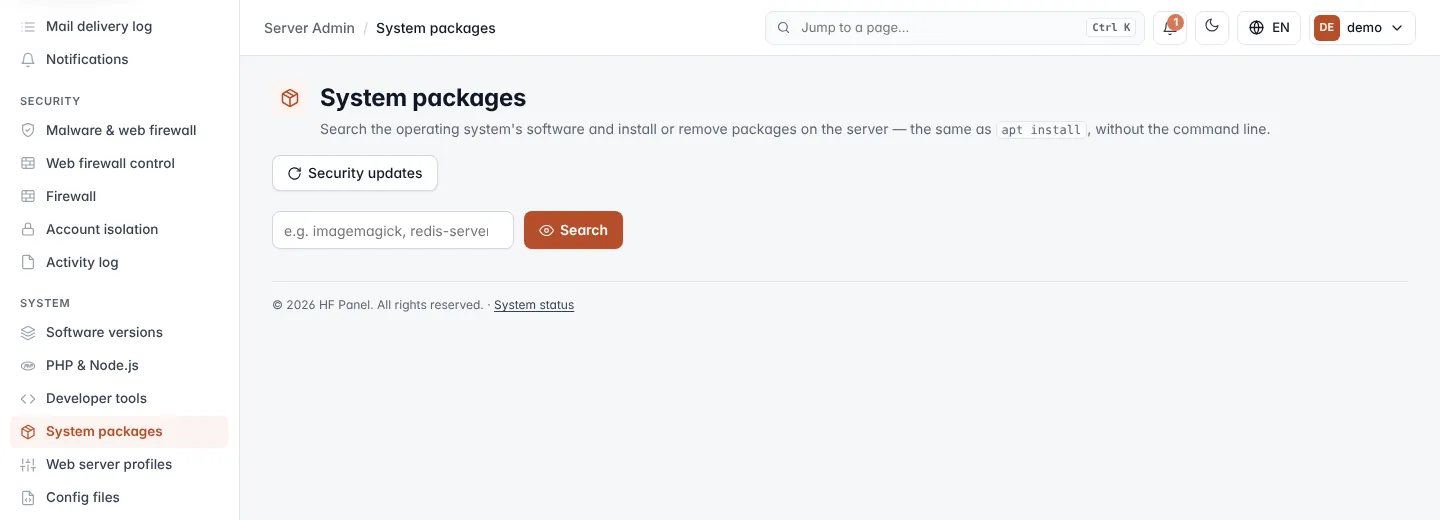
Click Security updates at the top to go to Server & updates for operating system updates.
Find a package
- Type a package name, or part of one, in the search box, for example
imagemagick,redis-serverorffmpeg. Use letters, numbers,-,+and., at least 2 characters. - Click Search.
| Column | What it shows |
|---|---|
| Package | The package name. |
| Description | What the package is. |
| Installed | The installed version, or — when it is not installed. |
Install a package
- Search for the package.
- Click Install on its row and confirm. Anything the package needs is installed too.
The install runs in the background, in a progress window you can follow live.
Remove a package
- Search for the package.
- Click Remove on its row and confirm.
Important: packages the hosting system depends on (web, mail, database, SSH and so on) cannot be removed here. The server refuses them.
Follow the progress
While an install or removal runs, the Working… card shows its log and refreshes every 4 seconds; click Refresh to update it at once. Lines with errors are highlighted. When it has finished, the card is called Last install / removal and keeps the log of the last change.