 HF Panel
Config files
Edit the main configuration files of the server's services, with a check before every save and earlier versions to restore.
The Config files screen lets you edit the main configuration files of the server's services in the browser. Every save is checked by the service itself first; if the check fails, nothing changes. The last 20 versions of each file are kept, so you can put an earlier one back.
Where: Server Admin › System › Config files
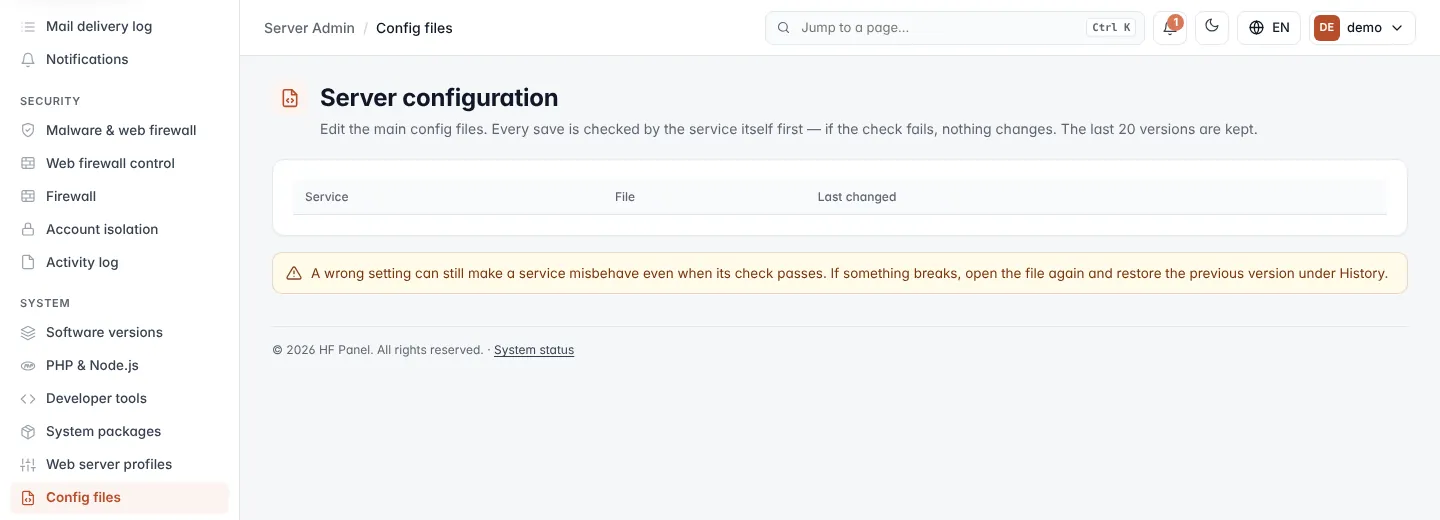
The screen's heading is Server configuration.
Files you can edit
The list shows each file with its Service, its File path on the server, and when it was Last changed (UTC). Depending on what the server runs, it includes:
| Service | What the file controls |
|---|---|
| Nginx (front web server) | The web server in front of every website. |
| Apache (PHP + .htaccess) | The web server behind Nginx for .htaccess support. |
| MariaDB (databases) | The MySQL-compatible database server. |
| Postfix (mail sending) | Outgoing and incoming mail delivery. |
| Dovecot (mailboxes) | IMAP and POP3 access to mailboxes. |
| SpamAssassin | Spam filtering. |
| BIND (DNS) | The nameserver. |
| SSH server | SSH and SFTP logins. |
| fail2ban | Banning addresses that guess passwords. |
| PHP version (php.ini) | The php.ini of each installed PHP version. |
Edit a file
- Click Edit next to the file.
- Change the text in the editor.
- Click Check & save.
The service checks the new configuration. If the check passes, the file is saved, the previous version is kept under History, and the service is reloaded. If the check fails, the file is not changed and the message shows the error.
If you try to leave the page with unsaved changes, you are asked first. Click Config files above the editor to go back to the list.
Note: an empty file is never saved, and a file may be at most 1 MB.
Warning: a wrong setting can still make a service misbehave even when its check passes. If something breaks, open the file again and restore the previous version under History.
Restore an earlier version
- Open the file with Edit.
- In History, find the version by its date and time.
- Click Restore and confirm.
The current file is saved first, then the earlier version is put back and the service is reloaded.