 HF Panel
White label
Put your own logo and company name on the panel, login page, webmail and emails, add a login message and your own help link.
The White label screen makes the panel your own: your logo and name everywhere (the panel, the login page, webmail, emails and the browser tab) with no mention of HostFog Ltd. You can also show a message on the login page and send customers to your own help site.
Where: Server Admin › System › White label
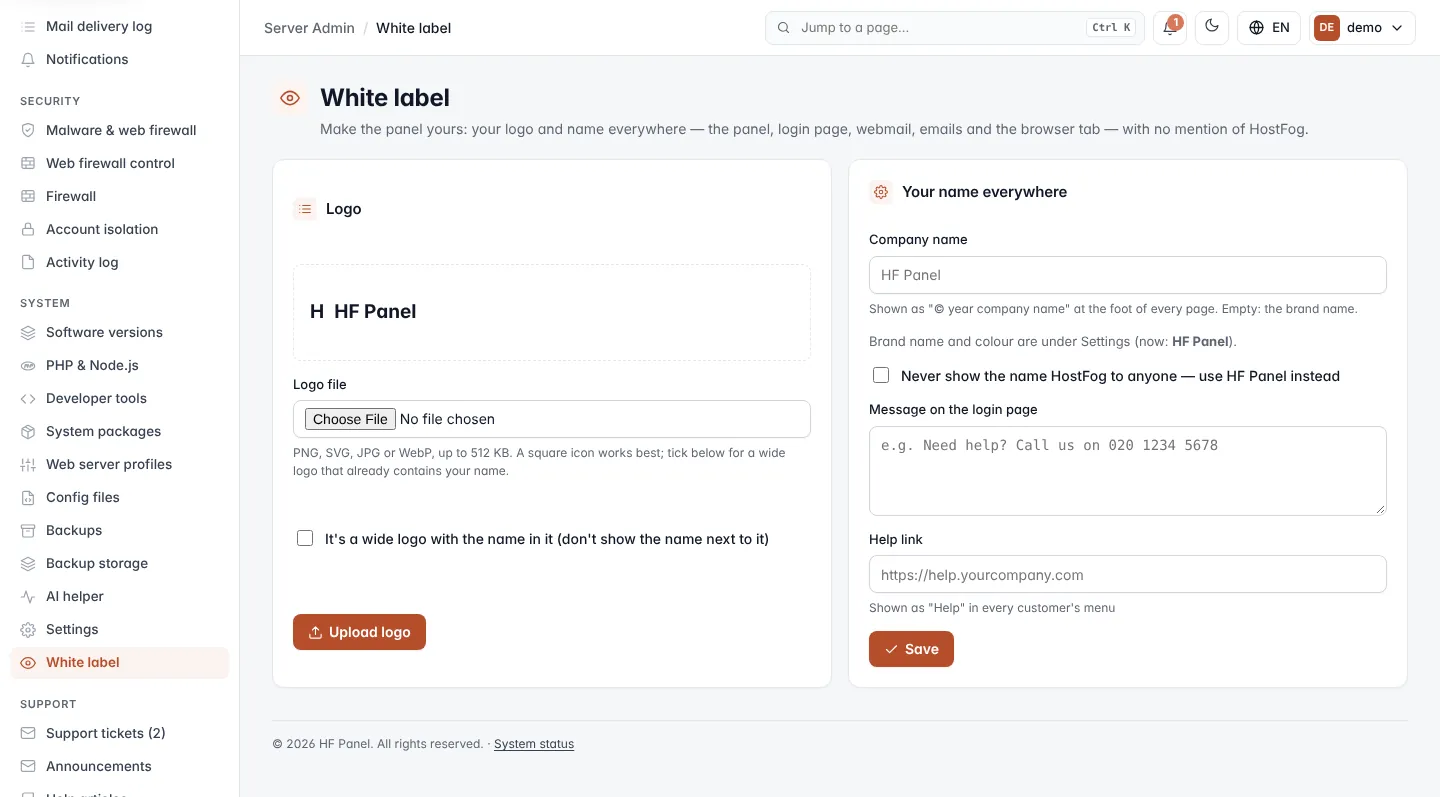
The brand name and colour are set on Settings. The screen shows the current brand name for reference.
Upload a logo
- In the Logo card, choose the image in Logo file: PNG, SVG, JPG or WebP, up to 512 KB.
- If the logo is a wide word mark that already contains your name, tick It's a wide logo with the name in it (don't show the name next to it).
- Click Upload logo.
The preview at the top of the card shows the logo as the menu will show it. The logo appears in the panel, on the login page, in webmail and as the browser icon. The panel's own menu changes on the next page load.
Tip: a square icon works best. Without the wide option, your brand name is shown next to it.
Note: an SVG that contains scripts, event handlers or embedded content is refused. Export it again as a plain SVG, or use a PNG.
Remove the logo
Click Remove logo at the bottom of the screen and confirm. The panel goes back to the letter icon: the first letter of your brand name in a square.
Show your name everywhere
- In the Your name everywhere card, set the options below.
- Click Save.
| Setting | What it does |
|---|---|
| Company name | Shown as "© year company name" at the foot of every page. Up to 100 characters. Leave empty to show the brand name. |
| Never show the name HostFog Ltd to anyone — use your brand instead | Replaces the publisher's name with your brand everywhere customers can see it. |
| Message on the login page | A short text on the login page, for example a support phone number. Up to 300 characters. |
| Help link | An address starting with https://. It is shown as Help in every customer's menu, in place of the built-in help. Leave empty to keep the built-in help. |
Important: you can only hide the publisher's name once you have set your own brand name under Settings.