 HF Panel
Firewall
Open ports, block IP addresses from the whole server, delete firewall rules and lift fail2ban bans.
The Firewall screen shows which ports are open on the server, who is blocked, and who fail2ban has banned for guessing passwords. You can open a port, block an IP address or range, remove a rule, and unban an address. Every change is written to the Activity log.
Where: Server Admin › Security › Firewall
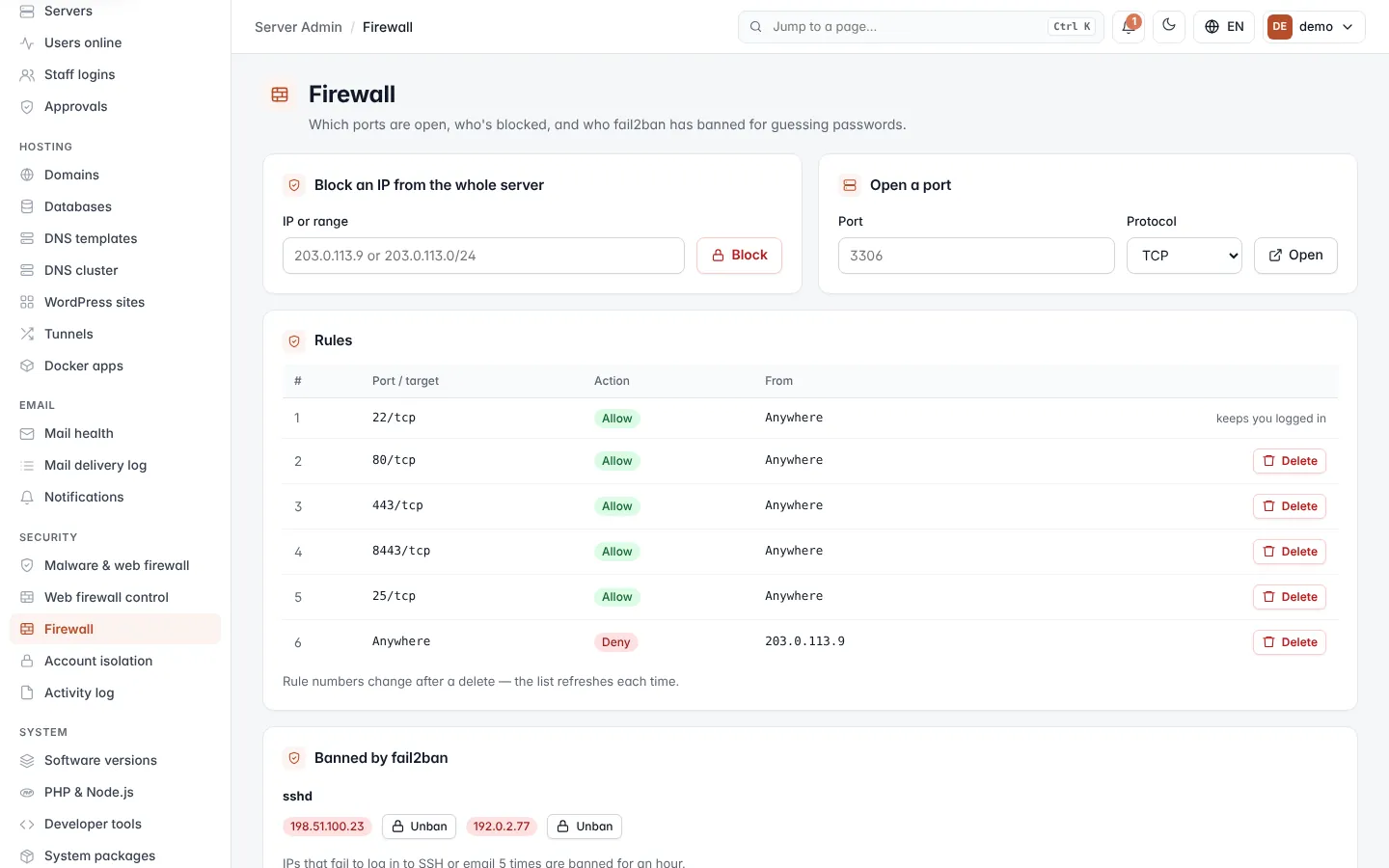
Block an IP address from the whole server
- In Block an IP from the whole server, type an address or range in IP or range, for example
203.0.113.9or203.0.113.0/24. - Click Block.
The address can no longer reach any service on the server.
Open a port
- In Open a port, type a Port, for example
3306, or a range such as6000:6100. - Choose the Protocol: TCP, UDP or Both.
- Click Open.
Read and delete rules
The Rules table lists the firewall's numbered rules:
| Column | What it shows |
|---|---|
| # | The rule number. |
| Port / target | The port, range or service. |
| Action | Allow, Deny, Reject or Limit. |
| From | Where the traffic may come from, for example Anywhere or an IP address. |
To remove a rule, click Delete and confirm. Rule numbers change after a delete, so the list refreshes each time.
Important: the SSH rule cannot be deleted from this screen. It shows keeps you logged in instead of a Delete button, so you cannot lock yourself out of the server.
If the table says No rules (is the firewall off?), the firewall returned no rules.
Unban an address
Banned by fail2ban lists the addresses banned right now, grouped by jail. IP addresses that fail to log in to SSH 5 times are banned for an hour; when email hosting is on, failed email logins count too.
To lift a ban, click Unban next to the address. It is removed from every jail.
Tip: if a customer cannot connect to SSH or email, check here first. A wrong password saved in a mail app can get their office IP banned.