 HF Panel
Python apps
Run a Flask, Django, FastAPI or other Python web app on one of your domains, with automatic start and restart.
The Python apps screen runs a Flask, Django, FastAPI or other Python web app on one of your domains. The app runs as your account's own service — gunicorn for WSGI apps, uvicorn workers for ASGI apps — on a local port, and the domain forwards every visit to it. It starts automatically and restarts if it crashes.
Where: Control Panel › Software › Python apps
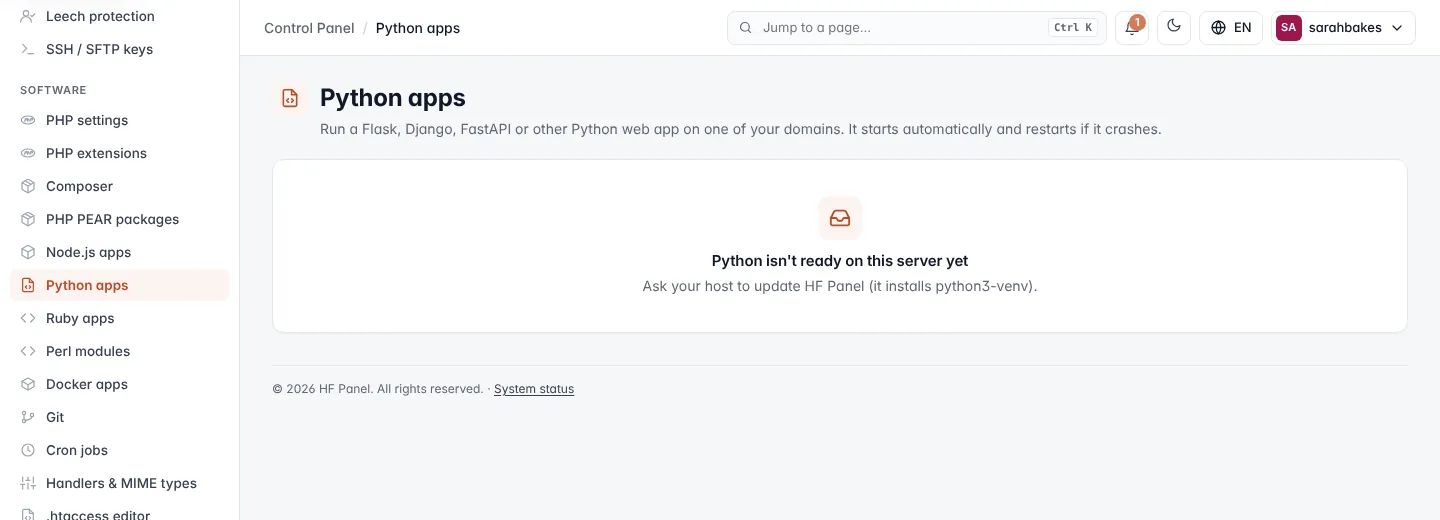
Note: if the screen says Python isn't ready on this server yet, ask your hosting provider to update HF Panel. You also need at least one domain.
Create a Python app
- Under New Python app, enter the App name, for example
blog. - Choose the Domain. All visits to this domain go to the app.
- Enter the App folder in your home, for example
apps/blog, for your code andrequirements.txt(created if missing). - Enter the Entry point: Flask
app:app, Djangomysite.wsgi:application, FastAPImain:app. - Choose the Type: WSGI — Flask, Django or ASGI — FastAPI, Starlette.
- Choose the Python version (3.12 is chosen by default when available) and the number of Workers.
- Add Environment variables if your app needs them.
- Click Create app.
- Put your code in the app folder, then choose Set up / pip install from the app's menu.
Set up / pip install creates the app's virtual environment, installs the packages in requirements.txt and
(re)starts the app.
| Field | Rules |
|---|---|
| App name | lowercase letters, numbers, - and _, up to 30 characters; cannot be changed later |
| Domain | a main domain, not a parked domain. A domain can run only one app (Python or Node.js). |
| App folder | a folder inside your home |
| Entry point | module:object, optionally called, for example create_app(). Default app:app. |
| Workers | 1–8 (default 2) |
| Environment variables | one NAME=value per line, upper-case names; no quotes or backslashes in values (up to 500 characters); up to 30 variables |
Note:
PORTandHOSTare set for you, and the app is served by gunicorn on them, so your code doesn't open a port itself.PYTHONUNBUFFERED,VIRTUAL_ENVandPATHare set for you too.
Manage apps
The apps table shows each app's type and workers, Domain, Folder · entry point, Python version and Status (Running, Starting or stopped).
| Button | What it does |
|---|---|
| Restart / Stop / Start | controls the app's service |
| Set up / pip install | installs the requirements again and (re)starts the app |
| Settings | opens the app's settings; click Save & restart to apply changes |
| Log file | opens the logs folder in the File Manager |
| Remove app | removes the app after you confirm |
If the app does not come up, the message points to its log, ~/logs/python-<app name>.log. Removing an app keeps
its files; the domain serves its website folder again.