 HF Panel
Account isolation
Choose how strongly hosting accounts are kept apart, check a change on every server first, and watch accounts hitting their limits.
The Account isolation screen controls how strongly hosting accounts are kept apart: what each account can see, use and run on the server. Settings apply to every server HF Panel manages. A stricter setting is first checked on each server, without changing anything, so you know nothing will break before you apply it.
Where: Server Admin › Security › Account isolation
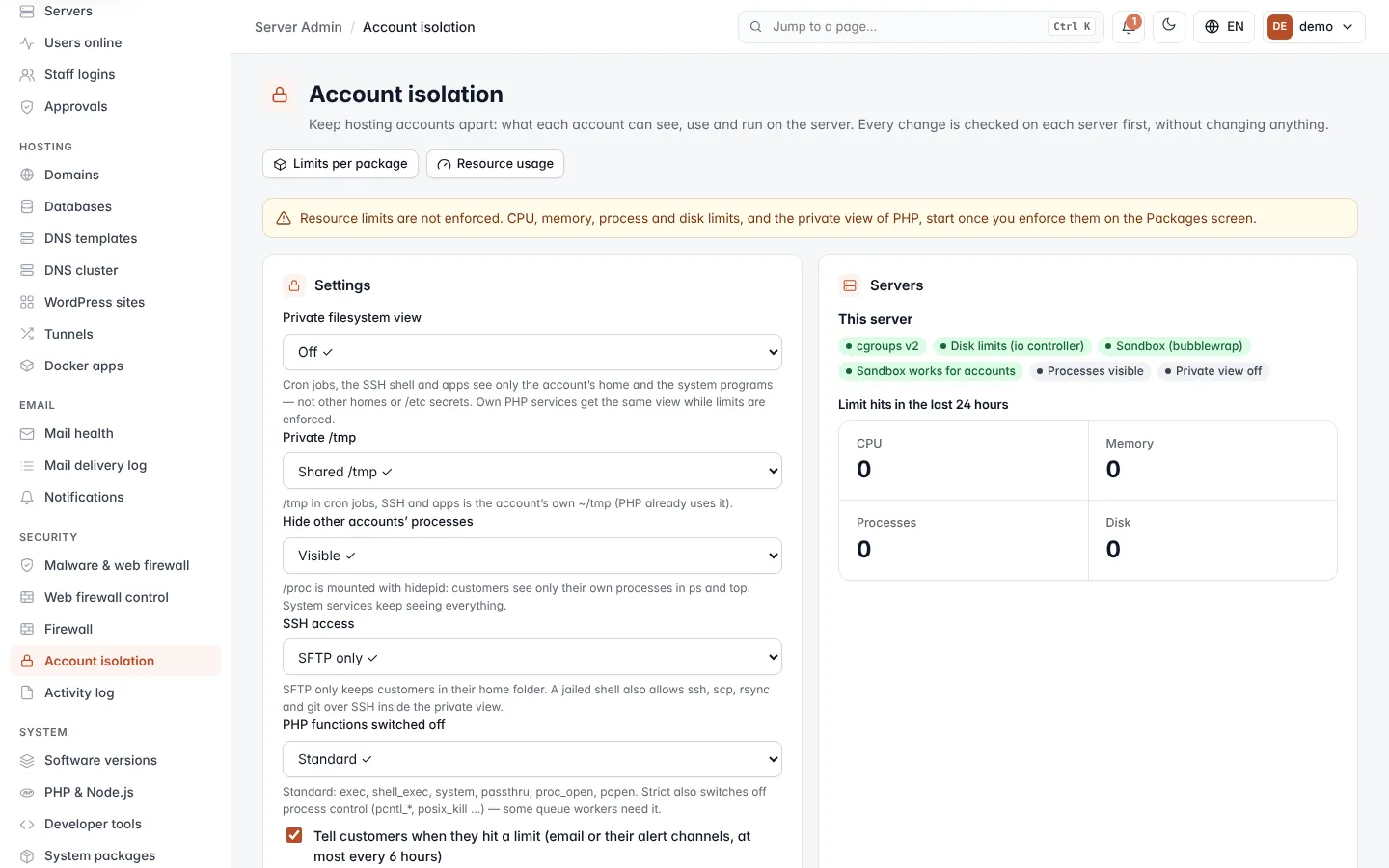
The buttons at the top open Limits per package (the Packages screen) and Resource usage.
Note: if resource limits are not enforced yet, a warning says so. CPU, memory, process and disk limits, and the private view for PHP, start once you enforce them on the Packages screen.
The settings
The first choice in each list is the default. ✓ marks the setting in force.
| Setting | Choices | What it does |
|---|---|---|
| Private filesystem view | Off, On | Cron jobs, the SSH shell and apps see only the account's home and the system programs, not other homes or secrets in /etc. Own PHP services get the same view while limits are enforced. |
| Private /tmp | Shared /tmp, Each account its own | /tmp in cron jobs, SSH and apps is the account's own ~/tmp. PHP already uses it. |
| Hide other accounts' processes | Visible, Hidden | Customers see only their own processes in ps and top. System services still see everything. |
| SSH access | SFTP only, Jailed shell | SFTP only keeps customers in their home folder. Jailed shell also allows ssh, scp, rsync and git over SSH inside the private view. |
| PHP functions switched off | Standard, Strict | Standard switches off exec, shell_exec, system, passthru, proc_open and popen. Strict also switches off process control (pcntl_*, posix_kill and similar), which some queue workers need. |
Tell customers when they hit a limit sends customers an email, or a message on their alert channels, when they reach a limit. It is sent at most every 6 hours.
Change the settings
- Choose the new settings.
- Click Check first. The check runs on every server and changes nothing. The page then shows its findings.
- Read the findings (see below). Fix any problems and check again.
- Click Apply. The settings are put on every server.
A stricter setting can only be applied after a check of exactly these settings, from the last 24 hours, that found no problem. Going back to a default setting always works without a check. The line under the buttons tells you where you are: the settings in force, a change waiting for a check, or a change that is checked and ready.
Important: if one server refuses the change, it stops there. Servers already changed keep the new settings, and the message names them. Apply again, or go back to the earlier settings.
Read the check
The check's card shows when it ran and who ran it, the settings it was for, and labels: the number of problems (or nothing blocks it), warnings, older than a day and in force.
| Result | Meaning |
|---|---|
| ok | Fine. |
| warn | Nothing blocks the change, but read it before you apply. |
| bad | A problem that must be fixed before the settings can be applied. |
| will change | What applying the settings will change. |
Each row also names the Server and the Area it is about.
Servers
The Servers card shows each server's state:
- cgroups v2, Disk limits (io controller), Sandbox (bubblewrap) and Sandbox works for accounts are green when the server supports them, amber when not.
- Processes hidden / Processes visible and Private view on / Private view off show the settings in force on that server.
If a server cannot be asked, it says Could not ask this server — update HF Panel on it.
Limit hits
Limit hits in the last 24 hours counts how often accounts reached their CPU, Memory, Processes and Disk limits. Latest limit hits lists the 20 newest, with the time (UTC), the account and what happened.
What keeps working
The What keeps working card lists what was tested with every setting on, grouped by area: WordPress, PHP apps, Git & SSH, Node.js, Python, Ruby, Limits and Isolation. Open an area to see its checks.
Tip: after changing the settings, run through these checks on a test account.