 HF Panel
Archives and permissions
Zip and extract archives in HF Files, see the total size of a folder, and change file and folder permissions.
HF Files can pack files into .zip archives, unpack them, and change who may read, write and run your files.
Where: HF Files › More (⋯) on an entry, or the buttons above the list when entries are selected
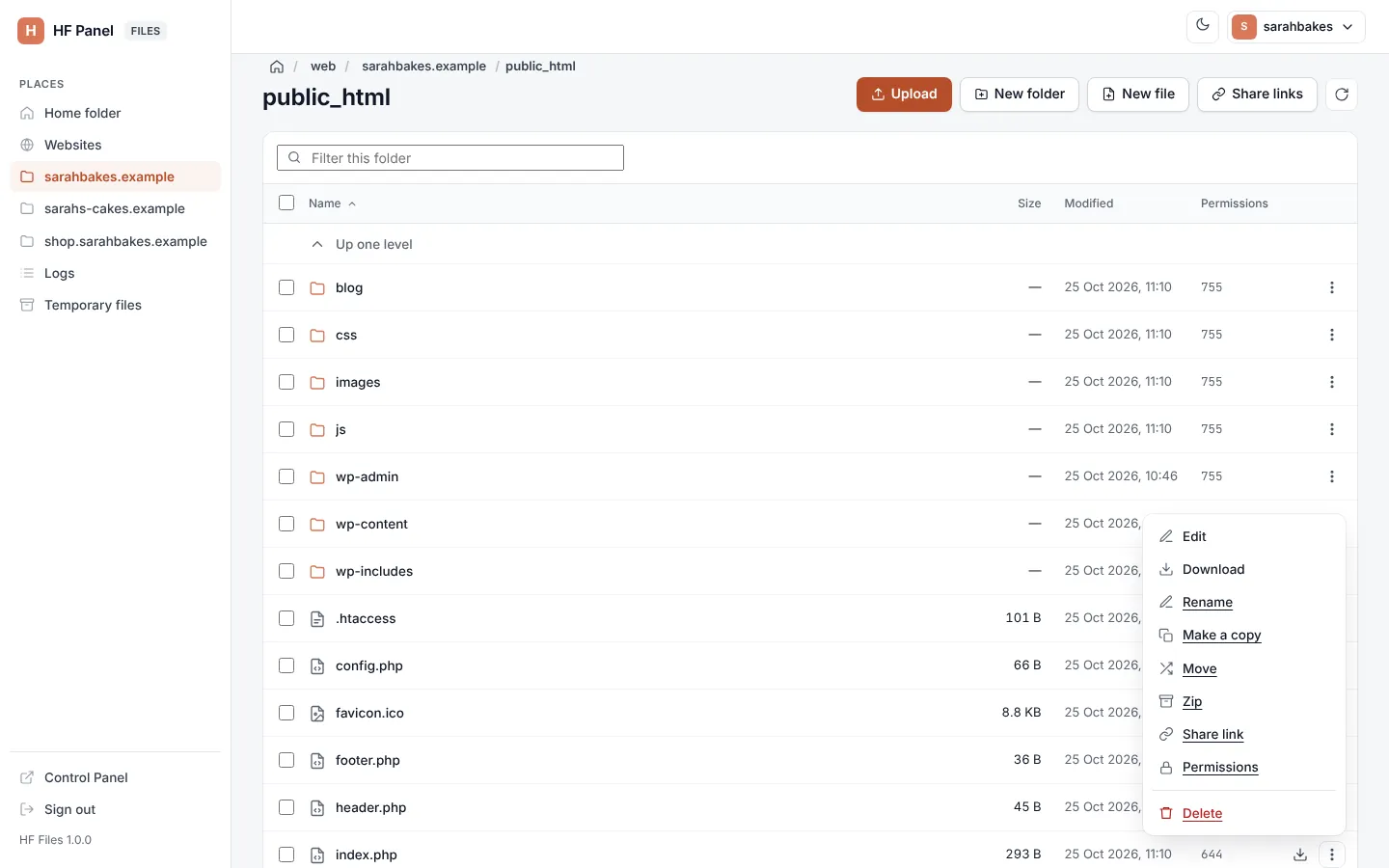
Zip files and folders
- Select the entries (or open the More menu of one entry).
- Click Zip.
- Type the Archive name (
.zipis added when you leave it out) and click Zip.
The archive is made in the same folder. You see Created name. Zipping a large site can take a while; one operation may run for up to 15 minutes.
Extract a zip file
- Open the More menu of a
.zipfile. - Click Extract here.
The contents are unpacked into the current folder, and you see Extracted n item(s). Only .zip archives can be
extracted in HF Files.
Tip: to move a whole website in, zip it on your computer, upload the
.zip, then extract it in the website's folder.
Folder size
The line under the list shows the size of the files in the folder. Click Total size with subfolders to count everything in it, including sub-folders (Everything in this folder: …).
Permissions
The Permissions column shows each entry's mode, such as 644. To change it:
- Open the entry's More menu and click Permissions.
- Tick what Owner, Group and Everyone may do: Read, Write, and Run (for files) or Open (for folders). Or type the three-digit mode.
- Click Save.
You see Permissions changed.
| Usual mode | For |
|---|---|
644 |
files: you can read and write, everyone else can read |
755 |
folders and scripts: you can do everything, everyone else can read and open or run |
Warning: avoid giving Everyone write access (for example
777). Anyone or anything on the server that can reach the file could then change it.