 HF Panel
Backups
Make, download and restore backups and snapshots, restore single files, set your own schedule and export all your data.
The Backups screen keeps copies of your account. A backup holds your website files, databases, email, cron jobs
and settings in one .tar.gz file. From here you make backups, download them, restore all or part of one, browse
snapshots, set your own schedule, and download all your data as a .zip.
Where: Control Panel › Files › Backups
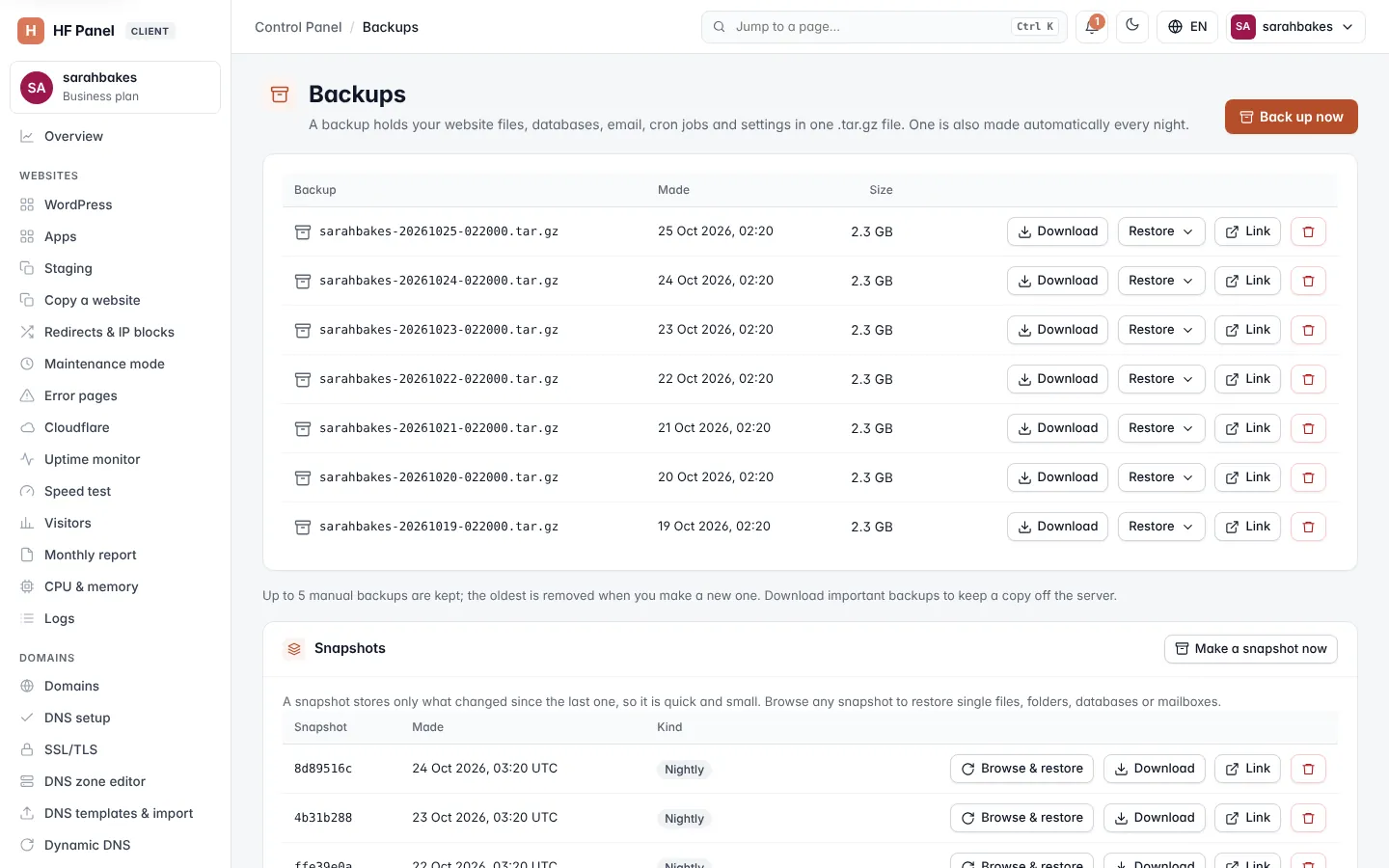
Which parts appear depends on how your hosting provider has set up backups and on your plan. When nightly backups are on, the screen says that one is made automatically every night.
Make a backup now
- Click Back up now at the top right.
The message says when the backup is ready. Up to a set number of manual backups are kept (the note under the list shows how many); the oldest is removed when you make a new one.
Tip: download important backups to keep a copy off the server.
The backups list
Each backup shows when it was Made and its Size.
| Button | What it does |
|---|---|
| Download | downloads the whole backup (.tar.gz) |
| Restore | restores all of the backup or one part of it, or opens the restore picker |
| Link | makes a download link that works without signing in (only when your plan includes download links) |
| Delete (bin icon) | deletes the backup after you confirm |
Restore all or part of a backup
- Click Restore next to the backup.
- In What to restore, choose Everything, Website files only, Databases only, Email only or Cron jobs only.
- Type
RESTOREin Type RESTORE to confirm. - Click Restore.
Warning: current versions are overwritten with the ones in the backup. Files added since the backup are kept.
Note: when your hosting provider restores for you using Log in as, the restore may need approval from another administrator first.
Restore single files, databases or mailboxes
Click Restore › Restore one file, database or mailbox… to open the restore picker (Restore from a backup). Only what you pick is put back; everything else stays as it is now.
Website files
Browse the backup's web folder: click a folder to open it, use the path at the top or Up one folder to go
back. For each file and folder:
| Button | What it does |
|---|---|
| Download | downloads that one file from the backup |
| Restore as a copy | restores it next to the current version, without overwriting anything |
| Put back | replaces the current version after you confirm. For a folder, newer versions are overwritten and files added since are kept. |
When you are inside a folder, This whole folder: offers the same buttons for the folder itself. A name the picker cannot handle shows restore its folder instead.
Databases and mailboxes
- Click Restore next to a database to replace it with the copy in the backup. Changes made since then are lost. The database must still exist in your account; create it again first if you deleted it.
- Click Restore next to a mailbox to put its mail back. Messages received since then are kept.
- Click As a folder next to a mailbox to put the old mail into a new folder Restored-
that you can open in webmail, next to the current mail.
Restore several items at once
- Tick the files, folders, databases or mailboxes you want. The bar at the top shows how many are ticked.
- Click Restore into restored/ to put files and folders into
web/restored/<date>/(and mail into a restored folder), leaving what you have now untouched — or Put back where they were to overwrite.
You can restore up to 50 items at once. Clear unticks everything. ← Backups goes back to the list.
Off-server copies
When your hosting provider keeps copies in separate storage, Off-server copies lists them, with how many days they are kept. Copies marked encrypted are encrypted. Click Restore next to a copy: the copy is brought back to the server first (it then also appears in the backups list) and restored the same way.
Copies on other storage shows one button per extra storage your provider uses. Pick one to see its copies and restore from them.
Snapshots
A snapshot stores only what changed since the last one, so it is quick and small. The Snapshots card also says how many days nightly snapshots are kept, plus one a week for how many weeks, when your provider makes them.
- Click Make a snapshot now to make one.
- Click Browse & restore next to a snapshot to open it in the restore picker (Restore from a snapshot).
Each snapshot shows when it was Made (UTC) and its Kind: Nightly, Scheduled or Manual. You can
also Download a whole snapshot as .tar.gz, make a Link for it, or delete it.
Your backup schedule
If your plan includes scheduled backups, Your backup schedule makes snapshots on your own timetable.
- Choose How often: Off, Every day or Every week.
- For weekly, choose the Day.
- Choose the hour in At (UTC).
- Set Keep — how many to keep, up to your plan's limit.
- Click Save.
The card shows the Next run and the result of the Last one. If the card says Scheduled backups are not part of your plan, ask your hosting provider.
Download links
A download link lets another server or a colleague download a backup or snapshot without signing in.
- Click Link next to a backup or snapshot.
- Copy the address from the message. It is shown only once.
Each link works for the number of hours your plan allows. Download links lists the active links, until when each works and how often it was downloaded. Click Stop to end a link now.
Download all your data
Download all your data makes one .zip with everything in plain folders — your websites' files, each database as
an .sql file, every mailbox and your cron jobs — to keep, or to take to another host.
- Click Make my export.
- When the message appears, click the download link in it.
The export uses your newest backup if it is less than an hour old; otherwise a new backup is made first. Making it can take a few minutes for a big account. It stays ready for 24 hours.