 HF Panel
SSL/TLS
Free Let's Encrypt certificates that renew themselves, AutoSSL, wildcard certificates, your own certificate and the always-https:// switch.
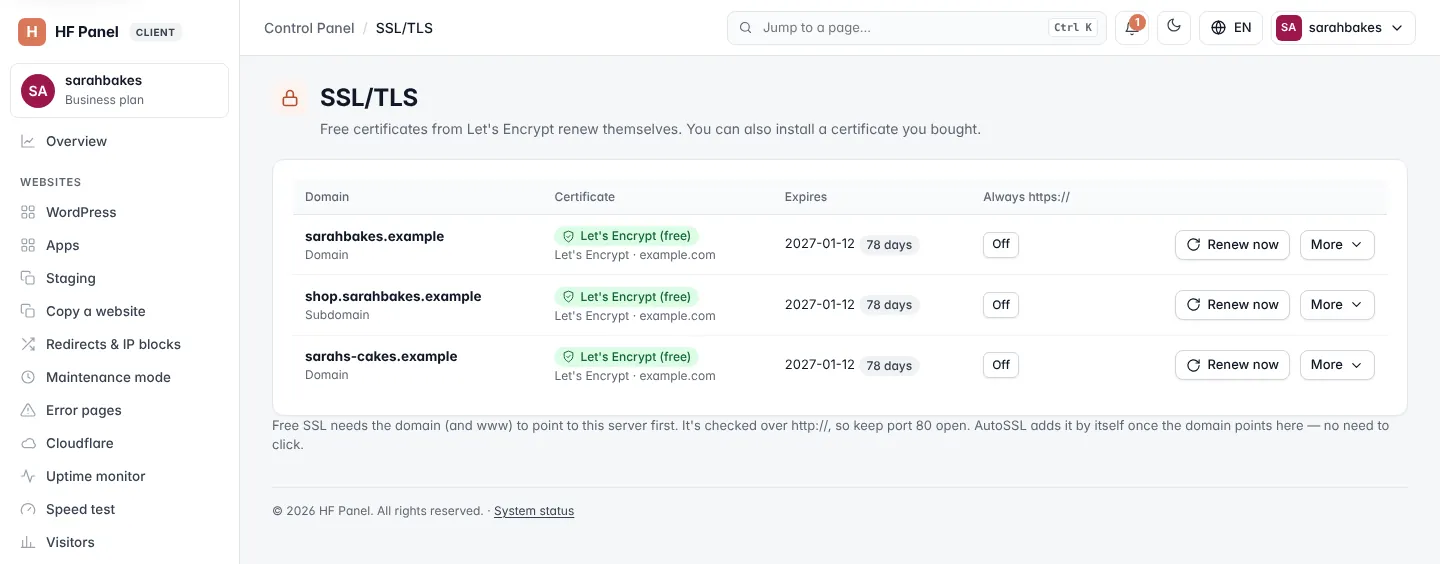
The SSL/TLS screen shows the certificate of each of your domains. Free certificates from Let's Encrypt renew themselves. You can also get a wildcard certificate or install a certificate you bought.
Where: Control Panel › Domains › SSL/TLS
AutoSSL
When AutoSSL is switched on (it is by default), you don't need to do anything: a free certificate is added by itself within minutes of a domain pointing to the server. AutoSSL checks every 5 minutes. A domain that doesn't point here yet is tried again later — after 1 hour, then 2 hours, and so on up to once a day.
For a domain without a certificate, the Certificate column shows what AutoSSL is doing, for example "AutoSSL: the domain doesn't point here yet. Next try 14:05 UTC."
Important: free SSL needs the domain (and
www) to point to this server first. It's checked overhttp://, so keep port 80 open. See DNS setup.
The certificates table
| Column | What it shows |
|---|---|
| Domain | the domain and its kind (Domain, Subdomain or Parked) |
| Certificate | Let's Encrypt (free) or Your own, with the issuer and the names it covers — or None |
| Expires | the expiry date and the days left (amber under 30 days, red under 14) |
| Always https:// | On or Off — click to switch |
Get a free certificate now
- Find the domain with None in the Certificate column.
- Click Get free SSL.
You can watch the steps in a live window. When it is done, free SSL is live on the domain, it renews by itself every 60 days, and Always https:// is switched on.
Renew a certificate now
Free certificates renew by themselves. To renew one at once, click Renew now on its row.
Always use https://
When Always https:// is On, visitors who open http:// are sent to https://. Click the button to switch it
Off (http:// then works again without a redirect) or back On.
Get a wildcard certificate
A wildcard certificate covers a main domain and every subdomain, now and later — for example yourdomain.com and
*.yourdomain.com.
- Click More on a main domain's row.
- Under Wildcard certificate (*.yourdomain.com), click Get wildcard SSL.
The message lists the subdomains it also covers. Every subdomain you add later is covered too, and it renews by itself.
Note: a wildcard certificate needs the domain to use our nameservers. The option only appears when the server runs DNS for your account.
Install your own certificate
Use this for a certificate you bought from a certificate authority.
- Click More on the domain's row.
- Under Install your own certificate, paste:
- Certificate (CRT) — starting with
-----BEGIN CERTIFICATE----- - Private key — starting with
-----BEGIN PRIVATE KEY-----(RSA and EC keys work too) - CA bundle (optional) — the intermediate certificates
- Certificate (CRT) — starting with
- Click Install certificate.
All parts must be in PEM format. Always https:// is switched on.
Warning: your own certificate does not renew by itself. Replace it before it expires.
Remove a certificate
- Click More on the domain's row.
- Click Remove SSL and confirm.
The domain then works on http:// only, and AutoSSL is switched off for it. To switch AutoSSL back on, click
Get free SSL.
Related
- DNS setup
- Domains
- Domain names & SSL — buy a paid certificate, when offered
- Speed test