 HF Panel
Composer
Run composer install, update, dump-autoload or validate for a PHP project, as your account with your website's PHP.
The Composer screen installs and updates a PHP project's packages with Composer. It runs as your account, with your website's PHP version, and you follow each run live.
Where: Control Panel › Software › Composer
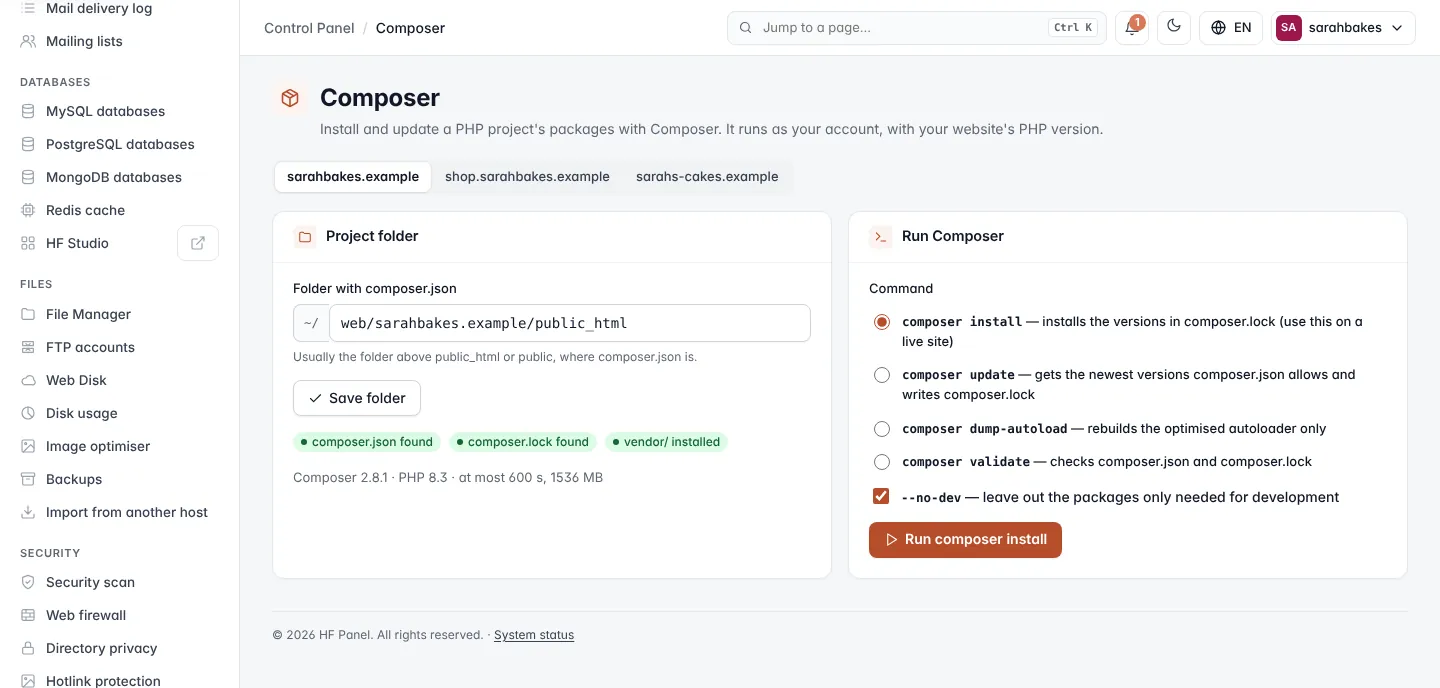
Choose the project folder
- Pick the website at the top (when you have more than one).
- Under Project folder, check Folder with composer.json — a folder inside your home, for example
web/example.com. It is usually the folder abovepublic_htmlorpublic, wherecomposer.jsonis; HF Panel suggests that folder at first. - Click Save folder if you changed it.
The card then shows what the folder holds — composer.json (found or missing), composer.lock (found or missing) and vendor/ (installed or not installed yet) — plus the Composer version, the PHP version and the time and memory limits your hosting provider allows for each run.
Run a Composer command
-
Under Run Composer, choose the Command:
Command What it does composer install installs the versions in composer.lock(use this on a live site)composer update gets the newest versions composer.jsonallows and writescomposer.lockcomposer dump-autoload rebuilds the optimised autoloader only composer validate checks composer.jsonandcomposer.lock -
Leave --no-dev ticked to leave out the packages only needed for development (not shown for validate).
-
Click Run composer ….
A window shows the output while Composer runs. The folder you typed is saved for the website. The button is
switched off while composer.json is missing.
Last run
Last run shows whether the last command Finished or Failed, the command and folder, when it ran and how long it took — or the error.