 HF Panel
Security scan
Scan your websites for malware, quarantine, delete or mark findings safe, and manage the web firewall per website.
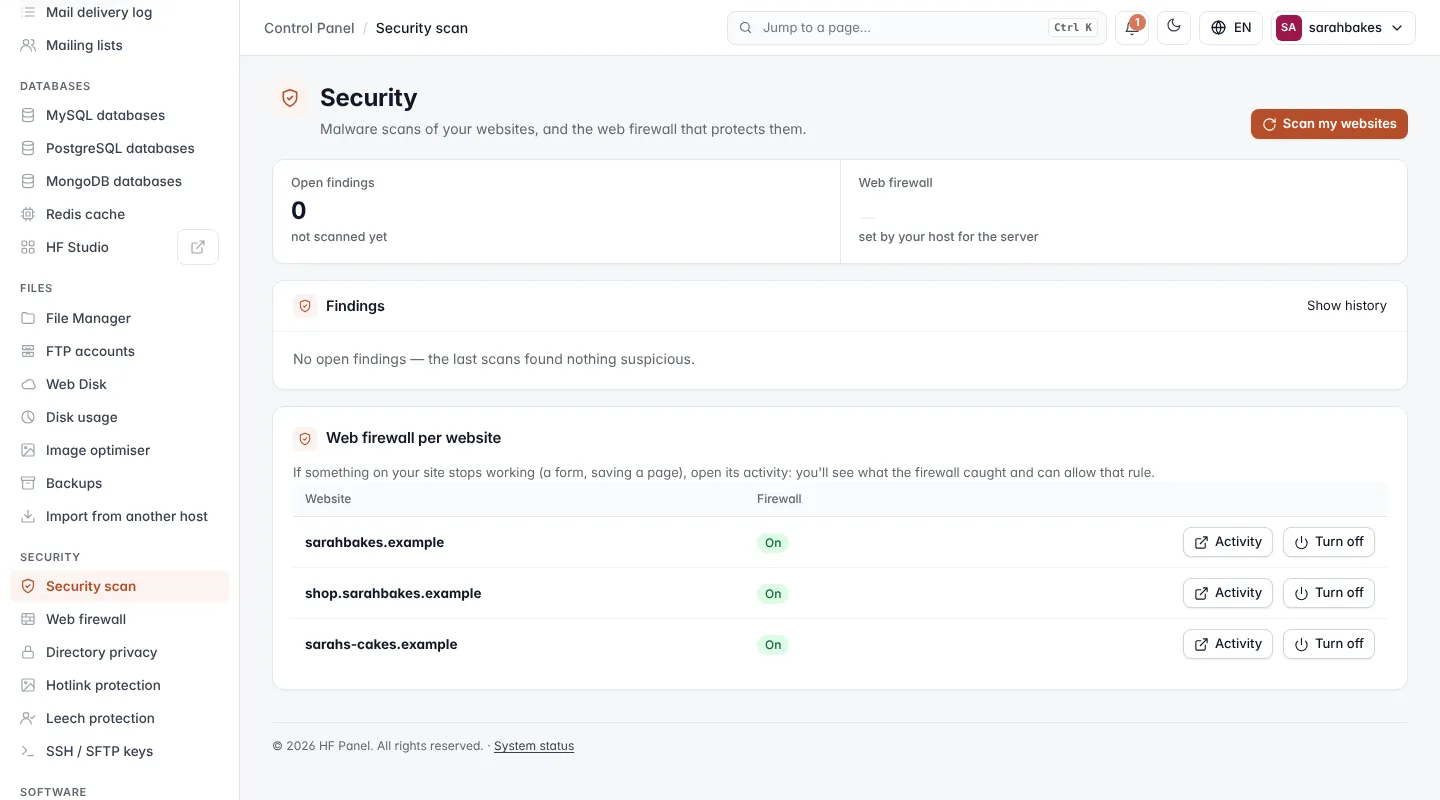
The Security scan screen (titled Security) shows the malware scans of your websites and the web firewall that protects them. Files are checked by ClamAV and by HF Panel's own PHP check.
Where: Control Panel › Security › Security scan
Figures
| Figure | What it shows |
|---|---|
| Open findings | suspicious files that still need a decision, and the time of the last scan (UTC) or not scanned yet |
| Web firewall | the firewall mode your hosting provider set for the server: Blocking attacks, Logging only or Off |
Scan your websites
- Click Scan my websites.
The scan runs in the background. You can start one at most every 10 minutes. Your hosting provider may also scan every night.
Deal with findings
When suspicious files are found, a warning appears: quarantine them (they stop running, and you can put them back), then update WordPress, its plugins and themes, and change your passwords.
The Findings table shows the File (inside web/), the Threat found and which check found it, when it
was Found, and its Status.
| Button | What it does |
|---|---|
| Quarantine | moves the file out of the way so it stops running; you can put it back |
| Delete | deletes the file for good, after you confirm |
| It's safe | marks the file as safe, after you confirm. Only do this if it is part of your own code. |
| Put back | for a quarantined file: puts it back, after you confirm. It can run again. |
Statuses are Found, In quarantine, Marked safe, Deleted, Put back and Cleaned (the file is gone). The table shows open findings; click Show history to see all of them, and Show open only to go back.
Web firewall per website
Web firewall per website lists your websites with their firewall On or Off, and how many rules are allowed on each.
- Turn on / Turn off switches the firewall for one website (turning off asks first).
- Activity opens Firewall activity for that website.
Firewall activity
The activity card lists the requests the firewall blocked (or flagged, when the server is in logging mode), newest first: When, Visitor IP address, Address requested, and Why — Blocked or Logged, the message and the rule numbers.
If a normal action of your site (saving a page, a form, a plugin) shows up here, click Allow with the rule number to let that rule through on this website only, and confirm. Allowed rules on this website lists them; click a rule's × to apply it again. Close hides the card.
Warning: allow a rule only for a false alarm. Every allowed rule makes the website a little less protected.