 HF Panel
Rows and structure
Browse, search, filter and sort a table's rows in HF Studio, add, edit and delete rows, and see the table's structure.
The Rows tab shows a table's rows page by page. The Structure tab shows how the table is built.
Where: HF Studio › a database › a table › Rows or Structure
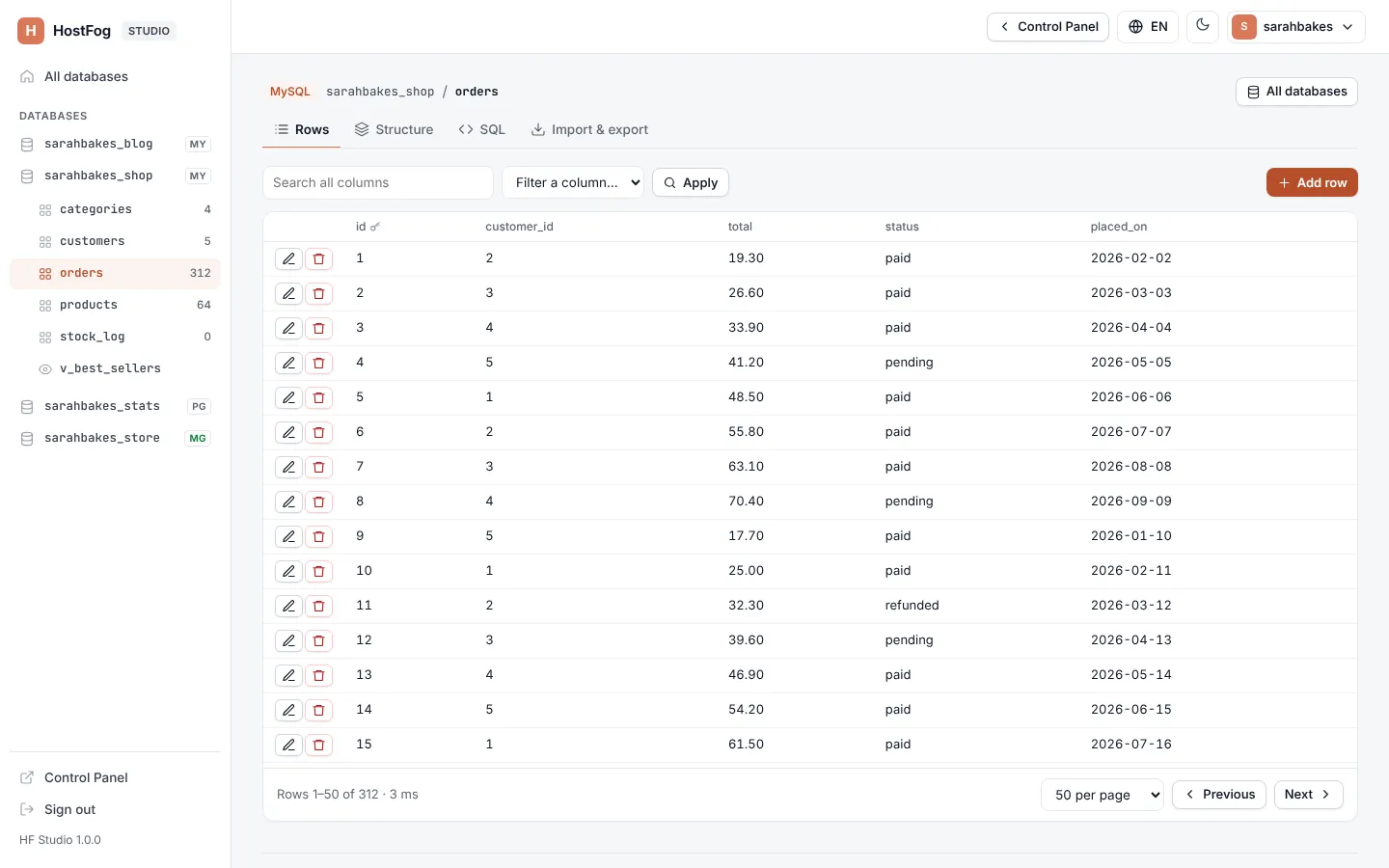
Browse rows
- Page size: choose 25 per page, 50 per page, 100 per page or 250 per page. Previous and Next move between pages; the heading shows Rows 1–50 of 1,234.
- Sort: click a column heading. Click again to reverse.
- Search all columns: type a text and press Enter to find rows that contain it in any column.
- Filter a column: choose a Column, a Condition and a Value, then click Apply. Clear removes the filter.
| Condition | Matches rows where the column |
|---|---|
| contains / does not contain | contains the text, or doesn't |
| = / ≠ | equals the value, or doesn't |
| < / > / ≤ / ≥ | is smaller or bigger than the value |
| is NULL / is not NULL | is empty (NULL), or isn't |
Long values are cut short in the list (300 characters). NULL values are shown as NULL.
Add a row
- Click Add row.
- Fill in a Value for each Column. Columns with a Default can be left empty. Columns marked Computed by the database can't be set.
- Click Save.
Edit or delete a row
Click Edit on a row (or open its Actions), change the values and click Save. To delete it, click Delete row and confirm.
- Binary values are typed as hex: Binary: type 0x… hex.
- A value longer than 1 MB shows Too long to edit here — use SQL.
Note: a table without a primary key can't be changed here, because HF Studio could not be sure which row it changes. The page says so; use the SQL box instead.
Every change is written to the account's activity log.
Structure
The Structure tab shows:
| Section | What it shows |
|---|---|
| Columns | each column's Name, Type, Null, Default, Key and Extra |
| Indexes | the indexes, marked primary, unique or index |
| Foreign keys | links to other tables |
| CREATE statement | the SQL that creates the table (for a view: View definition) |
Views are marked view in the side menu and show their rows like tables, read-only.