 HF Panel
HF Studio
Open HF Studio, the database browser for your MySQL, PostgreSQL and MongoDB databases, signed in from the Control Panel.
HF Studio is the database browser of HF Panel. It shows the tables, rows and structure of your MySQL and PostgreSQL databases and the collections of your MongoDB databases, and lets you run queries, import and export. It is its own app and opens in a new browser tab.
Where: Control Panel › Databases › HF Studio
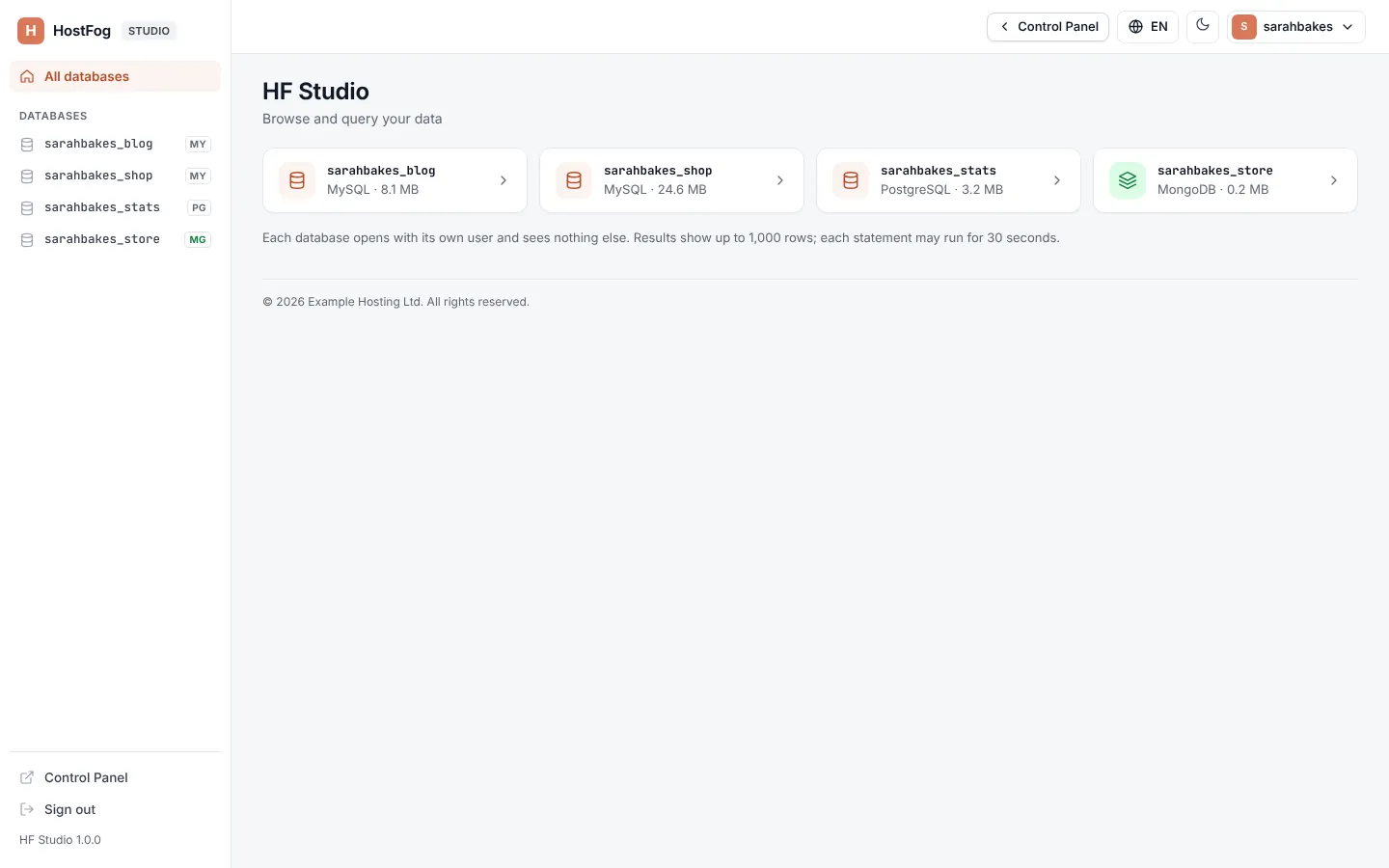
Open HF Studio
- Click HF Studio in the menu, or Open HF Studio on any database screen.
HF Studio opens in a new tab, already signed in to your account. The link is single-use and is valid for 2 minutes, so it cannot be reused or shared.
To open one database straight away, click Browse next to it on MySQL databases, PostgreSQL databases or MongoDB databases.
How HF Studio connects
You do not type database passwords. HF Studio never connects as the server's administrator; it uses a hidden login for each database:
| Engine | How HF Studio signs in |
|---|---|
| MySQL | a hidden database user for that database, with a new random password each time HF Studio opens it |
| PostgreSQL | a login that is a member of the database's owner role, renewed when you open the database |
| MongoDB | a hidden user with read-write access to that database only, valid for 4 hours |
The hidden MySQL user does not appear in your list of database users, and it is removed when you delete the database.
Note: when your hosting provider or a team member opens HF Studio for you, their name is written in HF Studio's activity log.