 HF Panel
Staging
Make a private, password-protected copy of any website, try changes there, then push files, database or both to the live site.
Staging gives a website a private copy where you can try updates and changes safely. When you are happy, you push the copy to the live site in one click. A full backup of your account is taken before every push, so you can undo it.
Where: Control Panel › Websites › Staging
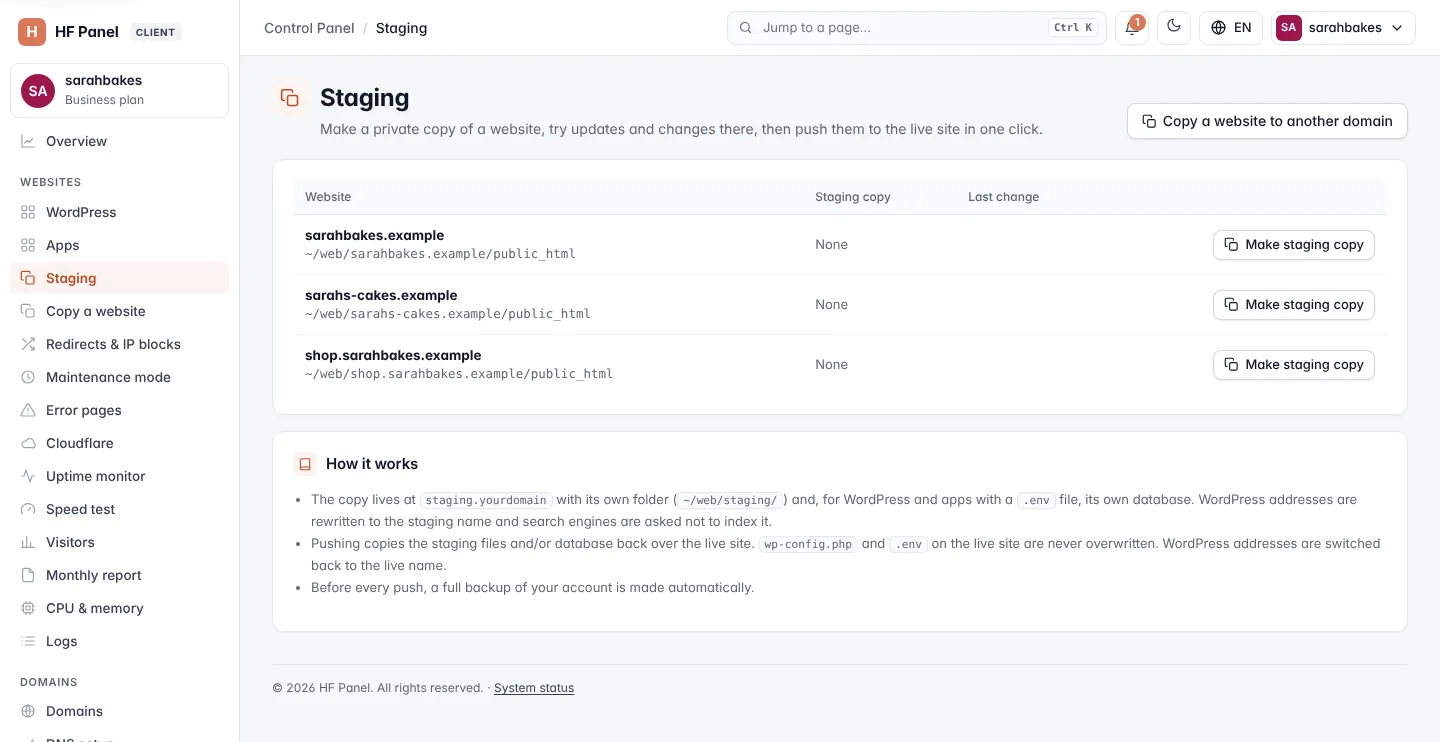
How it works
- Any website can have a staging copy: WordPress, another app or plain files.
- The copy lives at
staging.yourdomain.com(or a name you choose, such astest.yourdomain.com), with its own folder under~/web/staging/. - For WordPress, and for apps with a
.envfile, the copy gets its own database. WordPress addresses are always rewritten to the staging name. For other apps the address is only replaced when you tick Replace the address in the database (a plain text replacement of//yourdomain.comwith//staging.yourdomain.com, and back when the database is pushed). - By default the copy asks for a login (user
staging, a random password shown once) and tells search engines not to index it (anX-Robots-Tag: noindexheader; WordPress also gets Discourage search engines). - Pushing copies the staging files and/or database back over the live site.
wp-config.phpand.envon the live site are never overwritten. WordPress addresses are switched back to the live name. - Before every push, a full backup of your account is made automatically.
The table lists each of your websites (parked domains and staging copies themselves are left out):
| Column | What it shows |
|---|---|
| Website | the live domain and its folder |
| Staging copy | the copy's address, its kind (Files, WordPress or App with .env) and its database — or None |
| Last change | when the copy was made, last refreshed or last pushed |
Make a staging copy
- Find the website and click Make staging copy.
- Fill in the form and click Make staging copy again:
| Field | What it does |
|---|---|
| Staging name | the first part of the copy's address: test makes test.yourdomain.com. Empty = staging.yourdomain.com. Letters, numbers and -; not www or mail. |
| Password-protect it | on by default: the copy asks for the login staging and a random password |
| Tell search engines not to index it | on by default |
| Replace the address in the database (apps that aren't WordPress) | off by default: replaces the live address with the staging one in the database copy |
The files, and the database if the site has one, are copied. The message tells you the copy's address, whether it has its own copy of the database and, when it is protected, its password.
Important: write down the password from the message. It is not shown again — click New password in the menu to get another, or change the login on the Directory privacy page.
Tip: to open the copy over HTTPS, point its DNS to the server and get a free certificate on the SSL/TLS page.
A website can have one staging copy. You can't make one when:
- the website is a parked domain — make the copy of the website it shows;
- the website already has a staging copy;
- the staging name is already in use — remove that domain first.
Push the staging copy to the live site
- Click Push to live.
- Choose what to push:
| Option | What it replaces |
|---|---|
| Files and database | the live site's files and database. Orders, comments or sign-ups made on the live site since the copy was made are lost. |
| Database only | the live database |
| Files only | the live site's files. wp-config.php and .env are kept. |
- Confirm.
The database options only appear when the staging copy has a database. The message names the backup taken first. The copy's password protection and noindex header are never carried over to the live site: after the push, the live site's own Directory privacy is written back.
Tip: to undo a push, restore that backup on the Backups page.
Pull from live
To throw away the changes on the staging copy and start again from the live site:
- Click the arrow button next to Push to live.
- Click Pull from live and confirm.
The protection, the noindex header and the address replacement are applied again after the copy.
Protection and search engines
The same menu has:
- Password-protect it / New password — turns the login on, or gives it a new random password (shown once).
- Remove protection — the copy is public again.
- Tell search engines not to index it / Let search engines index it — the noindex header on or off.
Delete a staging copy
- Click the arrow button next to Push to live.
- Click Delete staging copy and confirm.
The staging site, its files and its database copy are deleted. The live site is not touched.
Related
- Copy a website — a permanent copy on another domain
- WordPress
- Backups
- SSL/TLS