 HF Panel
PGP keys
Make or import a PGP key in HF Mail, encrypt and sign messages, read encrypted mail and keep the keys of people you write to.
HF Mail can encrypt and sign your messages with PGP. Your key is made and unlocked in your browser. The server only keeps it locked with your passphrase, and the passphrase is never sent to the server.
Where: HF Mail › Tools › PGP keys
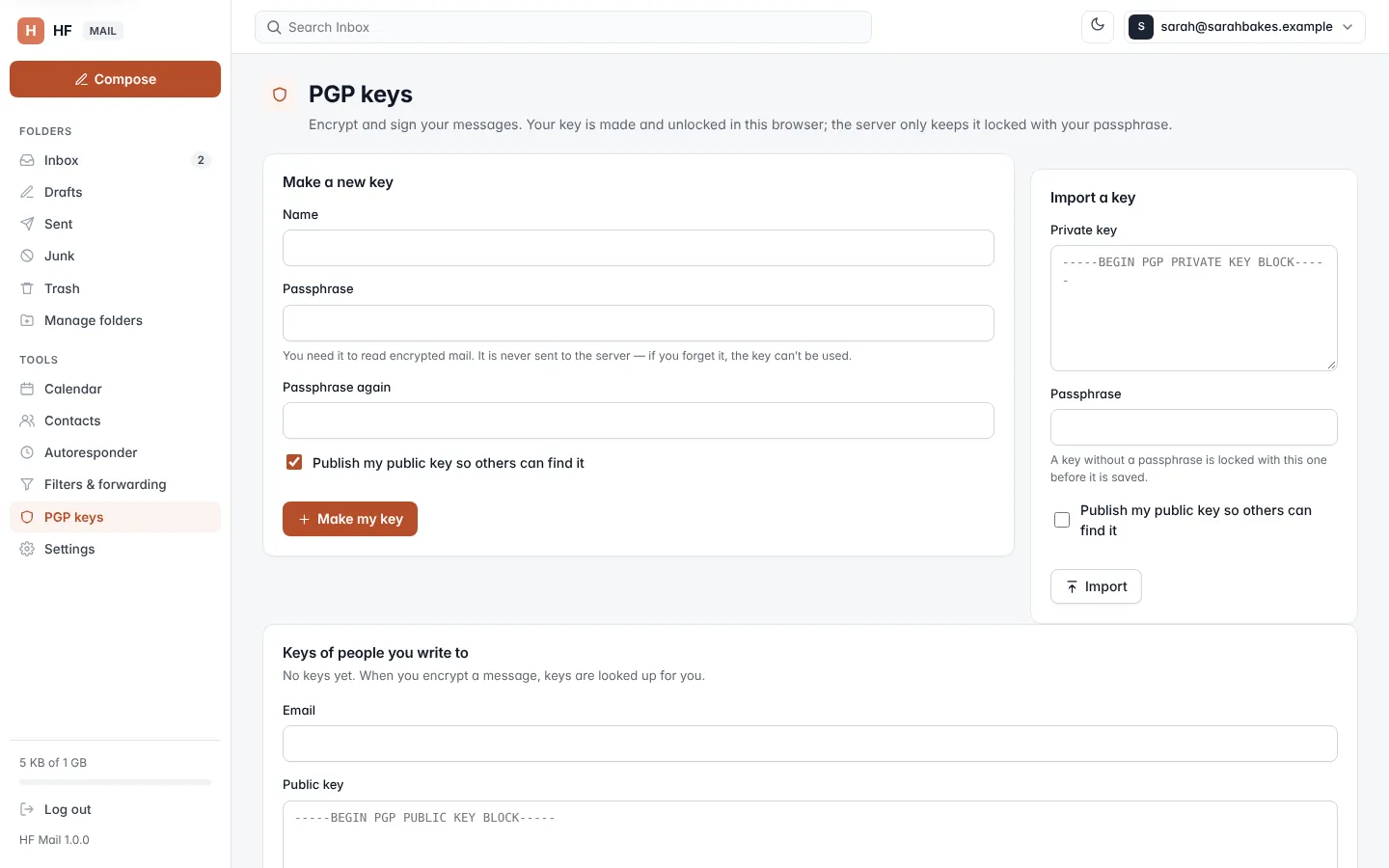
Make a new key
- Open PGP keys.
- Under Make a new key, type your Name.
- Type a Passphrase of at least 8 characters, and type it again in Passphrase again.
- Tick Publish my public key so others can find it if you want other people's mail apps to find your key.
- Click Make my key.
Warning: you need the passphrase to read encrypted mail. If you forget it, the key can't be used, and no one can recover it.
Import a key
- Under Import a key, paste your Private key (it starts with
-----BEGIN PGP PRIVATE KEY BLOCK-----). - Type its Passphrase. A key without a passphrase is locked with this one before it is saved.
- Optionally tick Publish my public key so others can find it.
- Click Import.
Your key
Once you have a key, Your key shows its Address, Fingerprint, when it was Saved, and whether it is Published or Not published.
| Button | What it does |
|---|---|
| Download public key | saves the public key, to give to others |
| Download private key (locked) | saves a backup of your key, still locked with your passphrase |
| Publish my public key / Stop publishing | lets other mail apps find your public key, or stops it |
| Remove | removes your key from the server after you confirm |
Warning: after Remove, messages encrypted to your key can only be read again after you import the key. Download the private key first.
The section Where other mail apps find your published key (Web Key Directory) lists the addresses other mail apps look up. Your hosting provider sets them up for your domain.
Keys of people you write to
To encrypt a message, HF Mail needs each recipient's public key. Keys of people you write to lists the keys you have, and where each came from: Found online, This server (another mailbox on the same server) or Added by you.
- Add a key by hand: type the Email and paste the Public key, then click Save key.
- Look one up: type the Email and click Find their published key.
- Remove a key: click the remove button next to it.
When you encrypt a message, missing keys are looked up for you.
Encrypt and sign a message
When you have a key, the editor shows two choices under the message:
- Encrypt: only the recipients (and you) can read the message. Each recipient is shown with a tick when HF Mail has their key, or no key.
- Sign: recipients can check that the message is really from you.
Type Your key's passphrase when asked, then click Send. Encryption happens in your browser before the message leaves it.
If you have no key yet, the editor says To encrypt or sign, make your PGP key under Tools → PGP keys.
Read encrypted mail
An encrypted message shows This message is encrypted. Type your passphrase to read it; it is decrypted in your browser and shown as Decrypted message. A signed message shows whether the signature is good, for example Signed by sarahbakes@yourdomain.com — the signature is good.
Key history
Key history lists the changes to your keys (When, What, Details and From which address), such as Key saved, Publishing changed and Correspondent key saved.