 HF Panel
The editor
Edit code and text files in the browser with the HF Files editor, with line wrapping, tab indentation and Ctrl+S to save.
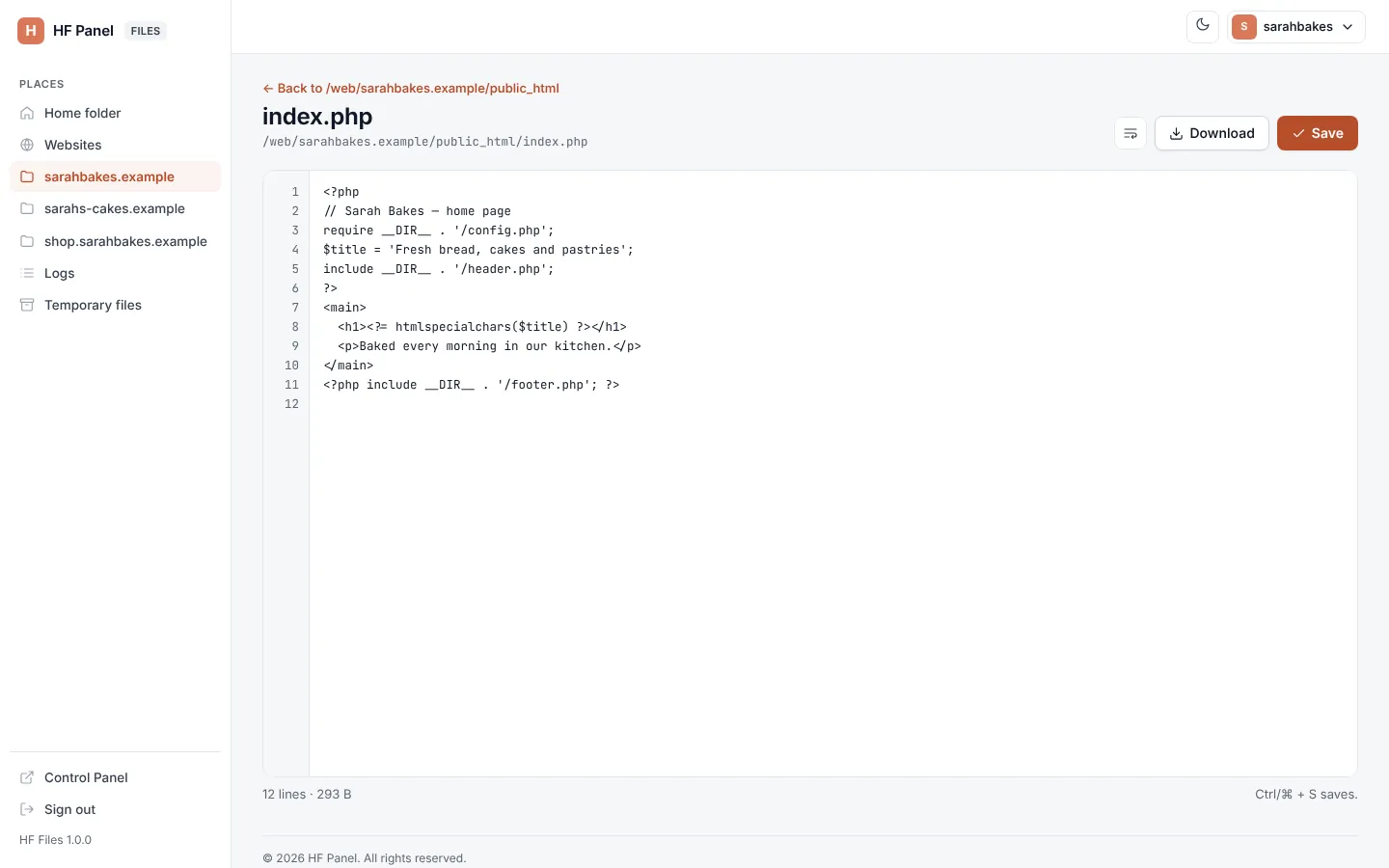
HF Files has a text editor for code and configuration files. Click a text file in the folder view to open it.
Where: HF Files › click a text file (or More › Edit)
Which files open in the editor
Text and code files up to 5 MB open in the editor, for example .php, .html, .css, .js, .ts, .json,
.xml, .svg, .md, .txt, .ini, .conf, .env, .yml, .sql, .py, .sh, .htaccess, .twig, .vue
and .blade files. Bigger files and other types can be downloaded instead.
Edit and save
- Click the file. It opens with its name and the path of its folder (← Back to folder).
- Make your changes. A Not saved label appears while there are unsaved changes, and the tab title starts with a dot.
- Click Save, or press
Ctrl+S(⌘+Son a Mac).
You see Saved filename. The bottom bar shows the number of lines and the file's size.
| Control | What it does |
|---|---|
| Wrap long lines | wraps lines to the width of the window, or turns wrapping off |
| Download | saves the file to your computer |
Tab |
inserts four spaces |
If you try to leave with unsaved changes, HF Files asks You have changes that are not saved. Leave without saving?
Read-only files
A file your account can't write shows Read-only, and the bottom bar says This file is read-only. You can read and download it, but not save it. Change its permissions first if it is your own file.