 HF Panel
Domains
See every domain on the server, add a domain, subdomain or parked domain for a customer, change a website folder or remove a domain.
The Domains screen lists every domain, subdomain and parked domain of the accounts you look after, with the account that owns it, its website folder, PHP version, SSL state and email. From here you can add a domain to a customer's account without logging in as them, and change or remove an existing one.
Where: Server Admin › Hosting › Domains
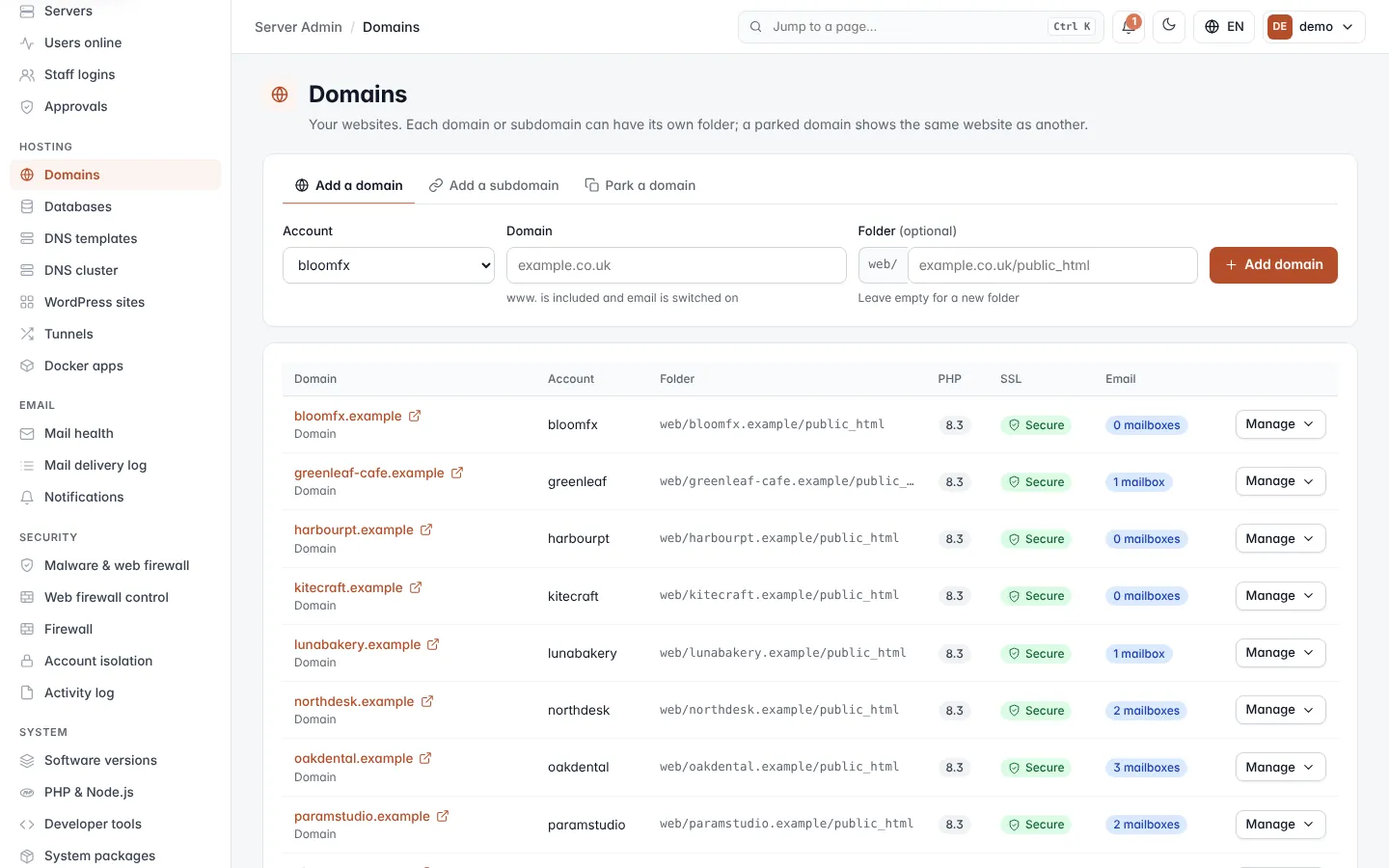
Read the domains list
Main domains are listed first, each followed by its subdomains and parked domains (drawn indented).
| Column | What it shows |
|---|---|
| Domain | The domain, as a link that opens the website in a new tab. Below it: its kind and, for a parked domain, the domain it shows. For main domains, the registration end date if it is known. |
| Account | The customer account that owns the domain. |
| Folder | The website's folder inside the account, for example web/yourdomain.com/public_html. A parked domain shows same as its main domain. |
| PHP | The PHP version the website runs (8.3 when none has been chosen). |
| SSL | Secure (a free certificate), Own cert (an uploaded certificate) or No SSL. |
| How many mailboxes the domain has, or Off when email is switched off for it. Shown only when email hosting is on. |
The registration date changes colour as it gets close:
- Registered until date: more than 30 days left.
- Renew by date: amber within 30 days, red within 7 days.
- Registration ended: the registration date has passed.
Add a domain for a customer
- Open the Add a domain tab.
- In Account, choose the customer. Only active accounts are listed.
- In Domain, type the domain without
http://orwww, for exampleyourdomain.com.www.is included automatically, and email is switched on for the domain when email hosting is on. - Optionally, type a Folder inside
web/. Leave it empty to create a new folder for the domain. - Click Add domain.
The message that appears links to the domain's DNS setup. A free SSL certificate is added by itself within a few minutes of the domain pointing at the server.
The domain is refused when:
- it is already on this server,
- it is an HF Tunnel address,
- a name under it already belongs to another account,
- it looks like a subdomain of a domain the account already has (add it as a subdomain instead), or
- the account's package has reached its domain limit.
Add a subdomain
- Open the Add a subdomain tab.
- In Subdomain, type the first part of the name, for example
shop. - In Of domain, choose the main domain. The account is the one that owns that domain.
- Optionally, type a Folder inside
web/. Leave it empty to give the subdomain its own new folder. - Click Add.
| Field | What it does |
|---|---|
| Subdomain | Letters, numbers and dashes. www is not allowed. |
| Of domain | One of the account's main domains (not a subdomain or parked domain). |
| Folder | The subdomain's website folder inside web/. Letters, numbers, ., _, - and / only, and not inside repositories/. |
Park a domain
A parked domain is another name that shows the same website as one of the account's main domains.
- Open the Park a domain tab.
- In Parked domain, type the extra domain, for example
example.net. - In Shows the website of, choose the main domain whose website it should show.
- Click Add.
Note: the Add a subdomain and Park a domain tabs appear only when those features are available, and they ask you to add a main domain first if the accounts have none yet.
Change a website's folder
- Click Manage on the domain's row.
- Under Website folder, type the new folder inside
web/. - Click Save.
The website then serves files from the new folder. A parked domain has no folder of its own: it always shows its main domain's folder.
Remove a domain
- Click Manage on the domain's row.
- Tick Also delete its files if you want the website's files removed too (not offered for parked domains).
- Click Remove domain.
The domain's email goes with it, and for a main domain its DNS zone too. If the domain is a staging copy, the staging copy is removed.
Warning: removing a domain deletes its mailboxes. With Also delete its files ticked, its website folder is deleted as well. Make sure there is a backup first.
Pointing a domain at the server
When DNS hosting is on, the Pointing a domain here card at the bottom shows the two ways to point a domain at
this server: set the listed nameservers at the domain registrar (each has a Copy button), or keep the current
DNS and add an A record for the domain and www that points to the server's IP address.